Leeds Beckett University - City Campus,
Woodhouse Lane,
LS1 3HE
Meeting Rooms AV Assistant


Meeting Rooms AV Assistant
Press the touch panel to power on the meeting room AV. From the panel, you have the following options:
- Change Source - Select the source you wish to display (e.g. a laptop you've plugged in).
- Blank Image - This will blank the output to the main display in the meeting room.
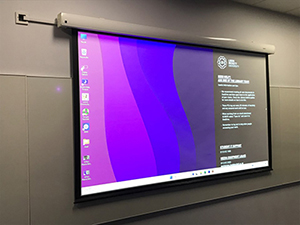
By default, the display will show what's on the meeting room PC. Alternatively you can connect a laptop using an HDMI cable and select Change Source > Laptop HDMI on the panel.
Some meeting rooms have the option to connect your laptop via USB – this allows you to connect your laptop to the camera and speakers as well as the main display and will likely have a ‘Y’ connector (to allow for both USB-A and USB-C connections) on the table in addition to the HDMI connection (note that the HDMI connection is not necessary when connecting via USB, although you will need to install ‘DisplayLink’ from Software Centre/Self Service). For USB connections, ensure that the main PC is selected from the panel - the system will auto-switch to your laptop when you connect the USB.
Troubleshooting
The display output is most likely set to Extend; if this is not the desired configuration, please do the following:
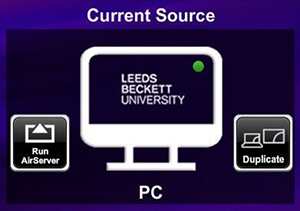
Select the Extend / Duplicate button on the input source from the touch panel.
Alternatively, press Windows + P to toggle the display setting to Duplicate.
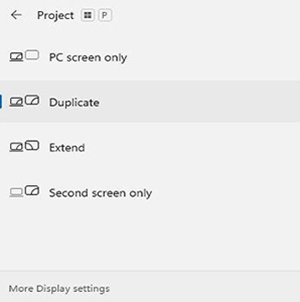
Check that the display settings are set to Extend.
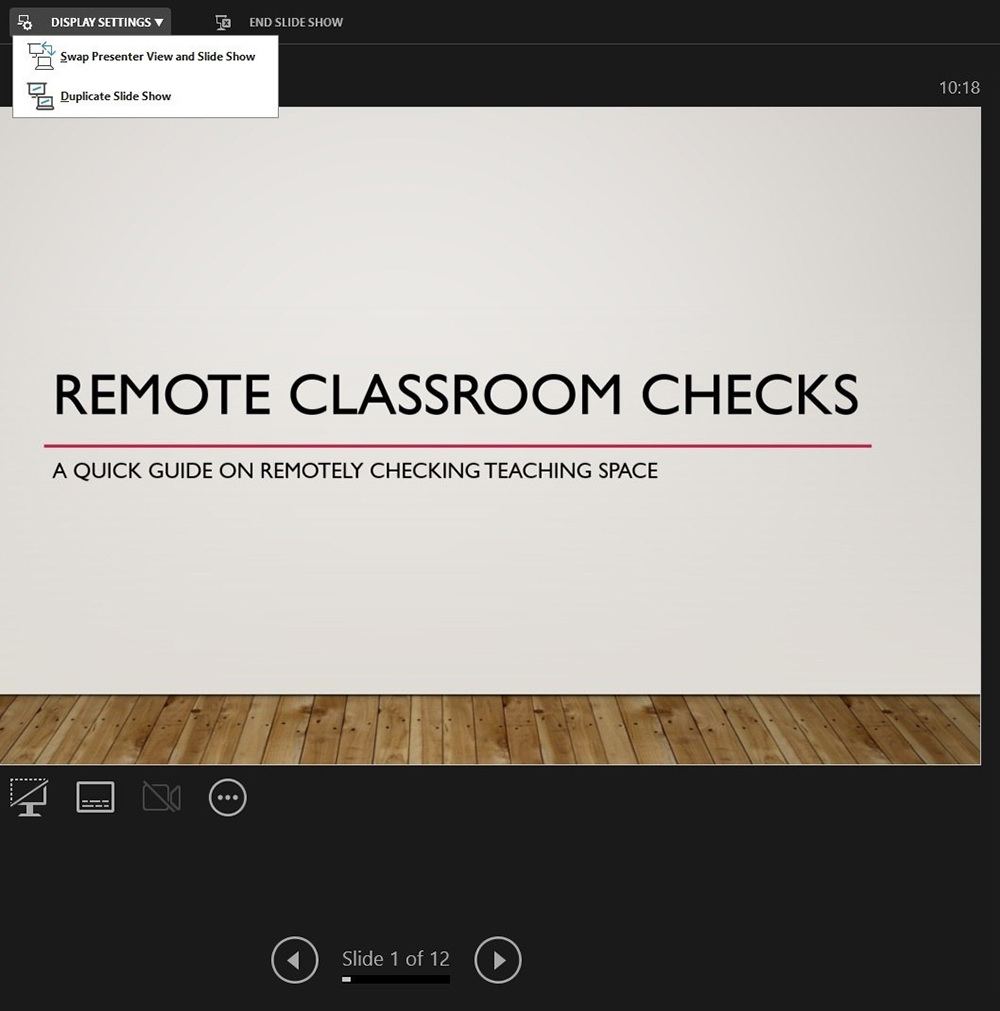
In the top left of the Presenter View within PowerPoint, select Swap Presenter View and Slide Show from the dropdown menu.
Has the audio been muted on the touch panel?
Is the content muted in the browser (i.e. YouTube)?
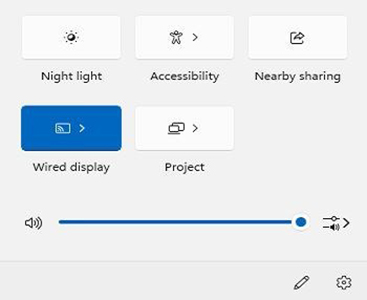
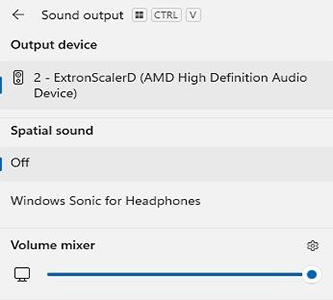
Check the PC audio - click on the speaker icon in the bottom right of the screen and check that it isn’t muted. Try toggling through any alternative sound output devices from within the ‘select a sound output’ option.
Is the guest in the meeting muted?
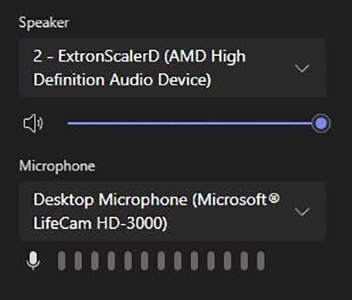
Go to More … > Options > Settings > Device settings and try toggling through any alternative sound output devices.