Leeds Beckett University - City Campus,
Woodhouse Lane,
LS1 3HE
Teaching Spaces AV Assistant


Press the touch panel to power on the teaching space AV. From the panel, you have the following options:
- Change Source - Allows you to select the source you wish to display.
- Blank / Screen - Blanks the output to the main display in the teaching space.
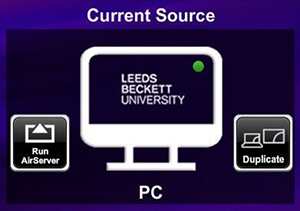
- Extend / Duplicate - Outputs the desktop display in either Duplicate or Extend mode.
- Panopto - Indicates if the lecture capture service is recording the session on the teaching PC.
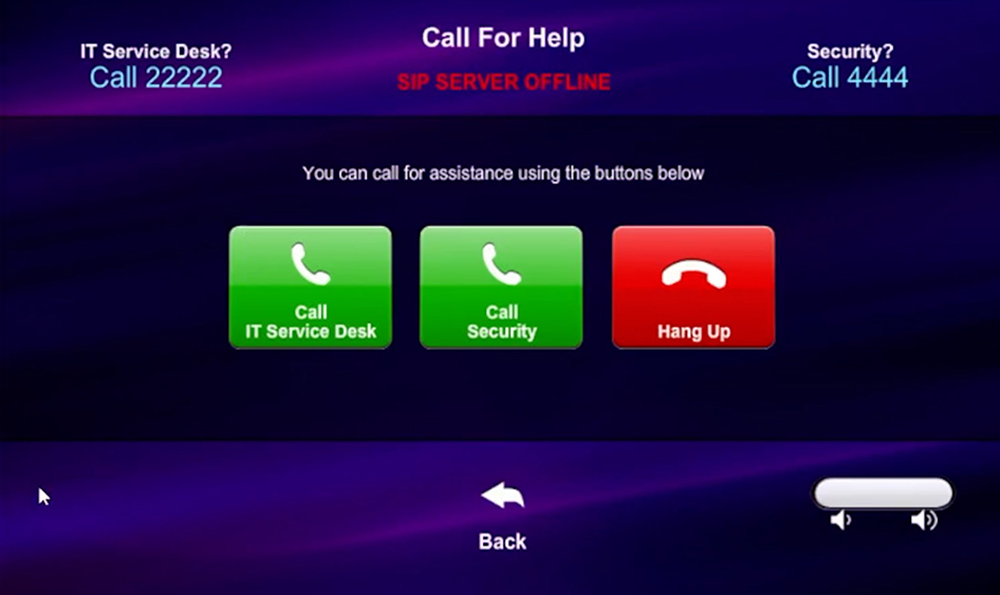
- Select the Call for Help if you require assistance from the IT Service Desk.
Select the source you wish to display:
- Laptop HDMI – This allows you to plug in your own device via a HDMI cable. While some newer spaces may have cables hardwired into the lectern, we recommend you keep one in your laptop bag if you plan to teach from your own device. If your device is a MacBook, you will likely need an additional adapter (HDMI to USB-C).
- Laptop VGA – This is for much older laptops with this legacy connector. For the vast majority of devices, you’ll use HDMI.
- Document Camera – Use the camera to display paper documents or any detailed items on the projected image.
Troubleshooting
The display output is most likely set to Extend; if this is not the desired configuration, please do the following:
Select the Extend / Duplicate button on the input source from the touch panel.
Alternatively, press Windows + P to toggle the display setting to Duplicate. This means the display output is set to Extend; if this is not the desired configuration please do the following: Select the Extend / Duplicate button on the input source from the touch panel. Alternatively, press Windows + P to toggle the display setting to Duplicate.
If the teaching computer is a Mac, or you’re teaching from a MacBook connected via HDMI and the icons aren’t displaying on the desktop, please do the following: Go to the Apple menu, choose System Settings, then click Displays in the sidebar. Click the name of your display then click the “Use as” pop-up menu and choose an option.
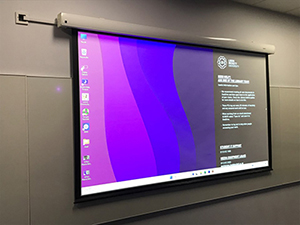
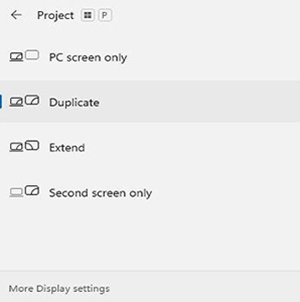
Check that the display settings are set to Extend Display.
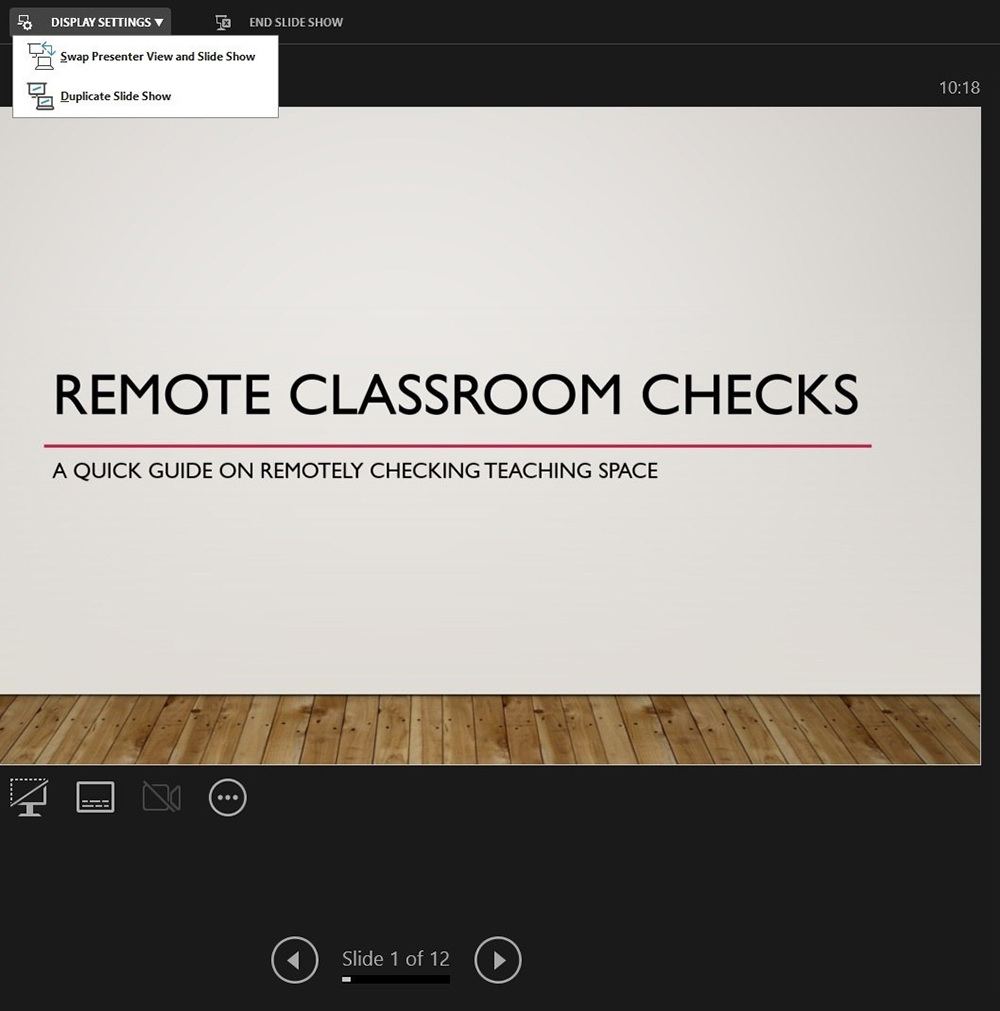
In the top left of the Presenter View within PowerPoint, select Swap Presenter View and Slide Show from the dropdown menu.
Has the program audio been muted on the touch panel?
Is the content muted in browser (i.e YouTube)?
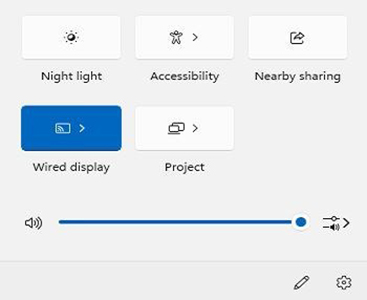
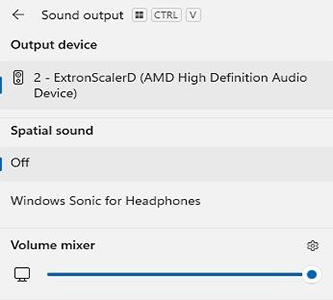
Check the PC audio - click on the speaker icon in the bottom right of the screen and check that it isn’t muted. Try toggling through any alternative sound output devices from within the ‘select a sound output’ option.
Is the guest in the meeting muted?
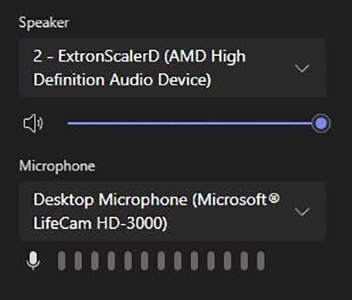
Go to More … > Options > Settings > Device settings and try toggling through any alternative sound output devices.
If you require assistance with the Teaching Space, you can call our IT Service Desk for help directly from the touch panel.
Please note you can also call Security directly from the panel if there’s an issue in the classroom that requires their attention.
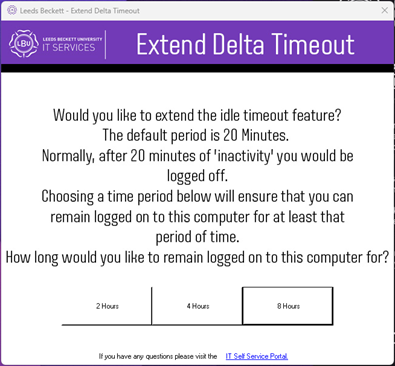
To prevent the teaching PC in a classroom timing out during a period of on-screen inactivity, you can extend the timeout period. This is particular useful for events or longer lectures, where the PC might not be interacted with for longer periods of time.
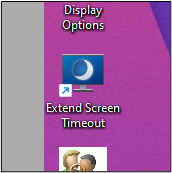
Locate the Extend Screen Timeout shortcut on the desktop, and double-click it:
From the options in the popup box, select an appropriate length of time: