

Leeds Beckett University - City Campus,
Woodhouse Lane,
LS1 3HE
archive Inspera tests
Page last updated:
This staff guide shows you how to archive tests and clean up the question bank in Inspera.
You can choose to archive tests in Inspera. If you archive a test, the content will be moved to Archive. The question set that has been used in the test is not affected and can still be found under Question Sets.
You can also choose to move Questions and Question Sets to Trash if you want to clean up the bank of questions.
Please note:
- Tests that are moved to Archive will never be deleted
- No users can delete tests in the archive, only restore them
- Archive tests are read only
To move a test to Archive:
a. Log in to Inspera and click Deliver then Tests.
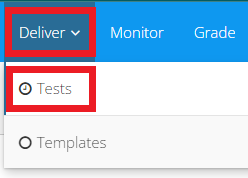
b. Locate the test you want to move to Archive.
c. Click More then click Archive.

d. You will be asked to confirm that you want to move the test to Archive. Click OK.
e. You can see all archived tests by clicking the Archived Tests button in the bottom left of the page.

You can recover tests in Archive.
a. Log in to Inspera.
b. Click Archived Tests at the bottom left of the page.
b. Locate the test you want to recover.
c. Click More, then click Restore.
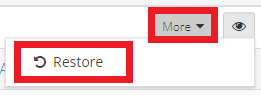
d. You will see a confirmation at the top of the screen that the test was successfully restored.
a. Hover over Author, then click Questions or Questions Sets based on what item you want to move to the Trash.
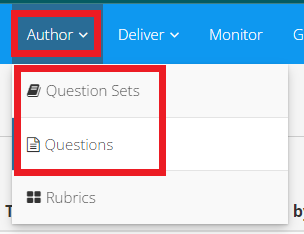
b. Locate the Question or Question Set that you want to move to Trash.
c. Click More, then click Move to Trash.
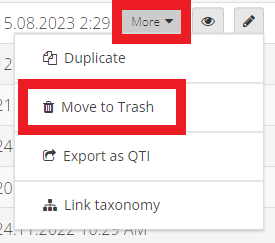
d. You will be asked to confirm that you want to move the item to the Trash.
e. If Questions or Question Sets are shared with other users, you will see this message:
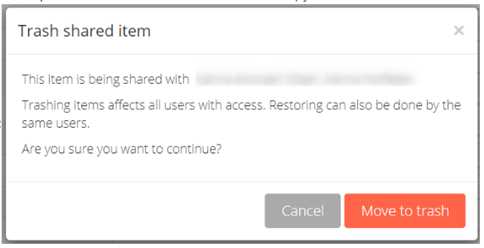
Questions and Question Sets have their own Trash. If you want to find Trashed Questions:
a. Hover over Author and click Questions.
b. Click Trashed Questions in the bottom left of the page.

For Trashed Question Sets:
a. Hover over Author and click Question Sets.
b. Click Trashed Question Sets in the bottom left of the page.

c. Locate the Question or Question Set that you want to Restore.
d. Click More then click Restore.
You may find the following guides useful:





