

Leeds Beckett University - City Campus,
Woodhouse Lane,
LS1 3HE
Create a question set in Inspera
Page last updated:
This is a staff guide to creating question sets in Inspera. It focuses on building questions, inviting co-authors, and previewing your questions.
A question set is a complete set of information pages and questions that can be reused in more than one test.
To create a test, you must first build a question set.
Inspera is currently available for use in the Law School and School of Health (Nursing courses), to service PSRB mandated requirements for academic integrity in examinations.
Creating questions in a question set:
Sections in question sets:
Sharing questions and question sets:
To create a question set:
b. Click Author.

c. Click Question Sets.
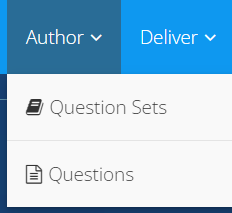
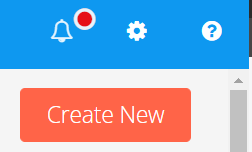
d. Click Create New.
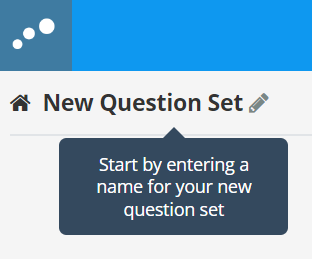
e. Type a name for your question set.
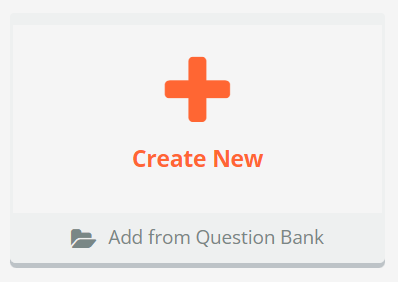
f. Click Create New.
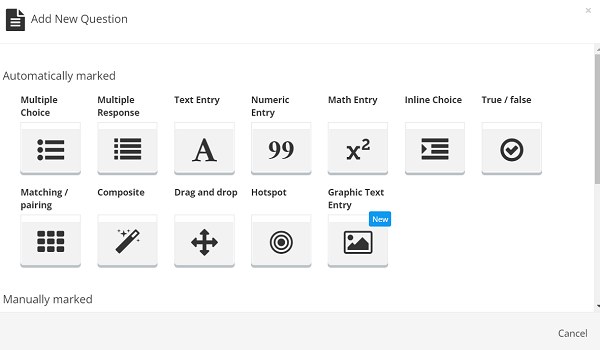
g. Select a question type from the options.
h. At the top left, type a name for the question.
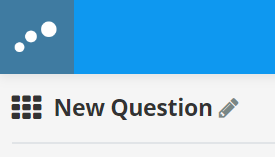
i. You will see different text boxes and instructions depending on the question type that you have chosen. For example, you may see a text box that says click Replace with question text, where you can type (or copy and paste) your question.
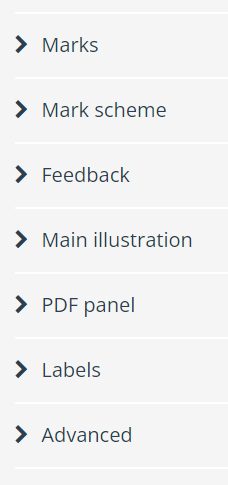
j. There are some general options for all question types:
- Marks: How a question is scored
- Mark scheme: The ability to create a mark scheme for the question
- Feedback: Automatic feedback for the question
- Main Illustration: The option to add an image or embed code as the header to the question
- PDF panel: Add a PDF as stimulus to the left of the screen
- Labels: Add tags to the question to help with sorting and filtering
k. Click Save and Close (top right).

Here are some example question types to help you get started.
Essay questions
Essay questions enable students to write longer text responses, including formatting such as tables and symbols. Essay questions are marked manually.
Multiple choice questions
Multiple choice questions enable students to select one answer from a set of alternatives. Multiple choice questions are marked automatically.
There are some specific options when setting up multiple choice questions. You can edit these in the panel to the right of the question you are creating, for example:
- Prompt: The default prompt will instruct students to Select one alternative. You can change this in the panel on the right
- Alternatives: Type the possible answer choices in each of the Alternative boxes
- You can click Add feedback to build automatic feedback into the choices, if you wish
- You can use the Rich text option to add formatting or mathematical symbols
- Select the radio button to the left of the correct answer choice
- To delete an answer choice, use the cross icon to the right
- To add an answer choice, click Add alternative at the bottom of the list
Multiple response questions
Multiple response questions enable students to select one or more answers from a set of alternatives.
There are some specific options when setting up multiple response questions. You can edit these in the panel to the right of the question you are creating, for example:
- Prompt: The default prompt will instruct students to Select one or more alternatives. You can change this in the panel on the right
- Alternatives: Type the possible answer choices in each of the Alternative boxes
- You can click Add feedback to build automatic feedback into the choices, if you wish
- You can use the Rich text option to add formatting or mathematical symbols
- Tick the checkboxes to the left of the correct answer choices
- To delete an answer choice, use the cross icon to the right
- To add an answer choice, click Add alternative at the bottom of the list
- Options: You can limit the number of choices that a student can select
You can share question sets with others as co-authors, giving them full access to edit the question set.
a. Click Author.
b. Click Question Sets.
c. Open the question set you want to share with a co-author.
d. Click the Sharing with Users icon at the top right (it looks like a person's head and shoulders).

e. In the Add User box, type the name or username of the person you want to share with.

f. When their name appears below the box, click on their name to select it.
g. Tick the Notify via email box if you want the user to receive an email notification.
h. Click Share.
It is a good idea to preview your question set to see what this will look like for students.
a. Click Author.
b. Click Question Sets.
c. Open the question set you want to preview.
d. Click the Preview icon at the top right (it looks like an eye).

e. The question set will open in a new tab. You can use the arrows at the bottom right to navigate through the questions you have created.
If required, you can allow access to specific PDFs or web pages during a test.
a. Log in to Inspera.
b. Click Author.
c. Click Question Sets.
d. Click on the question set you want to open.
e. Click Show Resources (bottom right).
f. Click Add Resource (bottom left).
g. Click PDF or URL:
- PDF: PDF documents that students are allowed to access during the test.
- URL: Web pages that students are allowed to access during the test.
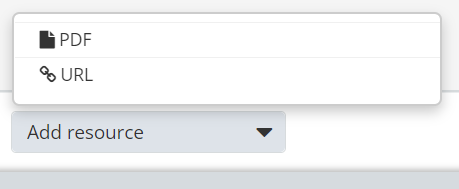
h. Complete the PDF / URL details. Here are some tips:
- For PDFs, you need to type a name that will identify the resource, then click Browse to upload the PDF into Inspera.
- For URLs, you need to type a name that will identify the resource, then add the URL.
- The Custom Root URL option can be used if you want students to have access to all child pages of the specified URL.
- Links to PDFs on external sites should be avoided, please download the PDF and add it as a PDF resource instead.
- Links to web pages that contain videos will not work on Macs.
i. Click Save.
If you have copied and pasted your question text from another source (such as a Word document), you may inadvertently copy some unwanted formatting into Inspera.
a. In Word, click the Paragraph mark icon on the Home tab.
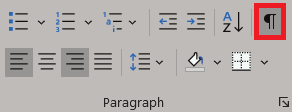
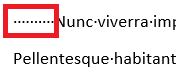
b. If you notice any unwanted formatting, such as the dots that represent spaces, you can select and delete these.
c. On the View tab, tick Ruler.
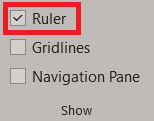
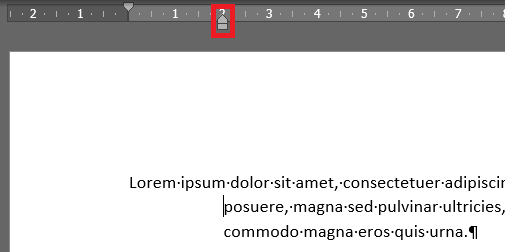
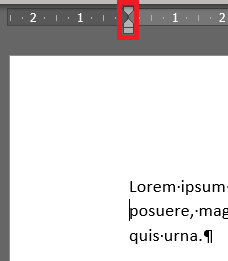
d. On the ruler at the top of the document, check if the indentations are aligned. If they are not, you can click and drag to line these up.
You may find the following guides useful:





