

Leeds Beckett University - City Campus,
Woodhouse Lane,
LS1 3HE
Inspera test templates
Page last updated:
This staff guide shows you how to create and apply a template to Inspera tests.
You can simplify the steps in creating Inspera tests by using a test Template. The Template will apply the important settings consistently and reduce the number of steps that an instructor needs to take.
Inspera is currently available for use in the Law School and School of Health (Nursing courses), to service PSRB mandated requirements for academic integrity in examinations.
If you cannot see the settings below and you need to create Templates in Inspera please contact the Digital Learning Service (other contact details below).
You can create a Template from an existing test.
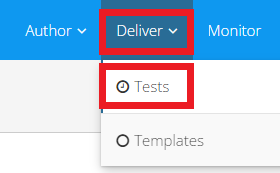
a. Click Deliver then Tests and locate the relevant test.
b. Open the test and click Save as Template.
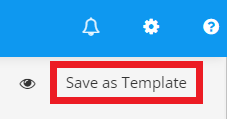
c. A Save as Template confirmation pop up will appear, click Continue.
d. Click the New test from Template drop down and select Edit Template.
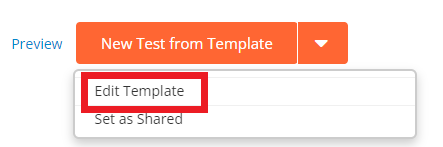
e. You can add various settings to the Template including:
- Template name
- Template description
- Questions and settings
- Passwords
- Security
f. When you have finished editing the Template click Done editing.

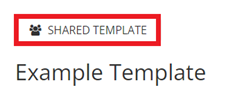
g. Templates are private by default. You can share the Template with all Planners by changing the status to shared. Click the New test from Template drop down and select Set as Shared.
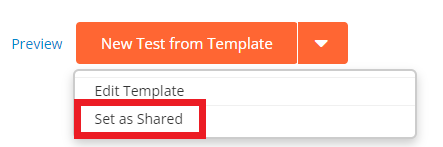
h. You can see the Template status above the Template name.
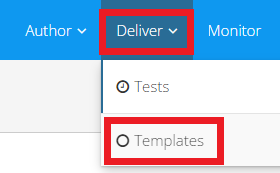
i. To see a list of Templates available in Inspera, click Deliver then Templates.
Follow the steps to create an Inspera link in your module and then follow the steps below to apply a Template to the test.
a. When you click the link in the module, the Inspera test is created.
b. Instead of editing individual settings, you can use the Template drop-down box to pick one of the available templates.
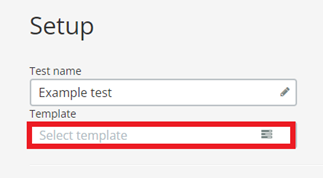
c. You can use the Search Templates box if needed.

d. Select the relevant Template then click Save.
e. A pop up will appear to say the Test will be updated with a list of test settings, click Save.
f. The Template will apply the appropriate settings to the test. The test settings can still be edited if needed.
g. If you need to add a Question Set you can follow the steps in our Create a Question Set guide.
h. If you need to add Planned Extra Time for students or apply any other settings you can follow the steps in our guide to deploying a test in Inspera.
i. When all settings have been applied to the test, click Next to finish and Activate the test.
j. The timer will start a countdown when the test is live.
The following guides may be useful:





