

Leeds Beckett University - City Campus,
Woodhouse Lane,
LS1 3HE
print and download inspera question sets
Page last updated:
This staff guide shows you how to print and download a question set in Inspera.
To download or print a Question Set in Inspera you will need to be assigned the role of Author or Planner.
Please note: If there is a PDF uploaded in the PDF panel on one or more questions, these files will not be included in a direct print out of the Question Set. They will however be included if the Question Set is downloaded first.
a. Log in to Inspera and click the Author tool and Question Sets.
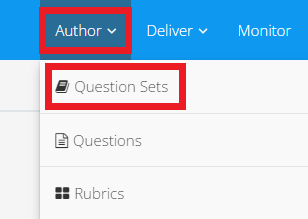
b. Locate the Question Set you want to print or download.
c. Click the print icon in the top right of the page.

d. This will open the Print Manager panel.
e. You can select print or download settings, click the Settings bar to open the settings list.
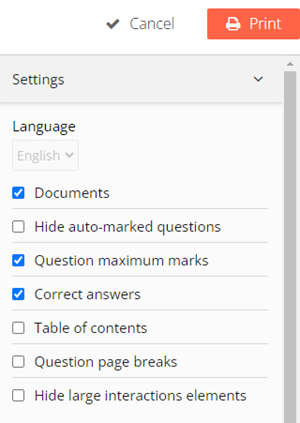
Please note: Correct answers includes the correct answer as set by the author on auto-marked questions. If the printed version is used as a backup or offline solution, this must be disabled.
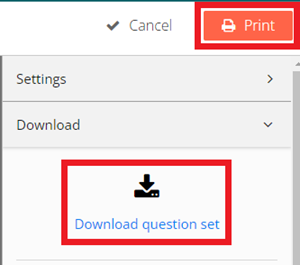
e. You can then click Print or Download question set.
You may find the following guides useful:





