

Leeds Beckett University - City Campus,
Woodhouse Lane,
LS1 3HE
Blackboard App (staff guide)
Page last updated:
This Blackboard App guide has been upgraded to be one app for both students and staff to access MyBeckett at Leeds Beckett University.
The Blackboard App extends and enriches the MyBeckett student experience by allowing students (and tutors) to access content wherever and whenever, via the mobile friendly interface.
One app for staff and students, you can download it from:
- Apple Store (iPhone and iPad)
- Google Play Store (Android 5+)
Blackboard App Logo:
Here are some tips to navigate the Blackboard App and the terminology:
- Modules = Courses
- Course Communities = Organisation
- MyBeckett Homepage containing Helpful Links = Not available in the App
- Stream = Activity Stream
- Marks = Grades
Within a module the content is organised under sections:
At the top maybe: Needs Attention items and Due Dates
Course Materials:
a. Marks
b. Announcements
Assignment due? Seminar cancelled? If students know what's going on, they're more likely to become (and stay) engaged.
c. Messages *not recommended to communicate with students as this functionality has been limited*
d. Course Content
e. Discussions
Mobile Compatible Test
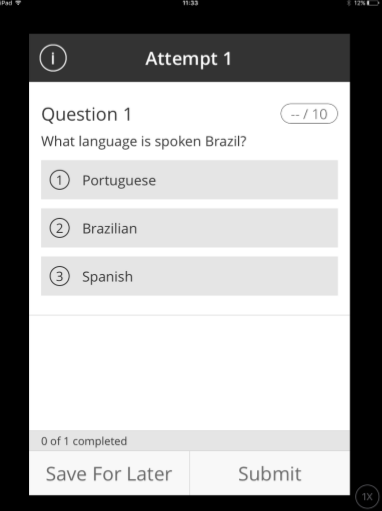
Students are able to answer quizzes and sit exams on their mobile devices. You might use this to do a quick poll in a seminar, or have students test their knowledge of week 1 teaching by answering a short quiz. View our guide on how to create a test.
Marks and Feedback
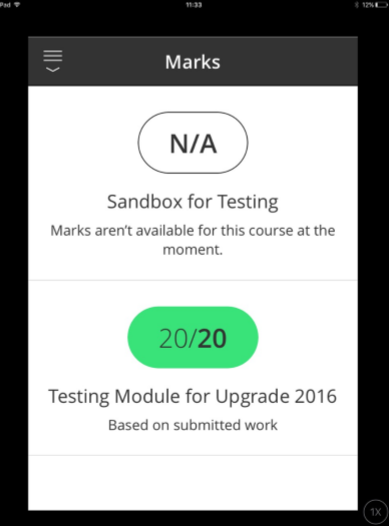
Students can find out how they did on their last test or assignment by using the Marks tool. They’re sent a notification as soon as one of their submissions is marked.
Discussions
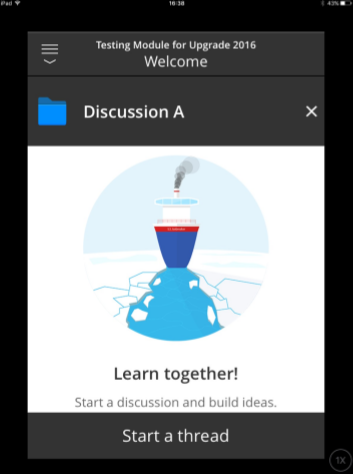
Discussion Boards are great for engaging students. They can ask and answer questions of each other, and tutors can respond to guide and encourage them. Students can upload media attachments to discussions from a mobile device.
Your students can find support and guidance for the Blackboard app on the Library website.
Please note:
- Turnitin assignments won't show up in the assignments list on the app. To submit a Turnitin assignment students need to log into MyBeckett via Google Chrome (mobile friendly).
- Notifications are not always immediate, we recommend logging into MyBeckett via Google Chrome instead.





