

Leeds Beckett University - City Campus,
Woodhouse Lane,
LS1 3HE
Create Achievements | Ultra

Page last updated:
This staff guide shows you how to use the Blackboard Achievements tool in your MyBeckett Ultra module.
The Achievements tool is a way of recognising and celebrating student accomplishments within a module. The tool allows you to define criteria to issue rewards to students in the form of digital badges. Students can see which badges they’ve earned, as well as see what is required of them to achieve other badges.

Please note: If you are thinking of sharing the Achievements tool with a 3rd party, please contact the Digital Learning Service for advice.
To create achievements locate the module you would like to add achievements in and open the content page.
a. Click Achievements in the menu at the top of the page.

b. Click New Module Badge.
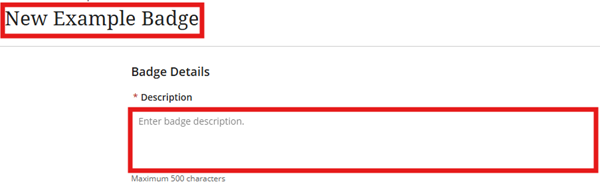
c. Add a Title and Description for the badge.
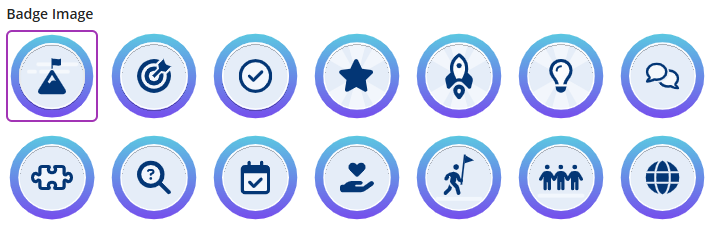
d. Select the Badge image you would like to use.
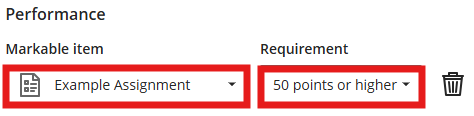
e. You must set at least one Performance criterion for the badge. Select the Markable item from the drop down list.
f. Select the Requirement from the drop down list, e.g. 50 points or higher.
g. You can add more criteria to the badge by clicking Add performance criteria.
h. To delete a criterion click the Bin icon.

i. The Summary section shows how the badge will display for students.
j. You can click Save Draft if you need to make further changes later. When finished click Publish. You will see a pop up confirming that once published the badge cannot be edited.

k. Click Confirm. The bade will appear in the Achievements list.






