

Leeds Beckett University - City Campus,
Woodhouse Lane,
LS1 3HE
MyBeckett Ultra AI DESIGN ASSISTANT

Page last updated:
This staff guide introduces the AI Design Assistant in MyBeckett Ultra modules and communities.
The AI Design Assistant is a set of tools that are available for instructors to use for activities such as structuring content and creating rubrics. Keep checking back for further updates to this page.
The AI Design Assistant in MyBeckett Ultra modules and communities is a set of tools that is available for instructors to use.
As of Summer 2025. the tools can support the design of:
- Module / Community structure
- Images
- Rubrics
- Tests
- Assignments, discussions and journals
The AI Design Assistant is created by Anthology, who explain their commitment to responsible AI in the following documents.
Benefit - Productivity
One of the main benefits of using the AI Design Assistant is that it may save you some time in performing basic tasks, meaning that you can focus your efforts into reviewing and refining content rather than building each element from scratch.
Benefit - spark ideas
If you use the AI Design Assistant as a starting point for items such as rubrics and learning modules, this may provide some ideas about how you want to structure your content.
limitation - Content must be reviewed and edited by an instructor who is a subject matter expert
Like all AI tools, the AI Design Assistant has no understanding of the content that it generates and whether or not the content is accurate and makes sense.
If you use any of the AI Design Assistant tools within MyBeckett Ultra modules and communities, the content will be labelled as auto-generated content and hidden from students until an instructor has reviewed the content for accuracy and bias.

It is important that the instructor reviewing and editing the content is a subject matter expert.
Limitation - context
Content generated using the AI Design Assistant is created without any knowledge of the context in which your module operates, such as the overall course or other related modules.
You can use the AI Design Assistant to generate ideas about possible structures for your module or community content. This uses the auto-generate learning modules tool, which can create a set of empty content areas called learning modules that you can populate with module or community content.
An instructor can choose:
- How many content areas (known as learning modules) you want to generate from 1 to 20.
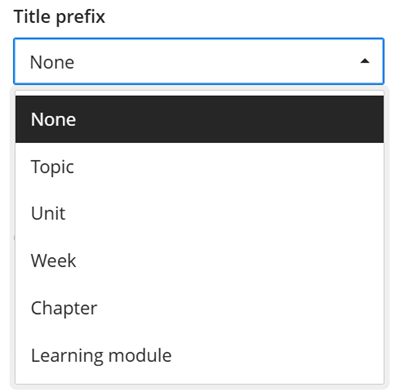
- The prefix for each content area e.g. Topic, Unit, Week, Chapter, Learning Module.
- If you want to auto-generate an image for each content area.
- If you want to auto-generate descriptions for each content area.
- Complexity (from low to high). This scale runs from primary education to higher education / PhD level.
How do I generate a CONTENT structure?
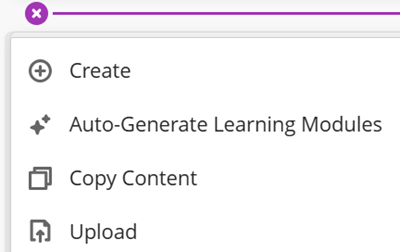
a. On the Module Content page, click the plus icon where you would like to create your content structure (learning modules). Plus icons appear in places where you can add content.
b. Click Auto-Generate Learning Modules.
c. In the Description box, enter some information about the learning modules or objectives.
d. If you have already created other content within your module, you can use the Select module items option to select content that you would like the AI Design Assistant to use to generate the learning module structure.
e. Use the Title prefix drop-down menu to select a prefix for each learning module such as Topic or Week, if you want to include this.
f. To include images and/or descriptions, tick the relevant checkboxes.

g. Set the complexity from low to high. This scale runs from primary education to higher education / PhD level.
h. Use the slider to set the number of learning modules.
i. Click Generate.
j. Wait for the learning modules to auto-generate then carefully review the content for accuracy and bias.
k. Use the checkboxes to select which learning modules you would like to use in your module. You will be able to edit the content later.
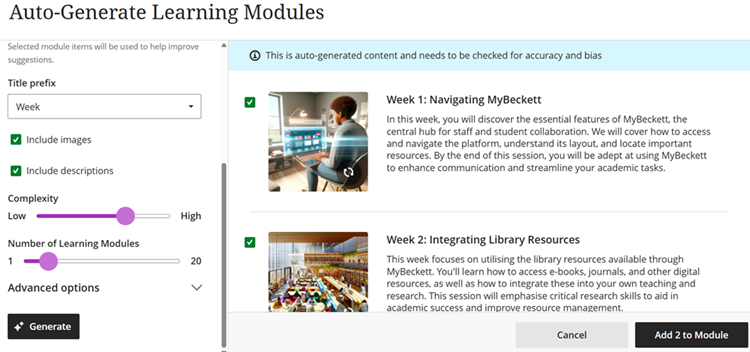
l. Click Add to module. The auto-generated content will be hidden from students until an instructor reviews/edits the content and changes the visibility settings.
When inserting an image into an Ultra module or community, you can:
- upload an image that is save on your device
- select an image from the Unsplash image bank
- create an AI generated image

What is Unsplash?
Unsplash is a bank of images that are available for you to use MyBeckett.
You can search Unsplash using keywords.
What are AI generated images?
You can use the AI Design Assistant tool to generate an image based on a text description that you provide.
Generated images will be different each time you use the image generator tool, even if you use the same keywords.
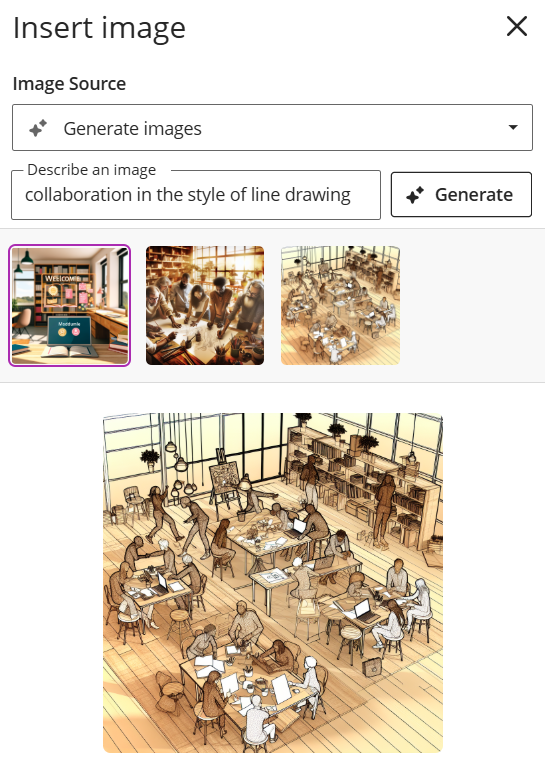
You may also want to specify a style for the image, such as cartoon or line drawing. The example below shows an AI generated image using the prompt "collaboration in the style of line drawing".
Use the AI Design Assistant in MyBeckett modules to generate Knowledge check questions within documents. Once generated, you can review and edit the questions before making them available to students.
Knowledge checks are interactive assessments that can be added alongside the document content. Knowledge checks are informal and no marks are recorded in Grade Centre.
Please note that auto-generated content must be checked for accuracy and bias.
Generate Knowledge checks in a document
a. Navigate to the document you'd like to create a Knowledge check.
b. Open the document and click Edit content.

c. Click the purple plus icon to open the content block menu.

d. Select Knowledge check. You have 2 options available:
- Enter my question
- Auto-generate question
e. Select Auto-generate question to use the AI Design Assistant.
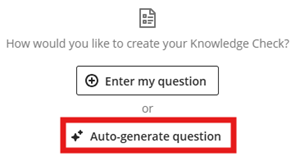
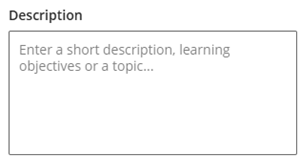
f. The AI will generate questions based on your module name and content in the document. If you prefer, you can add text to the Description text box or select content items in your module to inspire the AI.
g. You can edit the Complexity of the question by moving the slider from Low to High.

h. If you edited the settings click Generate.

i. Select the question you wish to add to your document, it can also be edited after this step.
j. Click Add to document.

k. To add another question repeat the steps above.
l. To edit and review the question click the purple pencil icon. After editing click Save.

m. When you have finished editing the questions click Save in the top right of the document.
You can use the AI Design Assistant to generate a rubric from within Grade Centre. The generated rubric is likely to be quite basic but you will be able to:
- edit the generated rubric manually
- re-generate the rubric with some additional information in the description field that will help to make the rubric more specific to your assessment
How do I generate a rubric?
a. In an Ultra module, click Grade Centre. This is in the menu at the top of the page.
b. Click the cog at the top right of Grade Centre to open the settings. Scroll down to Module Rubrics and click Generate.
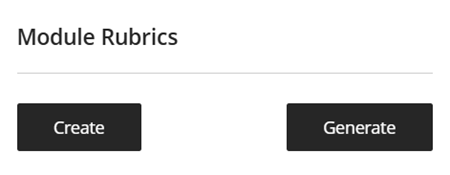
c. Enter a short description, learning objectives or a topic for the rubric in the Description box.
d. Select a rubric type from the drop-down list e.g. Percentage, Points, No Points.

e. Set the complexity for the rubric from low to high. This scale runs from primary education to higher education / PhD level.

f. Use the sliders to set the number of columns and rows.
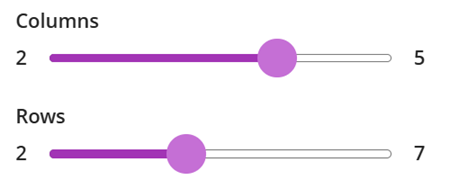
g. Click Generate.
h. Wait for the rubric to auto-generate then check the rubric preview.
i. To re-generate the rubric, edit the description and any other settings that you wish to change, then click Generate again.
j. Click Continue.
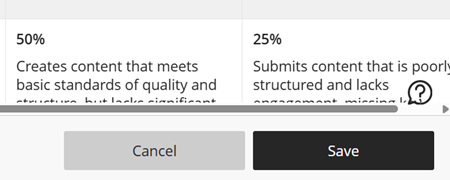
k. In the rubric editor view, change the title for the rubric and carefully review the content for accuracy and bias. You can click the edit pencil icon in any section that you want to edit.
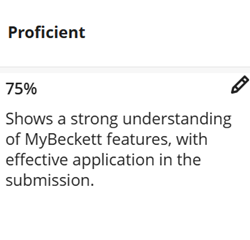
l. Click Save.
When creating assignments, discussions and journals in MyBeckett Ultra, you have the option of using the AI Design Assistant to to generate prompts. This does not include Turnitin assignments, as this is a separate system that we have integrated within MyBeckett.
An instructor can choose:
- Complexity (from low to high). This scale runs from primary education to higher education / PhD level.
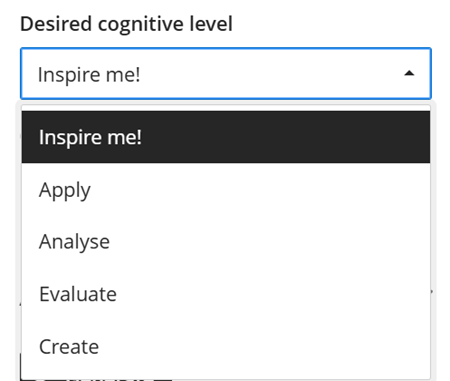
- Cognitive level (based on Bloom's Taxonomy)
How do I generate assignment, discussion and journal prompts?
a. On the Module Content page, click the plus icon where you would like to create your content. This could be inside a learning module or folder. Plus icons appear in places where you can add content.
b. Click Create.
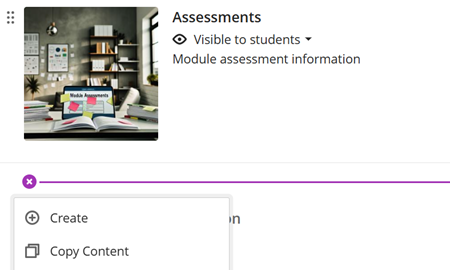
c. In the side panel, select the content that you want to create (Assignment, Discussion or Journal).
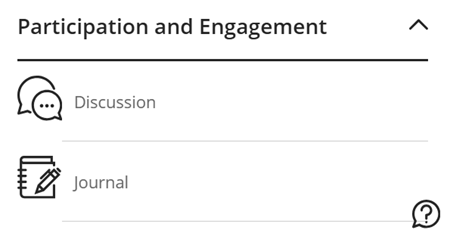
d. Click the Auto-generate button at the top right. This may appear as a button with a star icon on smaller screens.

e. Enter a short description, learning objectives or a topic in the Description box.
f. If you have already created other content within your module, you can use the Select module items option to select content that you would like the AI Design Assistant to use to generate content.
g. Use the drop-down list to select the Desired cognitive level. This is based on Bloom's Taxonomy of Learning.
h. Set the complexity from low to high. This scale runs from primary education to higher education / PhD level.
i. Click Generate.
j. Wait for the items to auto-generate then carefully review the content for accuracy and bias.
k. Select the item you would like to use and click Add.
l. The auto-generated content will be hidden from students until an instructor reviews/edits the content and changes the visibility settings.
The AI Design Assistant can be used to generate tests based upon selected module content.
This could be useful if you want to create a formative quiz to help students review their learning, as you can also build in automated feedback. The Educational Enhancement Unit have created a video guide on Using MyBeckett AI Design Assistant to create quiz questions.
How do I generate a test?
There are two methods of using the AI Design Assistant to generate test questions.
- Method 1: Within the test tool. This approach is the quickest if you want to create questions to use in a single test.
- Method 2: Within a question bank. This approach is better if you want to create a larger number of questions that you will reuse in more than one test.
Method 1: Within the test tool
a. Decide where you want to create a test and click the plus icon that appears.
b. Click Create.
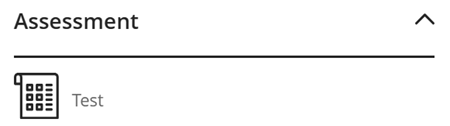
c. In the side panel, scroll down to Assessment and click Test.
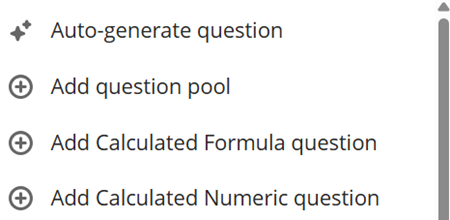
d. Click the plus icon to add a new question to your test.
e. Select Auto-generate question from the list of question types.
f. Enter a short description, learning objectives or a topic in the Description box.
g. If you have already created other content within your module, you can use the Select module items option to select content that you would like the AI Design Assistant to use to generate the test questions.
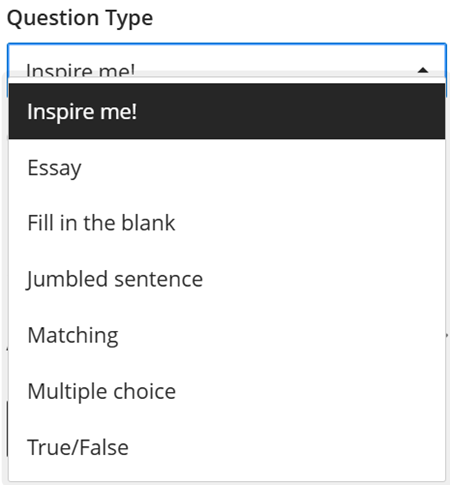
h. Use the Question Type drop-down menu to select a question type, or leave this as the Inspire me! option.
i. Set the complexity from low to high. This scale runs from primary education to higher education / PhD level.
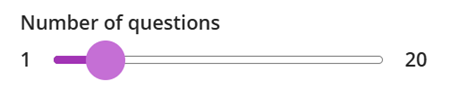
j. Use the slider to set the number of questions.
k. Click Generate.
l. Wait for the questions to auto-generate then carefully review the content for accuracy and bias.
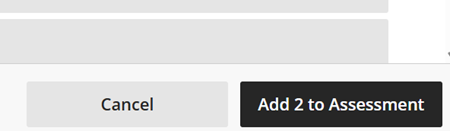
m. Use the checkboxes to select the questions that you would like to use, then click Add to Assessment.
n. You can then edit individual questions by clicking the three dots icon to the right of each question.
o. Remember to edit the other test settings by following the steps in our guide to creating tests in MyBeckett Ultra.
p. The test will be hidden from students until an instructor reviews/edits the content and changes the visibility settings.
Method 2: Within a question bank
a. On the Module content page, there is a Details & Actions section on the right of the page. This is where you will find the Question Banks - Manage banks link.

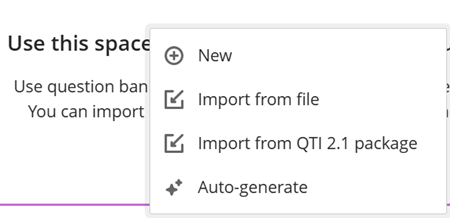
b. On the Question Banks page, click the plus icon then click Auto-generate.
c. Enter a short description, learning objectives or a topic in the Description box.
d. If you have already created other content within your module, you can use the Select module items option to select content that you would like the AI Design Assistant to use to generate the test questions.
e. Use the Question Type drop-down menu to select a question type, or leave this as the Inspire me! option.
f. Set the complexity from low to high. This scale runs from primary education to higher education / PhD level.
g. Use the slider to set the number of questions.
h. Click Generate.
i. Wait for the questions to auto-generate then carefully review the content for accuracy and bias.
j. Use the checkboxes to select the questions that you would like to use, then click Add to Question Bank.
l. You can then edit individual questions by opening the question bank and clicking the three dots icon to the right of each question.





