

Leeds Beckett University - City Campus,
Woodhouse Lane,
LS1 3HE
Class Conversations | ULTRA

Page last updated:
Why choose Class conversations
- Class Conversations are useful for focused, assignment‑specific dialogue between students and instructors; for example, group work questions, sharing information, or formative feedback on presentations.
You can enable conversations for these content items:
- Documents
- Blackboard Assignments
- *Group Blackboard assignments
- Blackboard Tests
Please Note:
- *Group assessments and conversations for assessments are not supported in the Blackboard App.
- Class conversations do not appear in the main Discussions area.
a. Select the item's Settings cog.
b. Select Allow class conversations and scroll down to click the Save button.
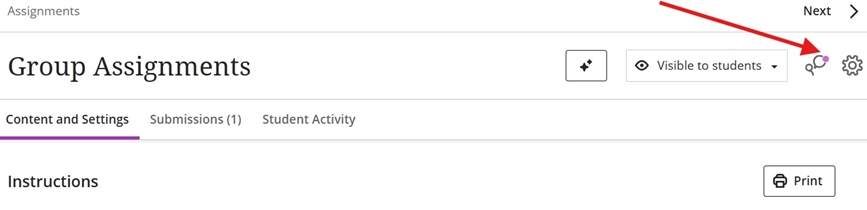
c. A new conversations icon in the top right-hand corner of the item (Blackboard Assignment, Document etc.)
d. Instructors will see a speech bubble to indicate new activity. Conversations are set up the same as discussions; with two levels of replies are allowed for each first-level response.
- New replies appear with a speech bubble icon against the item
- You can reply to a post, create a new post and save drafts.
- Open a response's menu and select Edit or Delete. You can edit or delete any student's response. Students can delete their own responses, but they can't make edits.
- View all activity and search for students.
- Refresh your view in the browser to check for new activity since you opened the conversation for real time conversations.
- You can view and participate in the conversations for each group. Use the drop down under Group to switch between them.
- For large groups, you can search for a specific group member in the group currently selected.
- A purple circle indicates new activity.
A students view of conversations are slightly different to an instructors view. It is recommended that you consider this and provide this FAQ with your students:





