Leeds Beckett University - City Campus,
Woodhouse Lane,
LS1 3HE
CREATE AN ANNOUCEMENT | ULTRA

Page last updated:
This guide is for creating announcements in Ultra
As in MyBeckett Original there is the facility to create announcements within your Ultra module which can be seen by students and staff The announcement notification appears in places other than the module or Ultra (i.e. staff and student's University email).
For example, if you need to announce a change in a scheduled lecture or tutorial or to remind students of a forthcoming assignment submission this may be useful method to reach them in time.
If you are not teaching on a Ultra module please see our alternative guide to sending announcements.
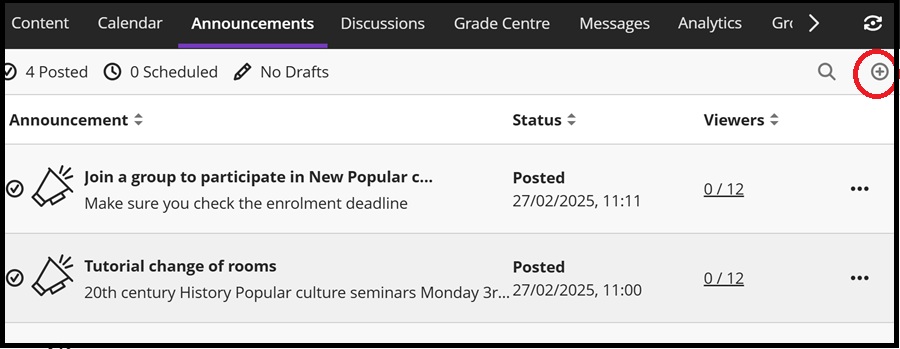
Near the top of the screen click the Announcements tab. As below you can see the previous announcements created.
On the right-hand side, under Student Preview, the magnifying glass icon lets you search for previous announcements and a plus icon. Click this to create an announcement:
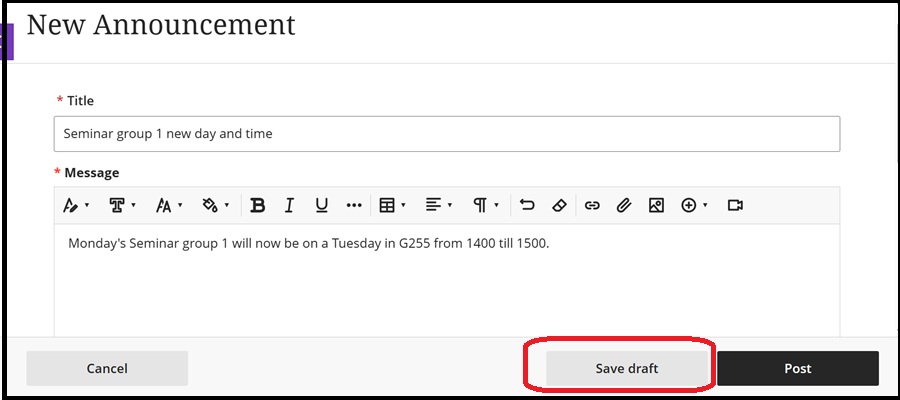
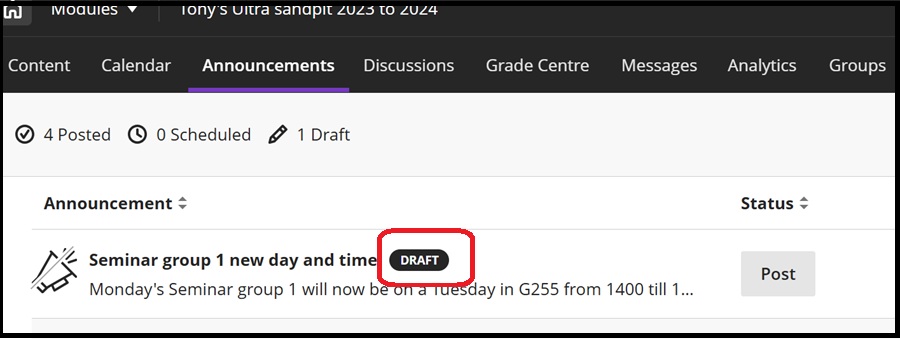
Add a title, then add your message. You can also add other content if desired such as web links, images. At the moment the only setting in recipients is to all module members. Also you can save the announcement as a Draft to deploy later on (please see below in scheduling an announcement):
If you scroll down further when creating a new announcement, and you will see two more options: Send an email copy to recipients and Schedule announcement:
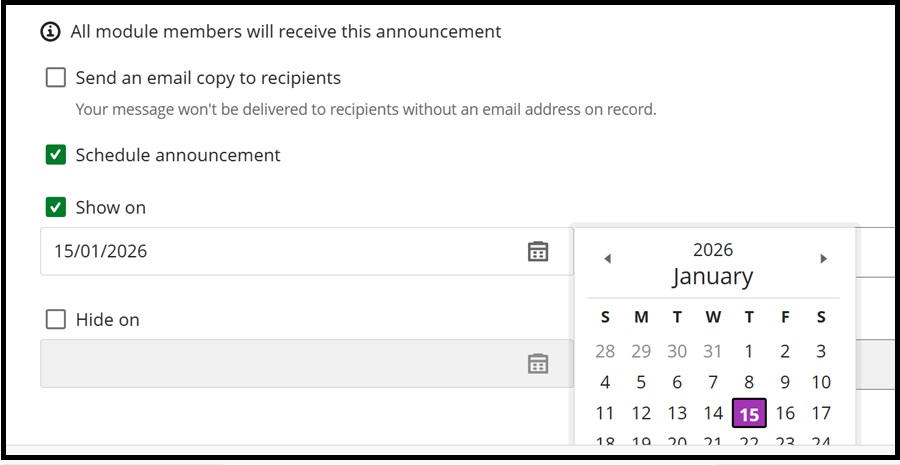
If you choose 'Send an email copy to recipients' it's recommended that you do not add any extra content to the simple text message due to how it may or may not display in different email programs. Also, Blackboard Ally is not applied to content you add such as images.
You can use Schedule announcement to show the announcement from a date and time to another date and time creating a period when it will appear as below:
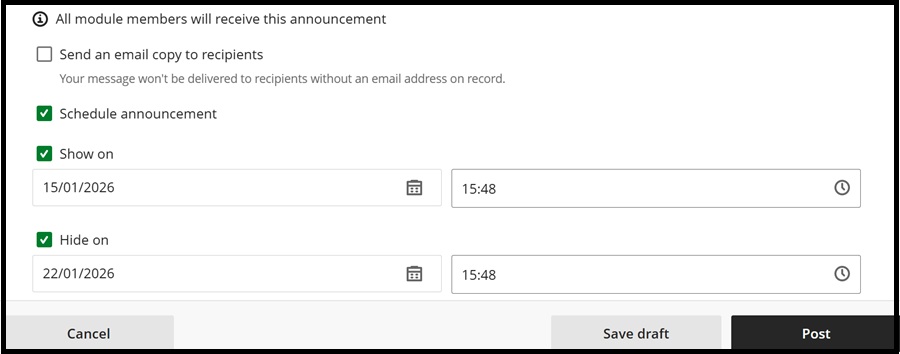
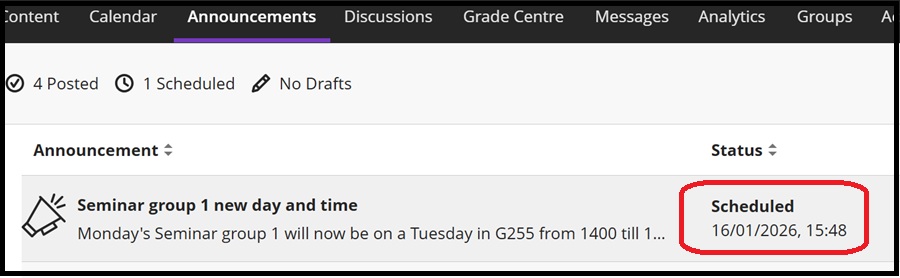
Something to be aware of here is that if you schedule (i.e. set the date and time to show in the future) clicking the Post button instead of Draft will have the same effect, as it will only appear as set and appear in the list as Scheduled:
Self enroll groups and announcements
When you create a self enroll group in Ultra it appears in the Announcements list and in the Groups tab list:
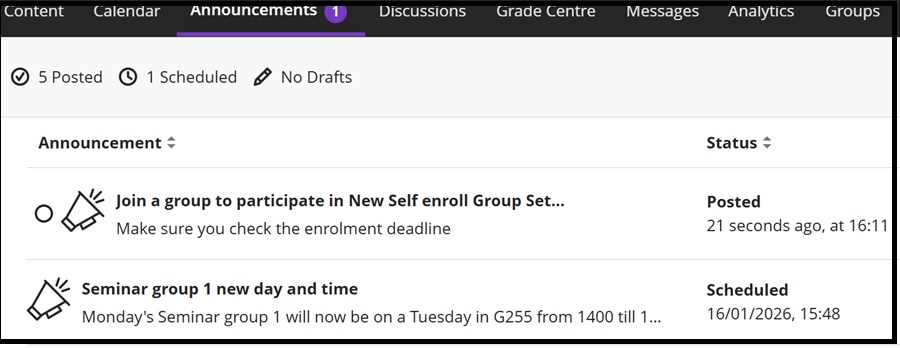
You will also receive an email notifying you of the self enroll groups. Check out Creating groups in Ultra here
Announcements visible in the MyBeckett Activity timeline
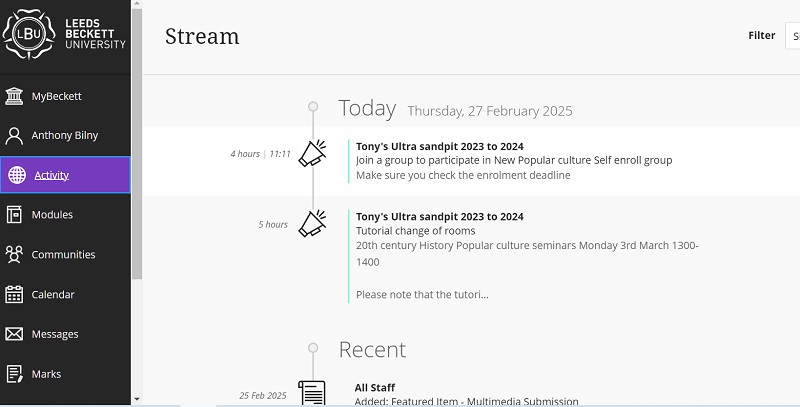
Also worthy of mention is, extra to appearing in the Announcements tab and by email, the announcement will appear in the Activity timeline menu (i.e. with a loudhailer icon):