

Leeds Beckett University - City Campus,
Woodhouse Lane,
LS1 3HE
Create Question Banks | Ultra

Page last updated:
Creating Question Banks
Terminology Original versus Ultra:
Ultra |
Original |
| Question pool | Random block and question set |
| Question bank | Question pool |
| Question analysis | Item analysis |
Please refer to this Blackboard help site for an in-depth description of Question Pools.
Question Banks store sets of questions that you can use in one or more Tests.
When building a Test, create a Question Pool to pull questions from a selected Question Bank. For example, you can set a Question Pool to randomly display 10 questions from a bank of 50, giving each student a different combination.
These are the type of questions available:
- Auto‑generate questions (AI)
- Calculated Formula question
- Calculated Numeric question
- Essay question
- Fill in the Blank question
- Hotspot question
- Matching question
- Multiple Choice question
- True/False question
- Jumbled Sentence question
- Reuse questions (previously created)
a. Open Question Banks - Manage Banks link from the right-hand menu.
b. Select New Question Bank using the Plus icon.

c. Add a Name and Description and Save.
d. Create a Question using the Plus icon to select the question type.
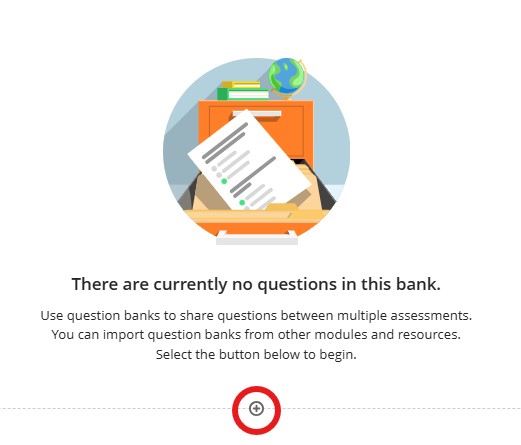
e. Select from the list of questions types, complete the question and answer then Save. While in this section, consider the other settings on the question such as the Point value, tagging a keyword, question type category, Metadata etc. All these tools will assist in locating Questions to reuse and find via search.
It is possible to copy over Question Pools from Original modules using the Copy Blackboard Tests using the export / import method. Please be aware that any unsupported question types will be automatically removed.
Reusing Question Banks Ultra to Ultra
a. The use the Search box, Filter Criteria and Tags.
b. Use your keyboard to navigate questions:
- Use the Up/Down Arrows to navigate questions
- Use the Right/Left Arrows to expand and collapse questions
- Use the TAB key to navigate source groups
- Select check boxes with the spacebar
c. Once questions are located and selected, use the Copy Questions button.
d. You can freely edit copied questions in your assessment because changes won’t affect other assessments. Each copy is independent, so updates made in one place won’t appear elsewhere. If you want consistent changes across all versions, you’ll need to edit each copy individually.





