
Leeds Beckett University - City Campus,
Woodhouse Lane,
LS1 3HE
Creating a Learning Module | Ultra

Page last updated:
This staff guide explains why and how to create structured learning with a Learning Module in MyBeckett Ultra modules.
The benefit of Learning Modules for students:
- Learning content is organised
- Allows them to focus on one content item at a time
- Navigate to the next content / back to previous content in an effective and logical pathway
- Forced Sequencing prevents students from missing out information and also shows a progress bar to supports them to review content at their own pace, with indicators of their learning journey
You may want to force a content sequence with a Conditional Release to prevent students from skipping ahead too far, or progress after adding in a test to check knowledge, add a topical class discussion or journal task for students to engage in further research. Most types of content can be placed in a Learning Module:
- Drag any existing content into the Learning Module
- Create Documents
- Upload Files
- Create Folders
- Add Multimedia (Panopto Videos/YouTube/Podcasts)
- Links to websites, discussions and journals
- Add assessments: Test and assignments
- Include collaboration tools such as journals and discussions
How to change a folder to a Learning Module in MyBeckett Ultra module.
If you have a folder with content items in it consider changing this into a Learning Module. You can reverse the action back to a folder if needed.
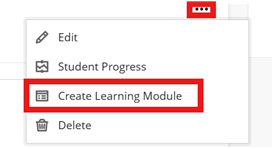
a. Select the three dots more on a top level Folder and select Create Learning Module.
b. Edit the Learning module to place a description, an image and/or forced sequencing. Select three dots more and Edit and then select the Image icon; either upload from your device, browser Stock images from Unsplash or use the AI Design Assistant to generate images and select. Follow the suggestions and submit.

c. Review the order of your content and resources are in a logical order within the Learning Module and this allows you to check that all content is visible to your students. Select Student Preview.
To change a learning module into a folder you need to know that the following options will be lost:
- Image on the Learning module will be lost
- Forced sequencing
- Progress indicator
- Navigation bar
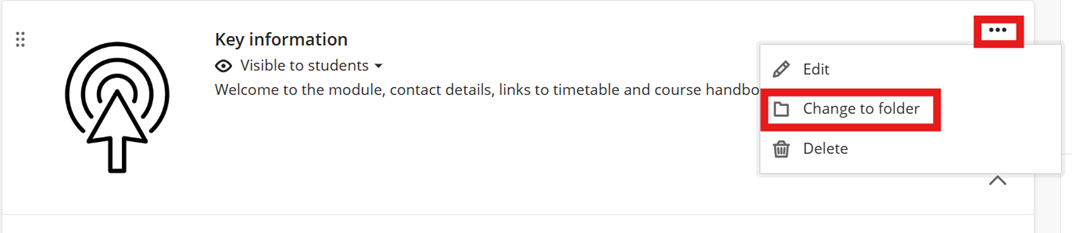
a. Edit the Learning Module via three dots more and select the option to Change to folder.
b. Ensure the folder and contents within it are visible to students and check the experience for your students via Student Preview.





