

Leeds Beckett University - City Campus,
Woodhouse Lane,
LS1 3HE
Enrol instructors on a module | Ultra

Page last updated:
This staff guide shows you how to enrol instructors on an Ultra module.
There are different roles within MyBeckett modules or communities, each providing different access permissions for users.
Two of the main roles that you will encounter are instructors and students, but there are other roles available.
- Primary Instructor role help identify the main Instructors (modules) / Leader (communities) for all enrolled.
- Refer to the Staff Role section before changing a Staff Role for other staff enrolled on your module or community, to ensure you are selecting the correct role required.
*Important: Never add students to credit modules via this method, all enrolled students are attached automatically by a data-feed directly from the student information system (Banner), speak to course administrators if a student is not automatically enrolled on a module.
If you are not teaching on an Ultra module please see our alternative guide for enrolling more instructors.
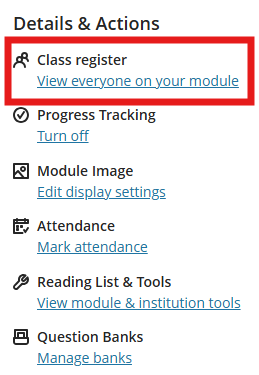
a. In the module or community menu, locate the Class register link and click View everyone on your module.
b. Click the plus icon in the top right of the page, this will open the Enrol People panel.

c. Use the search box to locate the relevant person, you can search by name or staff ID. Staff already enrolled on the module do not appear in the search list.

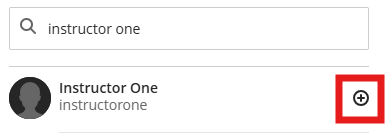
d. Click the plus icon next to the name.
e. Select Instructor from the drop down menu.
f. Click Save.
a. In the module or community menu, locate the Class register link and click View everyone on your module.
b. Locate the staff member and click the 3 dots next to their name.

c. Click Member information.
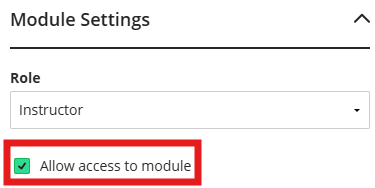
d. Untick the box next to Allow access to module, or tick the box to allow module access.
e. Click Save.
If you have accidently enrolled a staff member as a student, you can change their role within the module or community.
If you enrol a member of staff and want to change their role; if they are an external examiner for example or to prevent the 'email' icon from displaying to other users. Please see our staff guide to choosing appropriate staff roles.
a. In the module or community menu, locate the Class register link and click View everyone on your module.
b. Locate the staff member and click the 3 dots next to their name.
c. Click Member information.
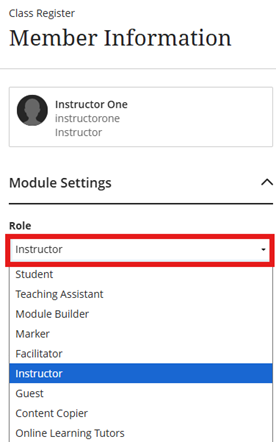
d. Select the appropriate role from the drop-down menu, for teaching staff select Instructor.
e. Click Save.
This guide explains the types of staff roles that are visible to students (if not restricted in the settings) and different access rights to the module/community content, assessments and communication tools.
By default the module/community staff section (above the Class Register), will show Instructors/Leaders enrolled on the module to students.
There is an option to select Primary Instructor/Leader which are good indicators for both students and staff.
The following table shows an explanation of the roles and abilities allowed depending on the type of access / tasks required from the team.
Staff roles
Staff roles can be changed to suit their different purpose of being enrolled and also streamlines the Instructors from other staff members.
The Facilitator role has default privileges to module materials (via Batch edit), Grade Centre plus submissions, Calendar, Announcements, Discussions, and Groups.
| Staff Role | Description | Visibility to students |
|
Primary Instructor (Module) Primary Leader (Community) |
Main tutor/lead - can do all actions and tools within the module (edit, delete, copy, assignments, marking etc.) These are visible in the Module/Community Catalogue. |
Yes and a good reason for choosing the Primary role, to indicate to all on the module/community who is the lead tutor. |
|
Instructor (Module) Leader (Community) |
Tutor/lead can access all areas and perform all actions and use the tools within the module (edit, delete, copy, assignments, marking etc.) These are visible in the Module/Community Catalogue. |
Yes |
|
Facilitator (Module/Community) |
The Facilitator role has default privileges to module materials (via Batch edit), Grade Centre plus submissions, Calendar, Announcements, Discussions, and Groups |
Yes |
| Module/Community Builder |
The Module/Community Builder role has access to most areas except student marks. This role is appropriate for an assistant who shouldn't have access to student marks. Grade Centre will not show any assessment / marks. Can still access even if unavailable (closed) to students. They cannot remove another instructor/leader or change their own role. |
No |
|
Teaching Assistant (TA) (Modules) Assistant (Community) |
The Teaching Assistant role can create/edit module materials in all areas, Grade Centre plus submissions, Calendar, Announcements, Discussions, and Groups. If the course is unavailable to students, teaching assistants may still access the course. TAs can view Students Accommodations but are unable to add new or edit. The teaching assistant isn't included in the Module description in the Course Catalogue. Can still access the module if unavailable to students. They can't remove an instructor from a Module or change their own role. |
No |
|
Participant (Community) |
Student role (for example, Staff can be enrolled as students) |
|
|
Guest - NON FUNCTIONAL |
Do not use - will not allow access and will not show in the module/community list |
No - non functional |
|
Content Copier |
Course admins may benefit from this role |
No |
|
**Course Rep (Community) |
Nominated students are able to send communication with students, set up discussions, send announcements and messages. Add Calendar events, schedules and Office Hours **Only suitable for communities with no Turnitin inboxes - please contact Digital Learning to check before enrolling students as Course Reps |
No |
|
Online Tutors |
Restricted to communication, marking and analytics |
No |
|
Spectator |
The Spectator role provides read-only access to all module content (including hidden content). Users with this role can view materials, discussions, and other module elements but cannot edit, delete, mark, or change module settings. This role is ideal for auditors, observers or external reviewers who need to review course delivery without making changes |
Yes |
|
External |
This role is suitable for Ultra modules. The role provides read-only access to all module content (including hidden content). Users with this role can view materials, discussions, and other module elements but cannot edit, delete, mark, or change module settings. This role is ideal for external reviewers who need to review course delivery without making changes. This role is not visible in the Class Register to students. |
No |





