

Leeds Beckett University - City Campus,
Woodhouse Lane,
LS1 3HE
Module and Community settings | Ultra

Page last updated:
This staff guide will show you how to change settings in your MyBeckett Ultra modules and communities.
- Close MyBeckett Ultra modules/communities to students (previously known as module availability)
- Open MyBeckett Ultra modules/communities to students (make it available to students)
- The Class Register is visible to all students by default, you can change this setting to be hidden from students in modules and communities
Why do I need to Close my module/community?
When you add content to a module, students will see updates in their Activity stream and if installed, they will receive a notification in the Blackboard App. If you don't want students to receive notifications whilst you are preparing content, you can close the module/community until you are ready.
When a module is closed the students will still see the module in their Modules list but they will be unable to access it.
If you are not teaching on an Ultra module please see our alternative guide to module and community availability.
You can close the module to students in a module/community settings. This can be done either:
a. Access the settings cog in the top right of the module/community. You can also see the current status of the module, open or closed.
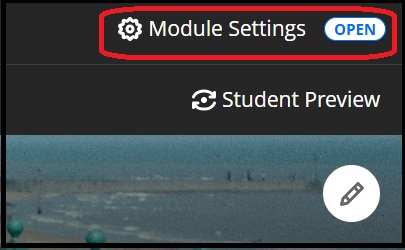
b. You can also access the settings cog in your modules/community list when using tile view. Hover over the top right of the module image, click the 3 dots more and select settings cog. You can also see the current status of the module, open or closed.

c. Under the Module/Community Access setting, select Closed - override module duration, this will change the module status to Closed.
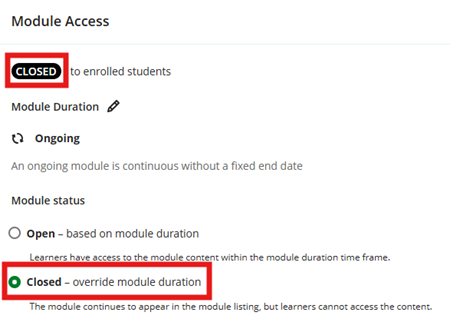
When you have finished updating the module content, you can open the module/community to students via the Module settings two ways:
a. Access the Module settings in the top right of the module. You can also see the current status of the module, open or closed.
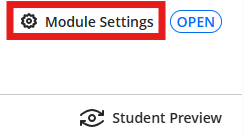
b. You can also access the Module settings in your Modules list when using tile view. Hover over the top right of the module image, click the 3 dots and select Module settings. You can also see the current status of the module, open or closed.
c. Under the Module Access settings, select Open - based on module duration and the status of the module will be updated to Open.

The Class Register is visible to students by default, and is way of creating a sense of belonging and sense of community for students to be able to see who they are studying alongside.
However, if you feel that it is appropriate to hide the Class Register from students here are the steps:
Hide the Class Register (Student names will be hidden from peers)
a. In the Module/Community settings cog, scroll down to the Module/Community Tools section.
b. Toggle Off the Class Roster there will be an x icon which is greyed out when not enabled and/or a green tick when it is visible to students.
c. Close the Setting area by selecting the purple cross top left and you will return to the content area.
d. To check the student experience and visibility of the Class Register, use Student Preview tool. Under the section Details & Actions there will be no Class Register visible when hidden.





