

Leeds Beckett University - City Campus,
Woodhouse Lane,
LS1 3HE
Navigation and Module banner | Ultra

Page last updated:
Navigation and Module Banner in Ultra
This is a guide on navigating your way around Ultra plus changing the module banner image.
Regarding the latter there are two ways that are available to you when changing the banner image and advice on choosing an image to display as the module banner image both in a technical and content way (e.g. issues of accessibility)
Navigating around your Ultra module
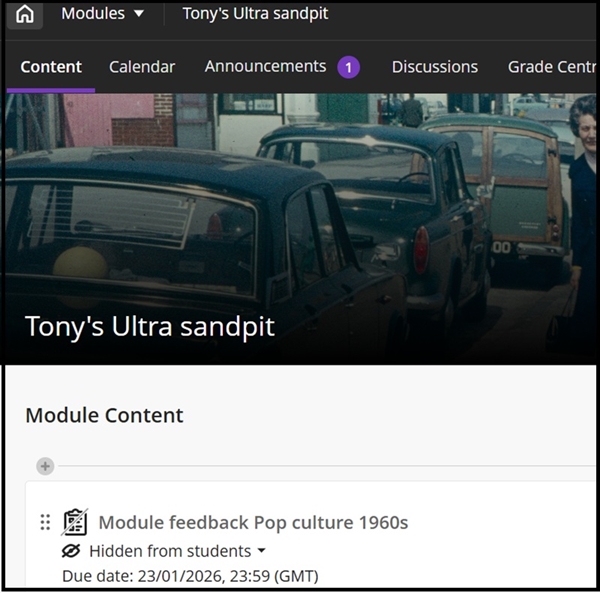
At the top left hand corner there is a new Modules pull-down menu, plus a home icon. Also, as seen below, the module title appears next to them and also within the body of the module banner image. (If you are accessing any Ultra Communities, Modules is replaced by the term Communities):
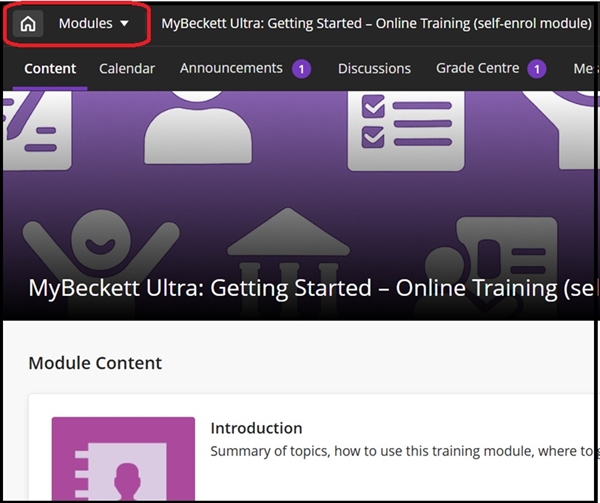
The Home icon will return you to the main Institution page.
Clicking the Modules pull-down menu will change into Your Modules and you can view a list of the ones you have last visited in the tile view:
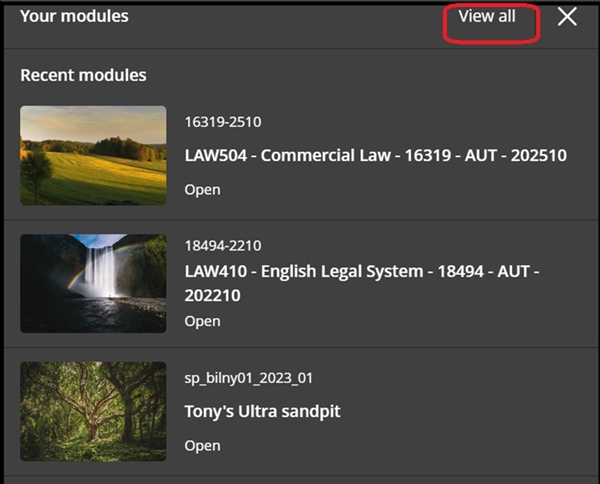
Clicking View all will return you to the Modules list on the main institution page.
To change the module banner image
Some advice on choosing your banner image
• As the banner is a long but not very wide image space, the minimum recommended size for the image is 1200 x 480 pixels
• The main content will appear in the middle of the image so that it remains visible when scaled for different devices
• in general, an image containing text is not recommended
There are two ways to change the banner image, from within the module and also from the Modules list on the institution page, both detailed here.
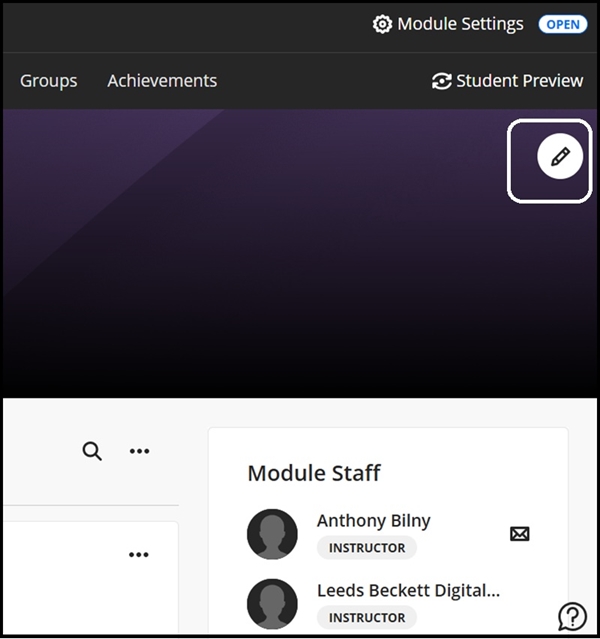
From within the module, click the pencil icon at the top the right-hand corner in the present banner image:
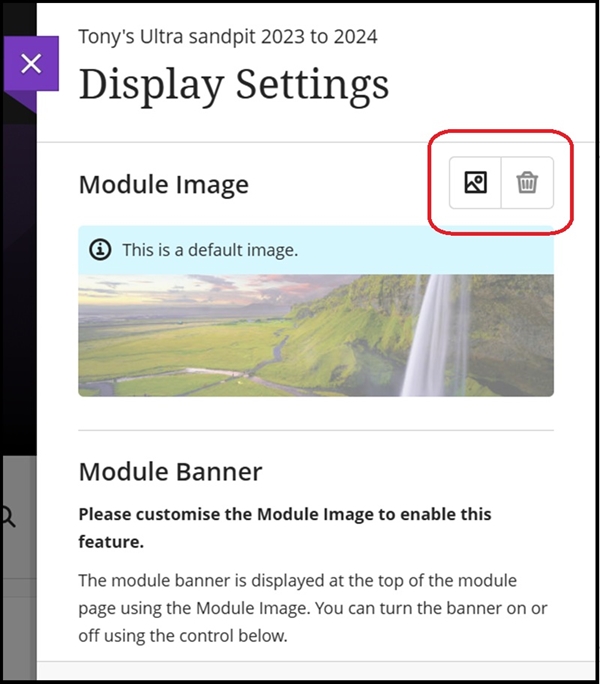
You will now see Display settings dialogue box. To add an image click the picture icon as highlighted below. (The bin icon is to delete the added banner image = see below for this):
Then you have a choice of Upload from device or choose a stock image from Unsplash. a library of royalty free images:
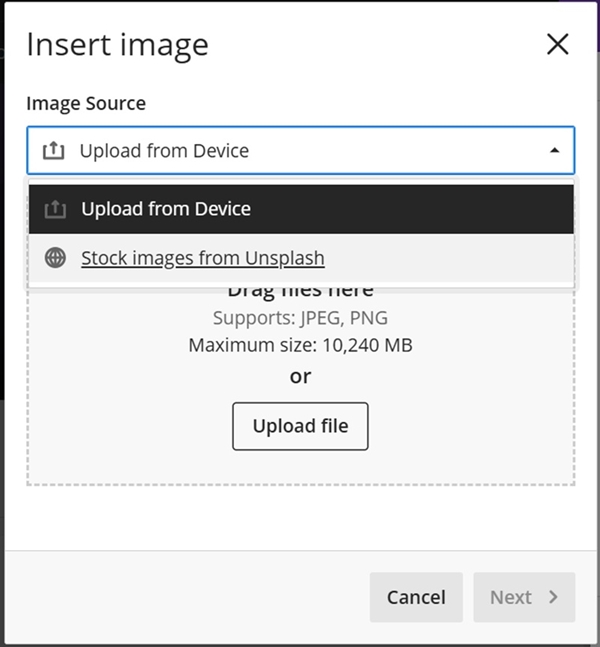
The above dialogue box advises that the picture file format can be either JPEG or PNG as well as the maximum image size.
If you choose the Unsplash option, the default expression in the Search box is based on the module title. As this example shows the module called 'Tony's Ultra sandpit', the word 'sandpit' has been understood to indicate the module is concerned with sand and play areas.
As most modules have a descriptive word or term in their title, this will return related and appropriate images (e.g. the term 'communication and collaboration' in a module title results mainly in images of people meeting):
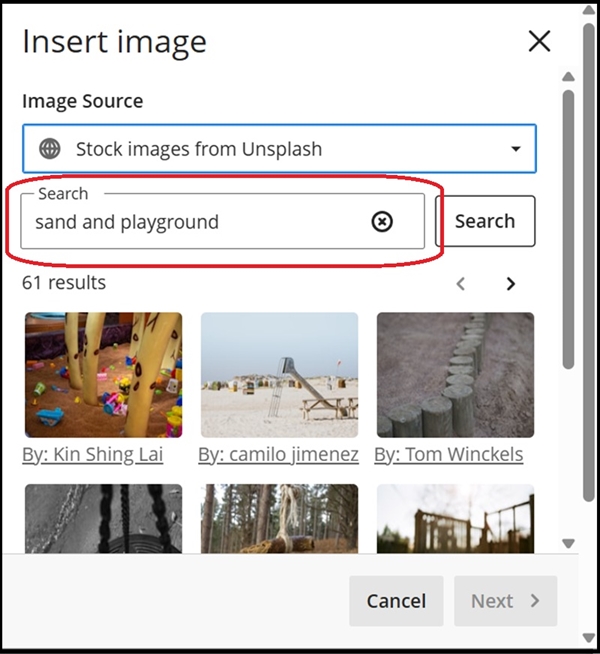
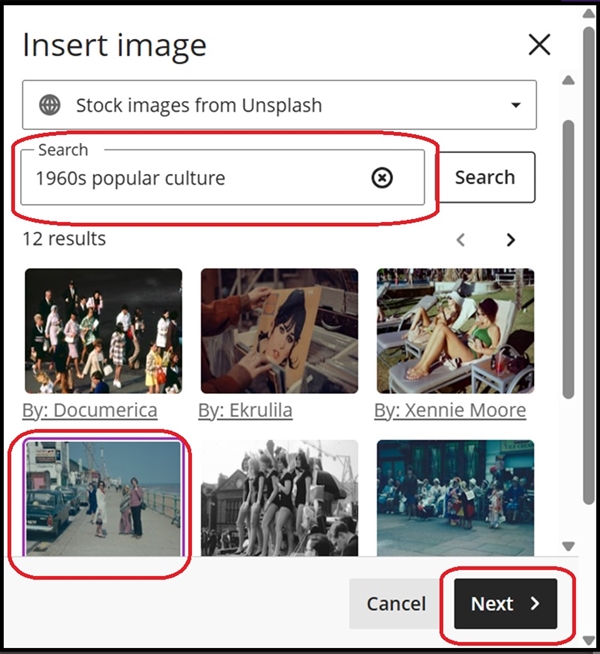
However, this can be easily changed by typing the required term in the Search box. In the below example the search term '1960s popular culture' has been entered as there is a test assignment dealing with this subject in the module.
The chosen image is as highlighted below and the next step is to click Next:
As noted above, there is a long but narrow band available from an uploaded image. The arrows below denote the directions (up or down) you can click and drag to frame what part of the image you want. Also as stated in the advice in choosing your module banner image, it would be better to have an image with the dimensions that match the available banner size:
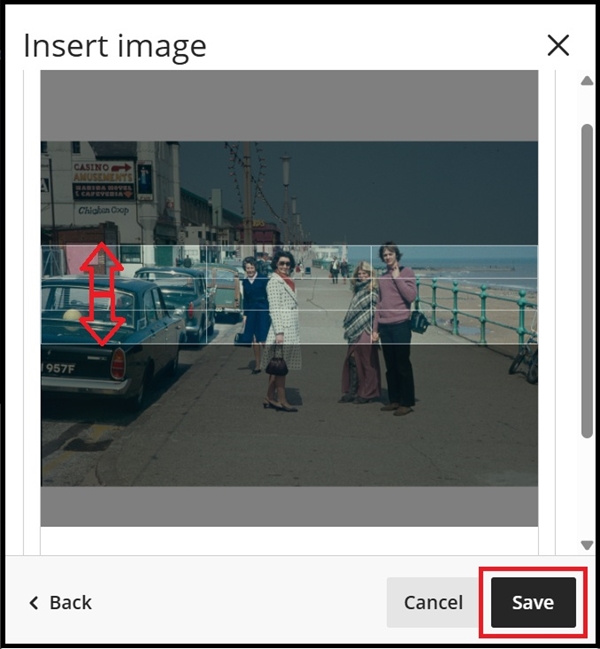
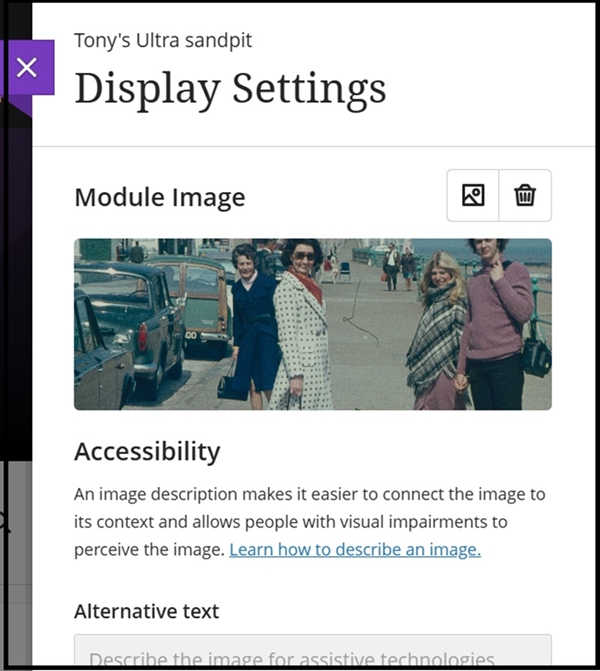
Once adjustments, if any, have been made click Save. It will return to the Display settings dialogue box where you can see a preview of the cropped image.
As the screen shot shows, putting in alternative text will help with accessibility issues. (Please see our guide on accessibility on Ultra here):
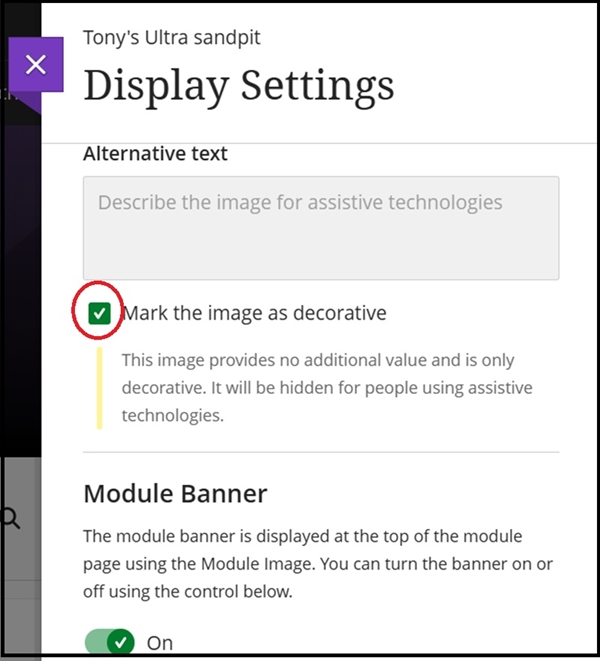
But you will have to uncheck the Mark the image as decorative box if you need to enter text as the default setting for the banner image is only as decoration:
As above you can turn off the banner image by sliding the Module Banner control to Off to temporarily hide it and you can restore it by sliding the Module Banner control back to On. Scroll down to the bottom and click Save. This will add the banner image:
Deleting the module banner image
Unlike hiding the banner image (by sliding the Module Banner control to Off etc.) we can delete the banner image by clicking the bin icon at the top of Display settings:
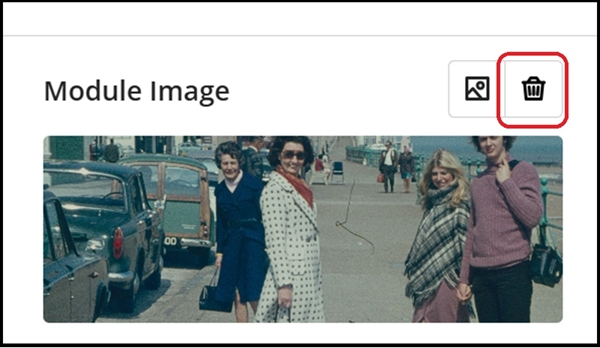
Click Delete when the dialogue box appears to confirm your deletion and then Save. The module will return to its previous state of only a purple background.
Change the image from the Modules/Communities list on the institution page
Click the grid icon near the top left to switch to Tiled view (the three lines icon next to it returns you to List view):
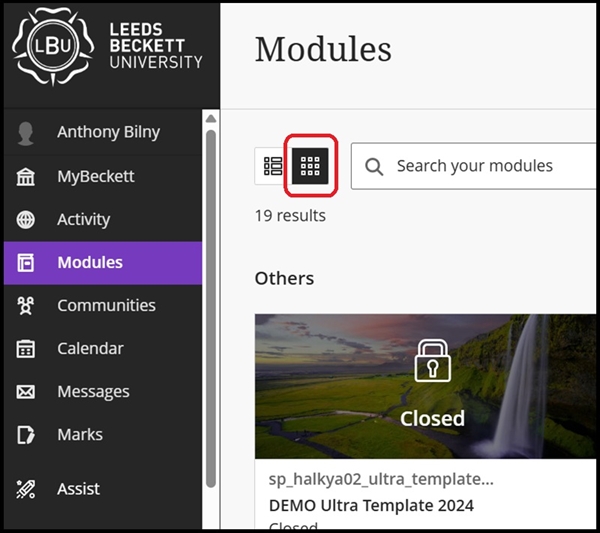
Hover over the module or community that you want to edit and click the three dots that appear at the top right of the card. Click Edit module image:
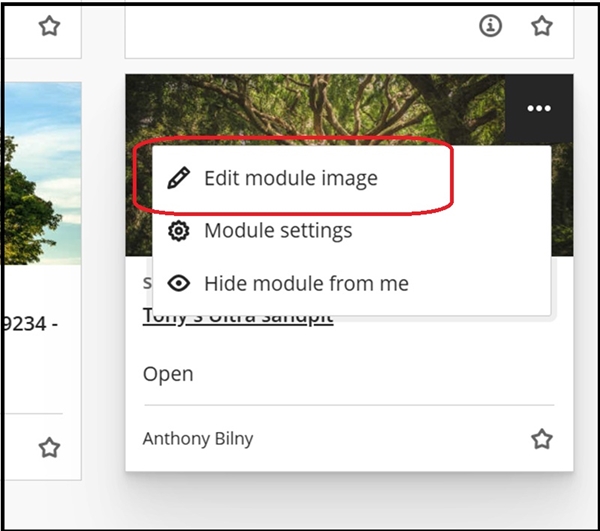
This will take you to the same Display Settings dialogue box as seen above when accessing it from within the module and therefore the same procedure will follow as covered above.





