Leeds Beckett University - City Campus,
Woodhouse Lane,
LS1 3HE
Progress Tracking and Analytics | Ultra

Page last updated:
This staff guide explains how to use Progress Tracking for student engagement insights.
Progress Tracking is active in all MyBeckett Ultra modules and communities, this guide will outline the benefits from both aspects for staff and students.
The staff view of Progress Tracking within any Ultra module / community provides a useful tool for monitoring student engagement with the content, assessments, discussions and journaling (analytics).
Progress Tracking allows you to gain insights such as:
- Individual student progress - student activity report and accommodations
- Content-only student progress reports: This report displays which students have not yet accessed the content and those who have marked it as viewed or completed.
- Analytics of engagement with any assessments which allows you to identify struggling students.
Using the tool to evaluate and improve content design:
- To increase student engagement consider planning your module to be easy for students to read and interact with your resources and content.
- Chunking content into topical sections such as within a structured Learning Module and/or documents and adding hyperlinks to websites in document text and only upload files in meaningful ways.
- Use progress checking tool to assess if your students are struggling to engage and make improvements to your content if there is low participation.
- Asking your students for feedback on your content design.
- No engagement from a student may indicate an issue for that an individual student, such as accessibility issues.
How to access Student Progress overviews:
Staff can access the Student Progress overviews via several places in MyBeckett Ultra modules/communities, and select any individual student name to view an individual student progress overview:
- Analytics tab - module activity, module reports, alerts with an option to download
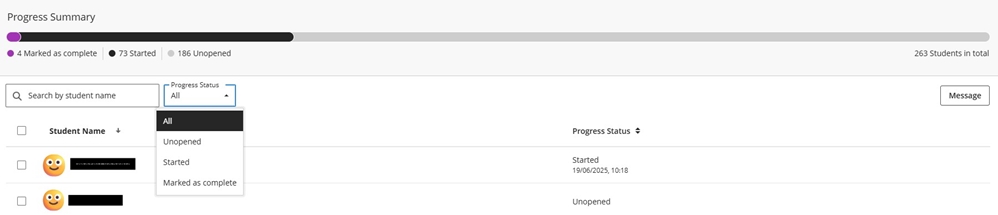
- Content areas to view progress for all students, the example below shows an overview of progress for all students working through a Learning Module content item

The overview provides information at a glance:
- progress summary bar
- a search option to search a specific student
- a filter to drill down to identify students activity status: Unopened, Started and Marked as complete
- progress status column with a sort function and start date
- a Message button to contact all students to send a prompt.
- Grade Centre - select an individual student to view when the student last accessed the module, an overview of the students activity and / or drill down to view individual marks, progress, notes and activity log.

- Discussions (student activity per thread)

Set up alerts:
Use this setting to be informed of low engagement and low overall marks.
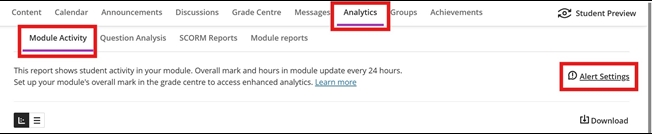
a. Go to the Analytics tab and Module Activity and select Alert Settings.
b. Follow the prompts given to set up alerts by completing the fields:
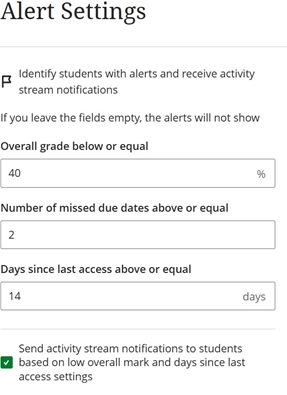
c. Option to Send activity stream notifications to students based on low overall mark and days since last access settings. (students can switch off the notification setting)
d. Staff can monitor the flag alerts feature at a glance via the Analytics tab via Module Activity section.
e. To turn off this feature go back in the Alert Settings and remove the data in the fields (shown in option b.) and close via the purple cross.
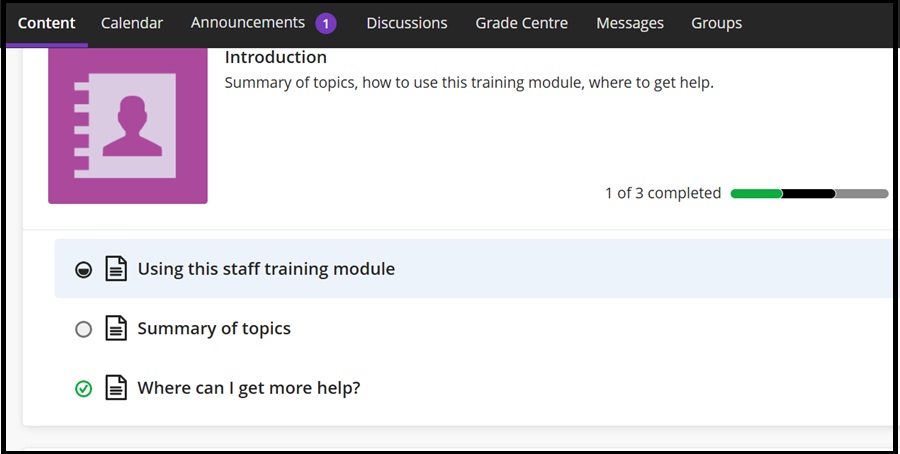
All content displays an icon to indicate each individual student's progress and all content items will display a circle:
- Empty circle indicates not viewed.
- Half-filled indicates partially view
- A green tick indicates completed
The following shows a student's view of how progress tracking helps them to keep track of their content: