

Leeds Beckett University - City Campus,
Woodhouse Lane,
LS1 3HE
Student preview | Ultra

Page last updated:
This staff guide shows you how to use student preview in a MyBeckett Ultra module.
Student preview allows instructors to view their Ultra module exactly as a student does by using a temporary student account generated on the system. If you are not teaching on a Ultra module please refer to our alternative student preview guide.
You can access student preview mode from the navigation bar on your module content page.
a. Click the Student Preview icon in the top right.
b. A pop will appear, click Start Preview.

You can experience your module exactly as your students do. While in student preview mode, you can do the following:
- Submit Blackboard assignments
- Take tests
- Download and upload files
- Participate in conversations
- Participate in discussions and journals
- View marks as a student (you can mark anything you submit in student preview)
- View module messages
- Experience group membership
You cannot submit to a Turnitin assignment in student preview. If you would like to test your submission process for a Turnitin assignment, you can request a staff as student account from Digital Services (was IT Services).
When using student preview module there will be a banner at the top of the screen.

If you leave your module without exiting student preview, you will return to student preview mode when you return to the module.
a. Click Exit in the student preview banner at the top of the page.
b. You are prompted to Discard or Save the preview user and all its associated data. We recommend you click Discard, all the work and participation added during the preview will then be deleted.
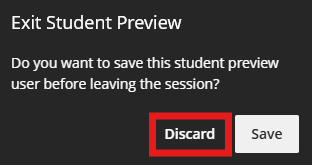
c. If you choose to save the preview user then all activity will be saved in the module and your preview user account will be added to the Class Register, making it visible to students. To avoid confusion we recommend you remove the preview user account from the Class Register when you have finished reviewing your module content. Details on removing the preview user are available in the video guide below.
Video guide: Student preview in Blackboard Ultra





