

Leeds Beckett University - City Campus,
Woodhouse Lane,
LS1 3HE
Add module contacts
Page last updated:
You can make available important contact details for students within a module or group.
You can make available important contact details for students within a module or group. Choose where to place this tool either from the navigation menu (left hand side) or via the content area for example in 'Welcome' or choose both.
These steps will show the navigation menu option:
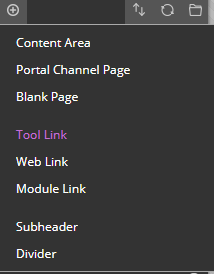
a. In the module, click the plus icon in the top left of the navigation menu.
b. Choose Tool Link.
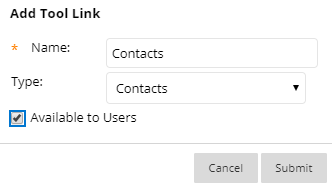
c. Type a Name (e.g. Module Contacts).
For the Type of tool link, choose 'Contacts' from the drop-down list.
To make it visible, tick the box next to Available to Users and click Submit.
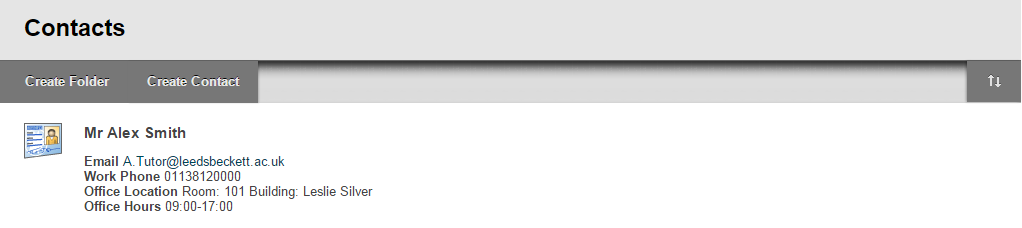
d. The Contacts tool link is now created. Now choose Create Contact.
e. Type the contact's Profile Information in the fields. It’s good practice to fill in as much as possible (minimum Name, Email ;and Work Phone number), particularly for service contacts such as Course Admin Team availability/work patterns.

f. In the Options section, choose Yes to Make the Profile Available so that students can see it. You can add an Image (profile picture) if you want students to put a face to the name (please make sure you secure permission from the contact if it's not you in the photo). Click Submit to save.

g. Your contact is added, repeat steps to add more.
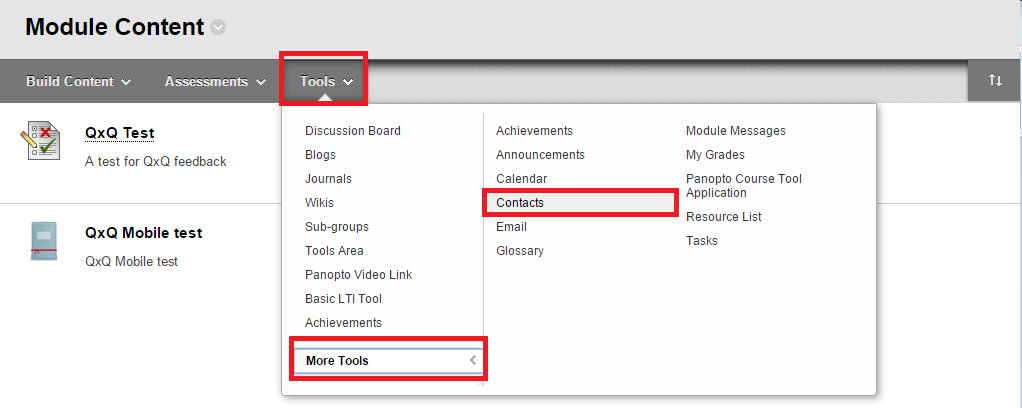
a. Optional: You can add contacts within the module content areas, this allows students to access the Contacts information from multiple locations. In a Content Area, hover your mouse over Tools, click More Tools, then click Contacts.
b. Type a Name and description and make it Available by clicking Yes (to make visible to students). Click Submit.

c. This will now be in your content area, to add team members via create contact (step e. above):
Type the contact's Profile Information in the fields. It is good practice to fill in as much information as possible, (Name, Email and Work Phone number as minimum).





