

Leeds Beckett University - City Campus,
Woodhouse Lane,
LS1 3HE
Blackboard Annotate further info
Page last updated:
Another way of adding a text comment (as opposed to drawing a text box) is by adding a comment which appears as a speech bubble.
Click on the Comment icon and click on the essay in the place you’d like it to appear:

Type in your comment and click Save button to add:

Delete a comment edit a comment etc.
The comment is now in but if you want to delete it click on bin icon in the text area:

All the comments made are listed on the right-hand side and to activate them to either edit or delete them, click on the yellow bubble in essay:

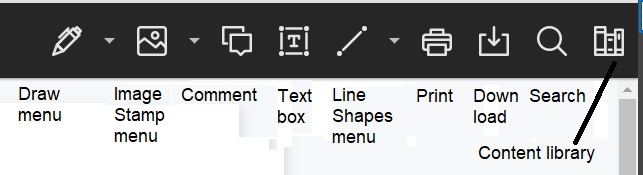
Toolbars as shown with labels describing the functions

Thumbnails Outline Annotations menu
The Thumbnails icon at the extreme left of the tool bar will give you the options to see the page annotations, page outline or the essay in thumbnails view (i.e. a series of small pages in a left-hand menu).
Click the downward-pointing arrow by the icon to expand the menu:

Choosing Thumbnails as above gives you the following view:

Choosing Annotations gives you the following information in the left-hand side:
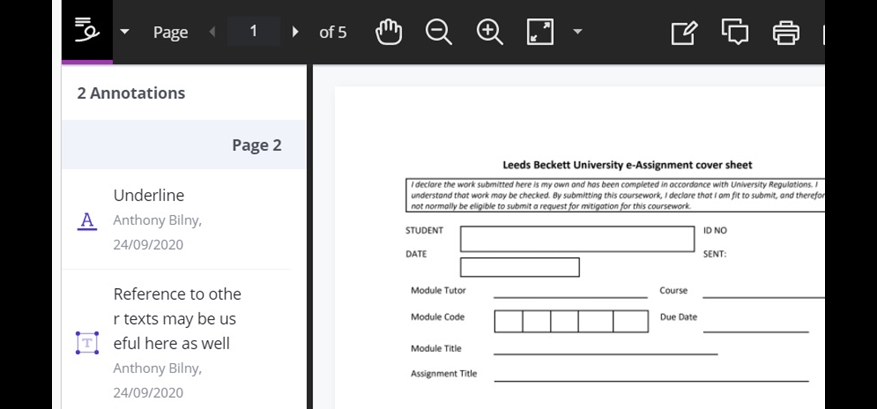
Comments inserted do not appear here in the list as annotations, however.
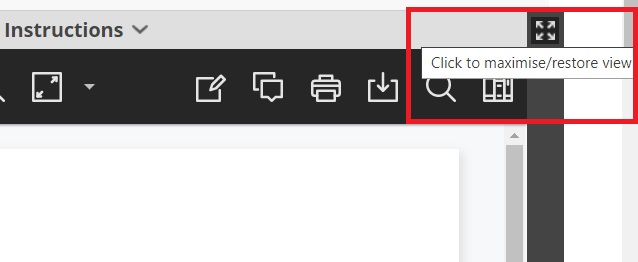
Maximise view
You can maximise your screen area by clicking on the 4-arrow icon in the top right-hand corner:
Maximised view
Fit page menu
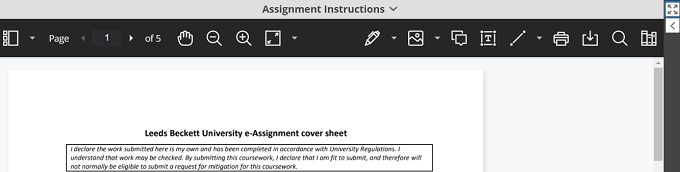
The default view is on the Fit page view.
You can change this by clicking the arrow to expand the Fit page menu. To get the most out of these choices it’s recommended that you Maximise the view as above:

Fit width view

You can search for a word/expression etc. within the essay body using the plain magnifying glass search tool:
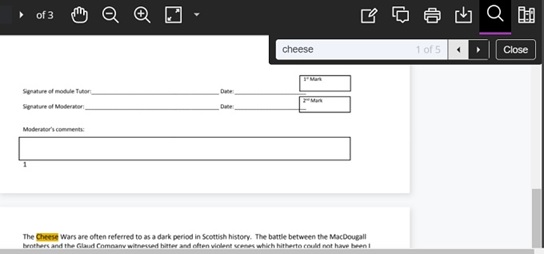
It will display all the instances of the search term entered.
Clicking the download icon on the toolbar will download the assignment as a PDF:
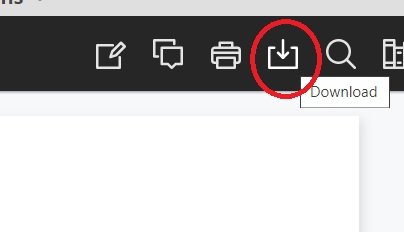
It preserves all the annotations added whilst in Bb Annotate:





