Leeds Beckett University - City Campus,
Woodhouse Lane,
LS1 3HE
Divide Blackboard assignments for groups
Page last updated:
This guide is for staff wanting to set up a Blackboard assignment for groups, the assignments can be set up so that they are visible to specific students within module groups.
Firstly you will need to set up groups in your module by following the steps in our guide to creating groups. You can then create assignments for each of the groups.
Now the groups are set up, you can create assignments for each of the groups using Blackboard Assignment.
You can also choose to use the Adaptive Release feature:
a. Create an assignment for each group, giving the assignment a name that identifies which colleagues will grade it, For example: 'Assignment - Group 1' / 'Assignment - Group 2'
b. Click the action link (arrow) next to the assignment name and click Adaptive Release.
Important: With Adaptive Release, students will only see the assignment they need to submit to. Instructors will be able to view, edit and grade all assignments submitted but through pre-arranging your groups and the column in Grade Centre will only show when students in that group have submitted.
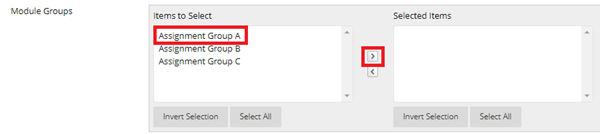
c. In the Membership section, you can make the assignment visible to specific users. There is a section labelled Module groups. The Items to Select box should contain a list of the module groups you created earlier.
d. Click the group you’re making the assignment visible to, then click the right arrow to move the group into the Selected Items box.
e. Click Submit.
View submissions
a. Go to either Needs Marking or the Grade Centre column
- Full Grade Centre then find the group assignment column, click on the drop-down next to the column title and select Mark Attempts from the menu option.
- In Module Management menu, go to Grade Centre and Needs Marking

If you enabled anonymous grading for a group assignment, all group identifying information is hidden. Access the submissions in Grade Centre as usual but expect the following:
- After the due date has passed or all attempts have been submitted, go to Full Grade Centre then access the group assignment column, click on the drop-down next to the column title and select Mark Attempts from the menu options.
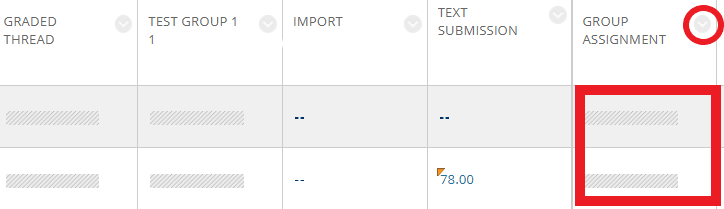
- All the cells (in the rows which would identify students) are greyed out in the column, this is so you don't know which groups made submissions.
- Needs Marking area: Filter the items that need marking to show only the group assignments you want to grade.
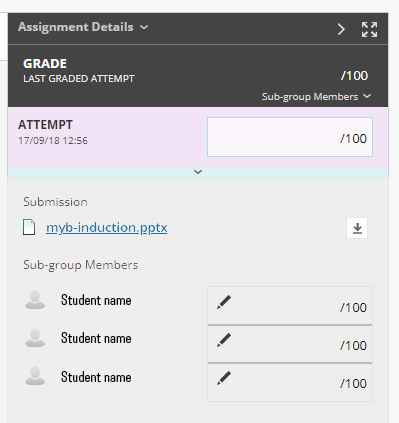
You can follow the steps in our leaving feedback for a Blackboard assignment guide in order to share feedback with a group. All members of the group will be able to view the feedback, however, it is possible to specify individual marks if appropriate.