

Leeds Beckett University - City Campus,
Woodhouse Lane,
LS1 3HE
Enrolling instructors on a module
Page last updated:
This is a staff guide on how to enrol instructors on a module.
There are different roles within MyBeckett modules or course communities, each providing different access permissions for users. Two of the main roles that you will encounter are instructors and students.
Important: Never add students to credit modules via this method, as enrolled students are attached automatically by a data-feed directly from Banner.
a. Go to Module or Community Management (located at the bottom left menu bar in your module or community), click Users and Groups, then click Users.
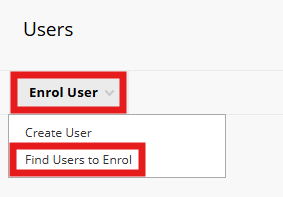
b. Hover over Enrol User and click Find Users to Enrol.
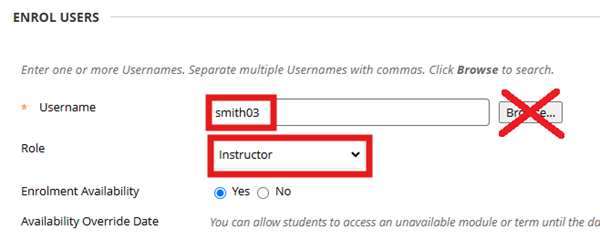
c. Add Username e.g. smith03 NB: Do not click Browse. If you enter any usernames incorrectly, none of the enrolments will be processed.
d. Select the Role of the user from the drop-down menu, for Teaching staff select Instructor.
e. Click Submit.
a. In your Module or Community Management menu click Users and Groups, then click Users.
b. Locate the staff member and click the action link button to the right of the username.
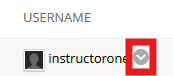
c. Click Change User's Availability in Module.
d. Select Yes / No for their availability. This only affects the module you are editing.

e. Click Submit.
If you have accidentally enrolled a staff member as a student, you can change their role within the Module or Community.
a. In your Module or Community Management menu click Users and Groups, then click Users.
b. Locate the staff member in question and click the action link button to the right of the username.
c. Click Change User's Role in Module or Community.
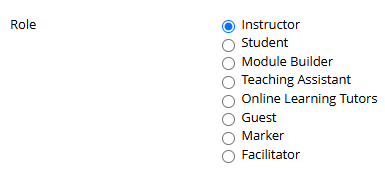
d. Select the appropriate role from the list.
e. Click Submit.





