Leeds Beckett University - City Campus,
Woodhouse Lane,
LS1 3HE
Hide marks from students (settings checklists)
Page last updated:
This guide contains a checklist of settings that you can refer to when setting up Blackboard assignments, to ensure that marks are hidden from students until you are ready to release them.
How do I control the release of marks to students?
One of the key features of MyBeckett's Grade Centre is that you use it to determine whether or not assignment columns are shown (students can see their marks) or hidden (students can't see their marks).
In addition, some Blackboard assignment settings control the visibility of Grade Centre column information, so we have listed these settings in this guide.
For Turnitin assignments please see our Turnitin guide to releasing marks and feedback and our video guide to preventing early release of Turnitin marks.
Blackboard assignment settings checklist:
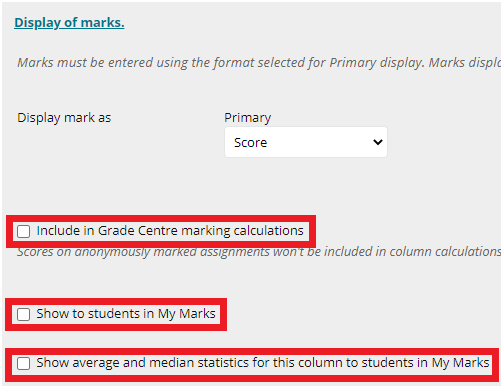
- Have you deselected the Include in Grade Centre calculations option?
- Have you deselected the Show to students in My Grades option?
- Have you deselected the Show statistics option?
- Have you hidden the associated Grade Centre column for the assessment? Our hide columns guide explains how.
- Have you checked that the Total column is hidden so that students cannot work out their marks based on data feeding into these columns? Our hide the total column guide explains how.
How do I hide columns from students?
For most Grade Centre columns, you can click the action link at the top of the column and click Hide from students. The action link is a circle with an arrow pointing down.

Important: When hiding assignment columns, please be aware that students may be able to work out their marks using data feeding into the Total column. To prevent this, you can also check that the Total column is hidden.
The visibility of assignment columns is tied to the assignment settings. If you make any changes to a Blackboard or Turnitin assignment, make sure to also check Grade Centre.
How can I tell if a column is hidden from students?
When a column is hidden from students, a red line icon will appear at the top, next to the column name. This means that the data is not currently visible to students via any channels.

Key settings involved in the release of marks and explanations
NB: If you are looking for step by step instructions to setting up a Blackboard assignment, please see our guide to creating Blackboard assignments.
Include in Grade Centre calculations: Leaving this option unchecked means that marks from the assignment will not feed into the Total column. This prevents students from working out their mark too early.
Show to students in My Grades: Leaving this option unchecked hides the associated column in Grade Centre, meaning marks will be hidden from students until you reveal the column.
Show statistics option: Leaving this option unchecked means that students won't see additional statistics about their marks.