

Leeds Beckett University - City Campus,
Woodhouse Lane,
LS1 3HE
Mark a test
Page last updated:
This staff guide describes the process of marking a student's test submission in MyBeckett.
Before you start, please check that you have hidden the relevant Grade Centre column from students, so that you can control the release of marks and feedback when you are ready. If you are unsure about how to do this, please check our guide to showing and hiding Grade Centre columns.
Some test options also control the release of marks and feedback. You will have chosen these settings when you originally created your test and added it to a content area in your module.
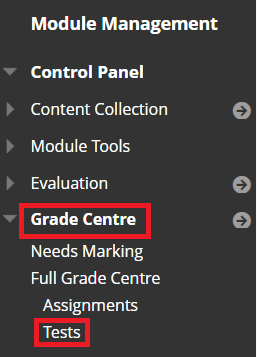
a. In the Module Management menu at the bottom left of your module, click Grade Centre, then click Tests.
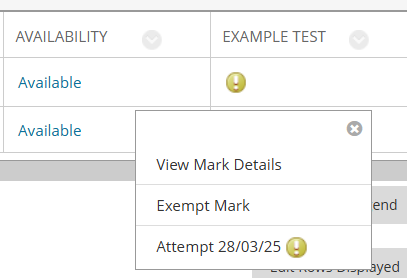
b. Find the column for the test. Use the scroll bars to navigate.
c. All new submissions that need marking are highlighted with an exclamation mark.
d. Click the action link (circle with down arrow) next to the exclamation mark, then click the Attempt you want to mark.
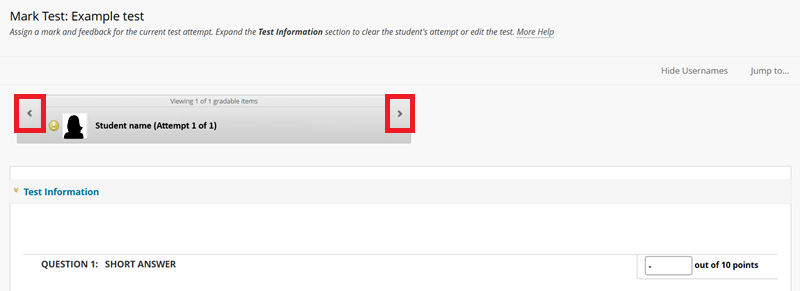
When you open a student's test attempt, you will be able to view each question, followed by the student's answer to that question.
To move to a different attempt, you can use the arrows at the top of the page. The student's name will display in this box unless you Hide Usernames using the option at the top right.
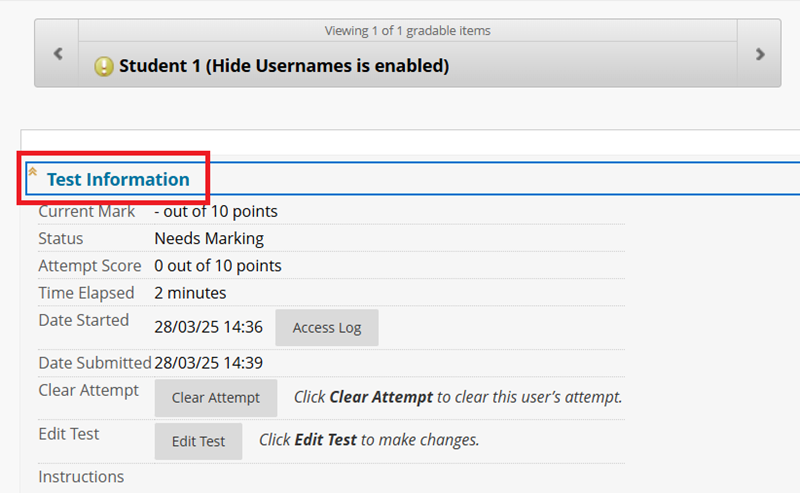
You can click Test Information to expand the test details, including:
- Current mark
- Status e.g. Needs Marking
- Attempt score
- Time elapsed
- Date started (including Access Log)
- Date submitted
- Clear attempt (warning, this will delete the student's attempt)
- Edit test
- Instructions (the test instructions that were visible to students)
Some question types (such as multiple choice questions) are marked automatically.
Short answer questions and essay questions require manual marking, as do responses that involve the upload of files such as PowerPoint presentations or videos.
To mark a question manually:
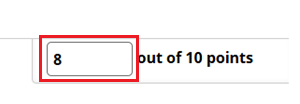
a. Click the box at the top right of the test question that you are marking.
b. Type the mark that you want to allocate.
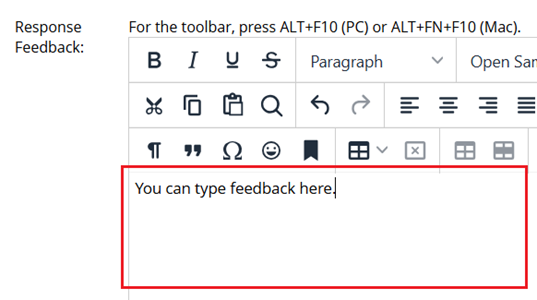
a. If you want to add feedback for a specific question, use the Response Feedback box that is immediately below the student's answer to each question.
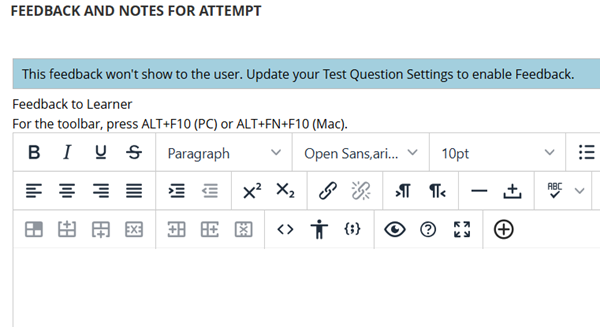
b. If you want to add overall feedback for the test, scroll to the bottom of the page and use the Feedback to Learner box. Depending on your test settings, you may see a note that says "This feedback won't show to the user. Update your Test Question Settings to enable Feedback".
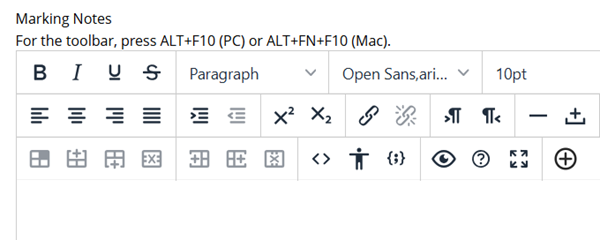
c. There is also an optional Marking Notes section. Text entered in this section is not visible to the student.
d. To save feedback, click Submit.
This FAQ explains the steps that a student can take to access marks and feedback on a test.
If students need any support, they can contact the Library and Student IT Advice team using the contact details on the Library website.





