Leeds Beckett University - City Campus,
Woodhouse Lane,
LS1 3HE
Module and Community availability
Page last updated:
This guide shows staff how to make MyBeckett modules and course communities available or unavailable for students.
A padlock icon at the top right of each module and community (next to the Edit Mode button) clearly indicates when a module/community is available to students. By default, your modules and communities will already be available (the open padlock icon).
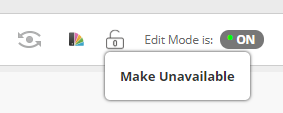
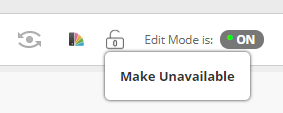
Available modules/communities display a grey, open padlock icon.
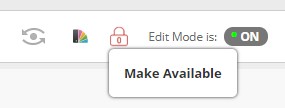
Unavailable modules/communities display a red, closed padlock icon.

When new, empty modules/communities are created, they are automatically set to available. This means that when students are enrolled and gain access to MyBeckett, they will be able to navigate to and access available modules/communities. They will also receive notifications about new module/community content if they choose to install the Blackboard app.
You can click the grey, open padlock icon at the top right of your module or community if you need to make an individual module/community unavailable to students.
We advise that you use this feature with caution. For example, if you change the availability setting whilst preparing content, please make sure that the module/community is set to available (the open padlock icon) when you are ready to release content to students. Other staff members will not be able to self-enrol on the module/community whilst it is unavailable.
If you have made a module/community unavailable to students for any reason, the padlock icon will be red and in a closed position. To make the module/community available to students, click the red padlock icon so it changes to a grey padlock, in the open position.