

Leeds Beckett University - City Campus,
Woodhouse Lane,
LS1 3HE
Module reports
Page last updated:
This guide provides information to help staff get started with Blackboard module reports.
Blackboard module reports track all module menu items automatically. However, if you want to track items within each area, you must enable statistics tracking manually for individual items.
Blackboard module reports enable you to access information about module usage and user activity.
There are eight different types of Blackboard module reports. These include:
- All User Activity inside Content Areas: A summary of user activity within different content areas in your module. Use this report to determine which students are active in your module, and to understand the content they are using.
- Course Activity Overview: Overall user activity within your module, sorted by student and date. This report can help you to understand which days of the week your students are active within your module, and how much time they spend.
- Course Performance: You can use this report to compare module activity against targets.
- Overall Summary of User Activity: This is an overall summary of user activity throughout the module, with dates and times. You can use this report to view student access, and understand how often students are using module tools.
- Single Course User Participation Report: You can use this report to access data about assessment and collaboration tool usage between specified dates, including assignments and test submissions.
- Student Overview for Single Course: Information about individual students.
- User Activity in Forums: This report displays information about user activity in any discussion boards within your module, such as which forums are used the most.
- User Activity in Groups: You can use this report to access a summary of user activity in sub groups for your module (if you are using these).
Note: Blackboard module report data is refreshed once per day, at midnight.
a. Access your module, then click Evaluation in the Module Management menu.
b. Click Module Reports.

c. Locate the report you want to run, then click the circular action link icon to the right of the report name.

d. Click Run.
e. The Report Specifications section will vary depending on the report you have selected.
f. When you are ready to run the report, click Submit. The report will open or download in a new window, depending on the format you chose.
To enable statistics tracking for a specific item in your module:
a. Locate the item within your MyBeckett module, for example, an assignment.
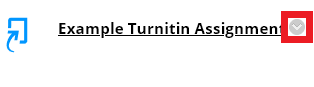
b. Hover your cursor over the name of the item, then click the circular action link icon that appears to the right.
c. Select Statistics Tracking On/Off from the drop-down menu.
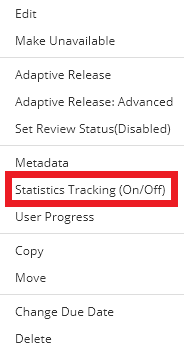
d. Select On, then Submit.

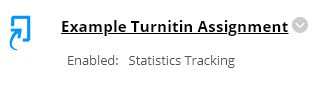
e. The item will display the text Enabled: Statistics Tracking. Your students will not see this message.
To retrieve a report for the item:
a. Hover your cursor over the name of the item, then click the circular action link icon that appears to the right.

b. Select View statistics report from the drop-down menu.

c. Click the action link icon to the right of the Content Usage Statistics report.

d. Click Run.
e. You can then select your report specifications, including format (PDF, HTML, Excel, Word), a start and end date for the data, and list of users. Then click Submit.
f. The report will open or download in a new window, depending on the format you chose.
Note: Data is refreshed every 20 minutes for individually tracked items.





