Leeds Beckett University - City Campus,
Woodhouse Lane,
LS1 3HE
Upload marks from a spreadsheet
Page last updated:
This guide shows you how to prepare a column in Grade Centre, so that you can upload a spreadsheet of marks such as exam results or offline coursework (presentations, performances and so on).
a. In MyBeckett, from the Module Management menu, click Grade Centre then click Full Grade Centre.
b. Click Create Column, then complete your column details.
*Note: Column Name and Points Possible are required fields.


c. Check your column settings, then click Submit.
d. Now that you have prepared a Grade Centre column for your marks, click Work Offline (at the top right), then click Download. This allows you to download a spreadsheet, ready to enter marks.

e. In the Data section, select the Selected Column radio button, then use the drop-down list to find the column you created. Leave the other settings as they are, then click Submit.

f. Click Download and save the file to a suitable location on your computer. Note, some browsers will automatically save the file in your Downloads folder.
a. Open the spreadsheet that you downloaded from Grade Centre when creating a column for your marks. Check the Downloads folder on your computer if you can't find it.
b. Enter the marks and save the file, making sure not to change the format.
a. Return to Grade Centre.
b. Click Work Offline, then Upload.

c. Click Browse Local Files to find and select the spreadsheet, then click Submit

d. Check that there are no error messages on the confirmation screen, then click Submit.

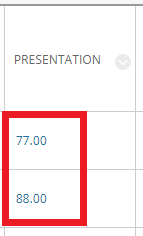
e. The uploaded marks will appear in the column you created.