Leeds Beckett University - City Campus,
Woodhouse Lane,
LS1 3HE
Add a manager to a workspace
Page last updated:
This guide explains how to add other staff members to a PebblePad workspace.
You need to be a Lead Tutor on the workspace to be able to add other managers. New staff can’t be added as managers until they have an active PebblePad account, meaning you've logged in three times or more.
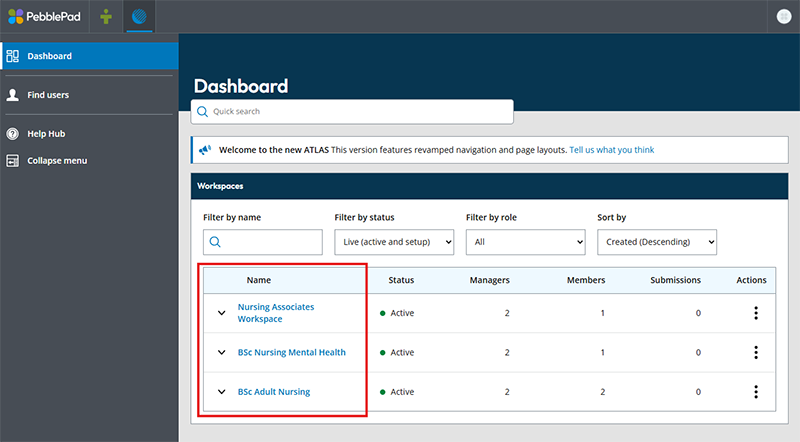
a. Click on a Workspace.
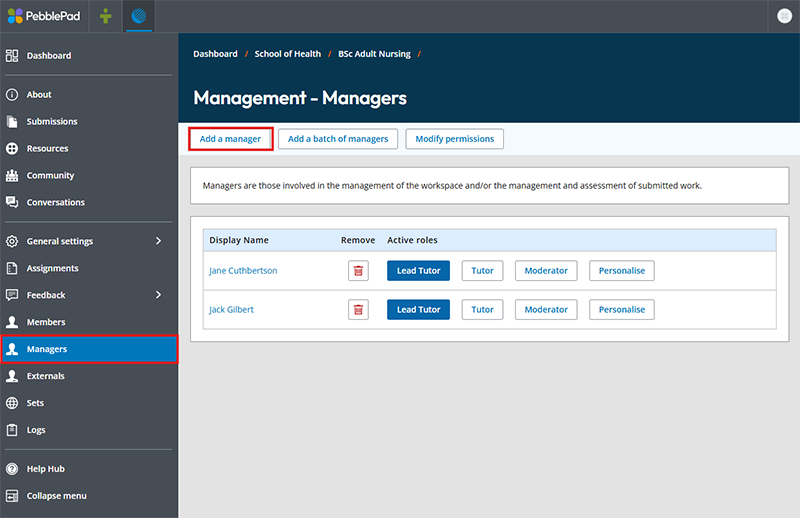
b. In the left hand menu, click Managers, then on the main section of the page click Add a manager.
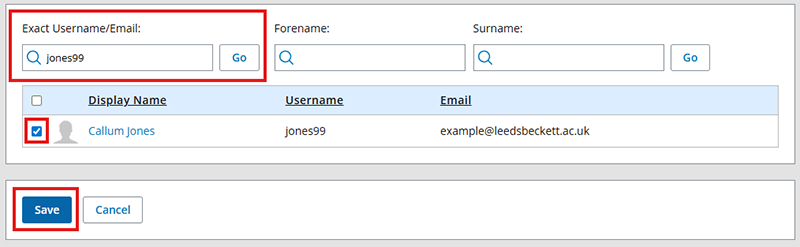
c. Enter the exact username of the person you wish to add, then click Go. When their details appear beneath, select them using the small checkbox to the left, then click Save.
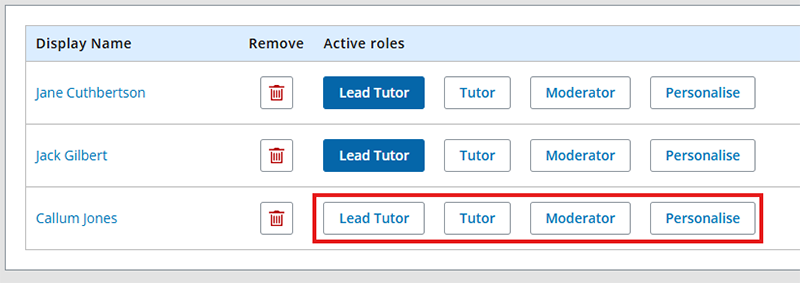
d. Finally, give the new manager a role on the workspace:
- Lead tutor - controls the workspace set up and settings, provides assessment to students
- Tutor - provides assessment to students
- Moderator - provides internal assessment
- Personalise - allows you to manually tailor workspace permissions for a manager
Click on a role to assign it to your new manager. If you do not complete this final step your new manager will not see the workspace!