

Leeds Beckett University - City Campus,
Woodhouse Lane,
LS1 3HE
Create an assignment
Page last updated:
This guide provides information for staff setting up an assignment in PebblePad.
You need to be a Lead Tutor or Tutor on the workspace in order to create assignments.
a. Every ATLAS workspace has a default assignment setup and ready to use. Once students are enrolled on the workspace they can begin sharing Assets to this assignment. If you only require the use of a single assignment on PebblePad with your students, skip ahead to section D in the section below that covers the assignment settings page, as you will be able to simply use the default assignment. If you would like to use multiple assignments on your workspace, continue below to see how to set this up.
a. Login to PebblePad (see our guide for help).
b. At the top of the screen, click the blue globe icon to open ATLAS.

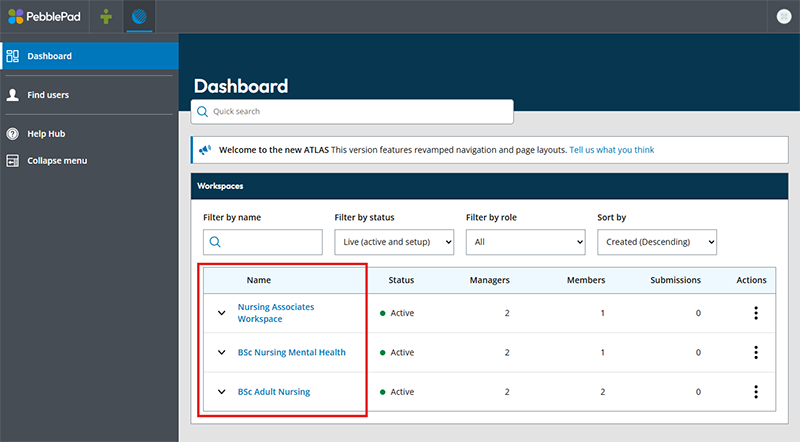
a. To create an additional assignment, in ATLAS, click the name of the Workspace where you want to create an assignment.
If you don't see any workspaces listed, contact the Digital Learning Service (details at the bottom of this page).
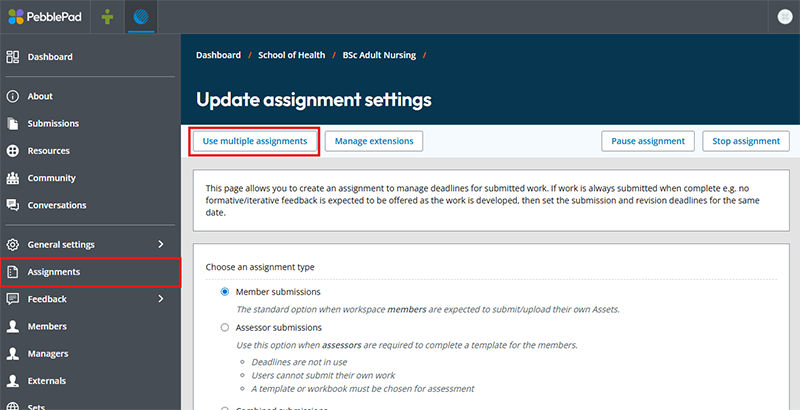
b. In the left hand menu, click Assignments, then in the main section of the page click Use multiple assignments.
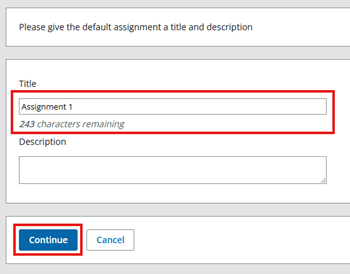
c. Before going any further, you will be asked to give the default assignment a title. Enter a title for the default assignment, then click continue.
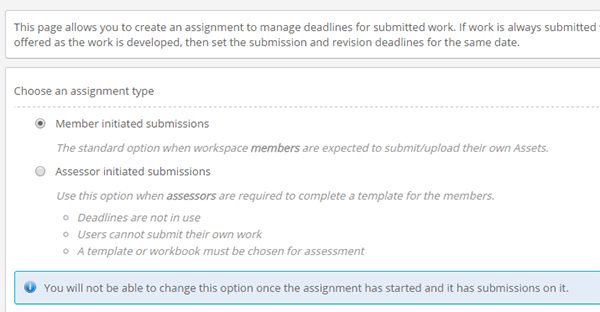
d. Choose an assignment type. Use Member initiated submissions when you want learners to submit or upload their own assets, which includes any course templates they have been provided with.
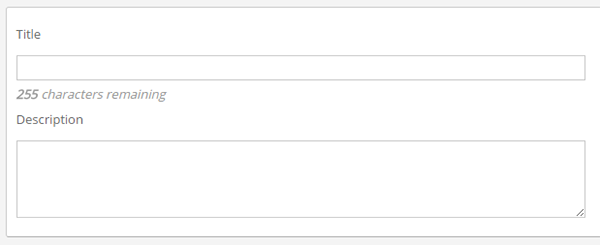
e. Leave the submission viewer set to submission viewer 2. Then type the assignment Title and optional Description.
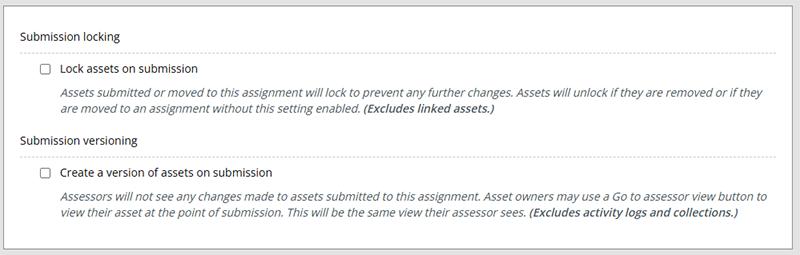
f. You can choose to lock Assets upon submission, which will prevent students making any further changes. Alternatively, you can allow versions of Assets to be created on submission - meaning a version of the Asset is created at the point of submission and this is shared, leaving a master copy to be freely edited by the student in their account. These settings can be left switched off if none of this is desired.
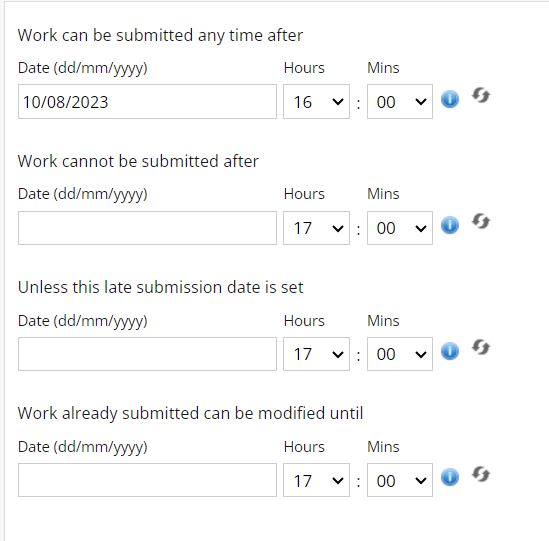
g. Complete Start / Due / Late / Modification dates and times as required.
- Recommendation: Set the due date to a time during staffed hours, so that support is available for students submitting assignments. Please be aware of the University system upgrade schedule when setting deadlines.
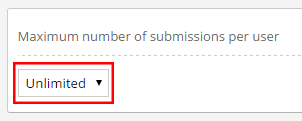
h. Select the Maximum number of submissions per user.
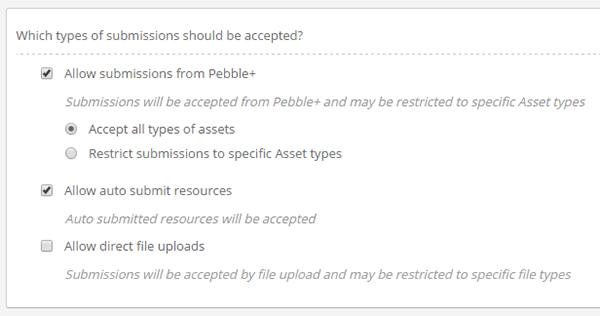
i. Choose Accept all types of assets or Restrict submissions to specific Asset types. If you restrict asset types, you'll be asked to specify which types you'd like students to be able to submit. You just need to tick the relevant boxes.
j. Click Save.





