Leeds Beckett University - City Campus,
Woodhouse Lane,
LS1 3HE
Mark a submission
Page last updated:
This guide provides information for staff marking assignments in PebblePad.
You need to be a Lead Tutor, Tutor or Moderator on a workspace to mark submissions.
a. Login to PebblePad see our guide for help).
b. At the top of the screen, click the blue globe icon to open ATLAS.

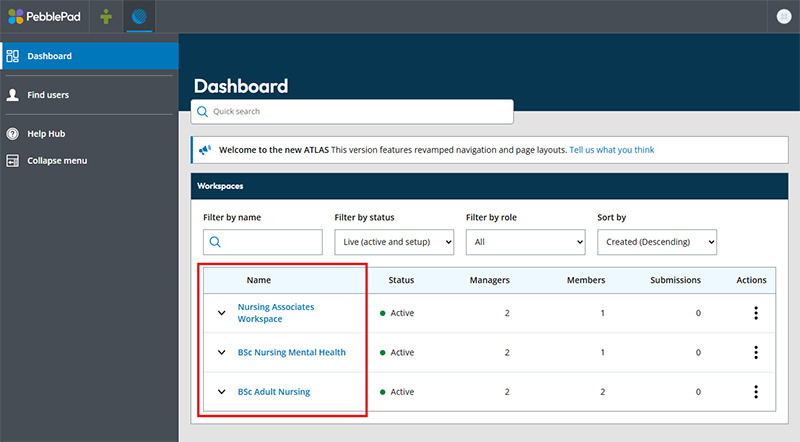
a. Click the name of the Workspace containing your assignment.
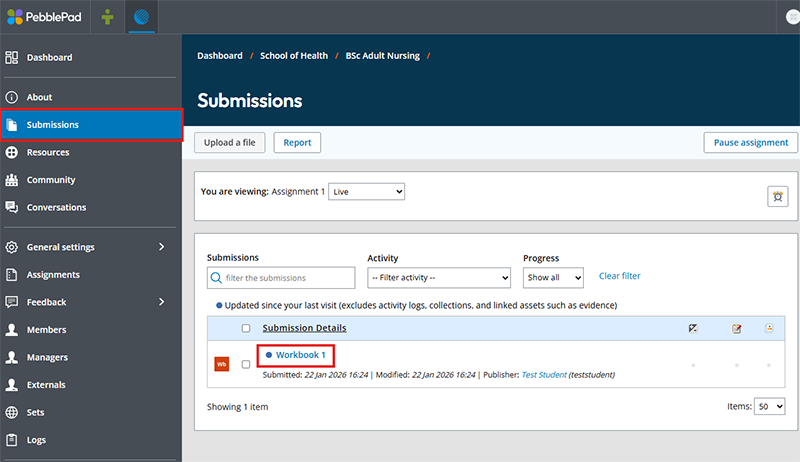
b. You should automatically land on the submissions page for the workspace assignment. Click a listed submission or use the filter e.g. search for a name to narrow results.
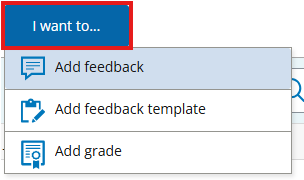
c. The submission opens. A panel to the right will appear containing options to leave feedback and comments, or provide exporting features. In the Feedback tab, click I want to, and the options to Add feedback or Add grade will appear.
d. Once you enter your feedback and/or grade, you will see the option to save and hold, or save and release. If you are planning to release feedback/grades at a single point in time for all students, click save and hold, which will save but not release the feedback to the student. If you would like to release feedback/grades for the submission you are viewing now, click the arrow to the right of the save and hold button, then click save and release.