

Leeds Beckett University - City Campus,
Woodhouse Lane,
LS1 3HE
Bulk Download Student Submissions
Page last updated:
This guide explains how to download all submissions from the Turnitin Submission Inbox and how to download all graded submissions with feedback as PDF documents.
You can download submissions from the assignment inbox in different formats e.g., Original File Type, Standard PDF’s, PDF’s with GradeMark attached. In addition to this you can also download submission information as Excel data e.g., Grade Report and Submission List.
Note: This can be downloaded before or after marking.
a. In your module navigate to the Turnitin assignment.
b. Click the assignment link to open the Submission Inbox.

Original File bulk download refers to downloading the original file type that was submitted by the students within the assignment inbox in bulk.
a. Select the Download All button, select Original Files option.

c. Click the downloaded folder to open it (in Google Chrome, it appears at the bottom of the browser window).
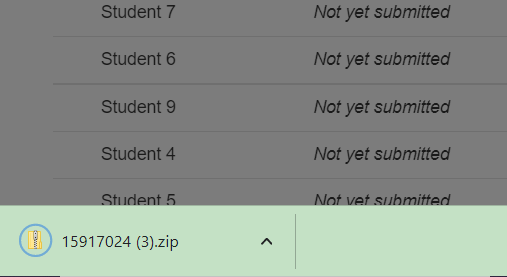
d. The folder displays all the submitted assignments as their original format to be clicked and viewed.
Standard PDF bulk download allows you to download all the submitted assignments as individual PDF’s to view.
a. Select the Download All button, select Standard PDF’s option.
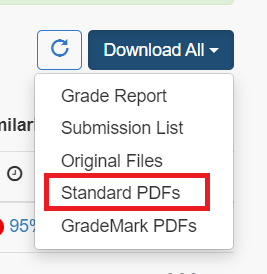
b. Once you have selected Standard PDF’s option it may take a few seconds / minutes depending on the number of submissions. When it's ready, click the Zip file that appears to download it.
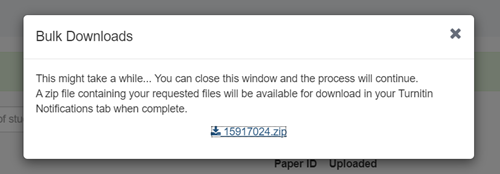
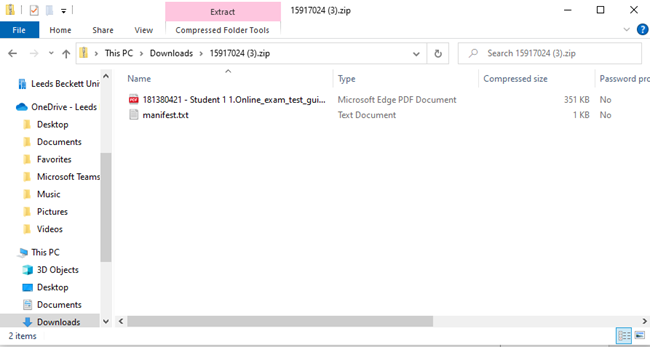
d. The folder displays all the submitted assignments as PDF’s to be viewed easily by one click.
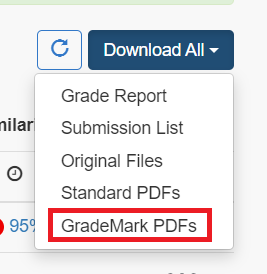
GradeMark PDF exports allow you to download all your marked assignment submissions as PDFs with feedback and grades included.
a. Select the Download All button, click GradeMark PDF’s option.
a. Select the Download All button, click GradeMark PDF’s option.
Grade Reports is a report that contain all key information regarding student’s submission to the inbox. The report is generated as an excel sheet and is split into multiple columns containing information such as ‘Paper ID’ ‘Similarity Score’ ‘Students Name’.
a. In order to bulk download grade reports, select the Download All button, click Grade Report option.
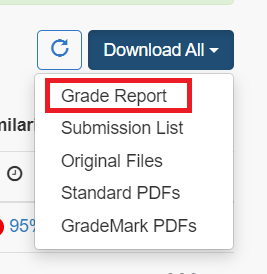
b. Once you have selected Grade Report option it may take a few seconds / minutes depending on the number of submissions.
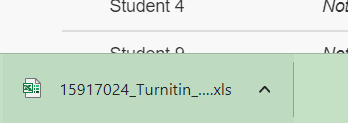
c. Click the excel file to open it and view the generated data available (in Google Chrome, it appears at the bottom of the browser window).
Submission List allows you to see the status of student’s submission, whether they have submitted into the inbox or not. The format the report is generated upon downloading is as a excel sheet which contains all student’s information as bulk in three columns ‘First Name’ ‘Last Name’ ‘Submitted’.
a. To bulk download grade reports, select the Download All button, click Submission List option.

b. Once you have selected Submission List option it may take a few seconds / minutes depending on the number of submissions.
c. Click the excel file to open it and view the generated data available (in Google Chrome, it appears at the bottom of the browser window).





