

Leeds Beckett University - City Campus,
Woodhouse Lane,
LS1 3HE
Create and attach a Grading Form
Page last updated:
You can use a grading form to structure written feedback against a set of criteria. This can help students to understand the marks you have allocated, as the grading form provides added detail.
What do grading forms look like?
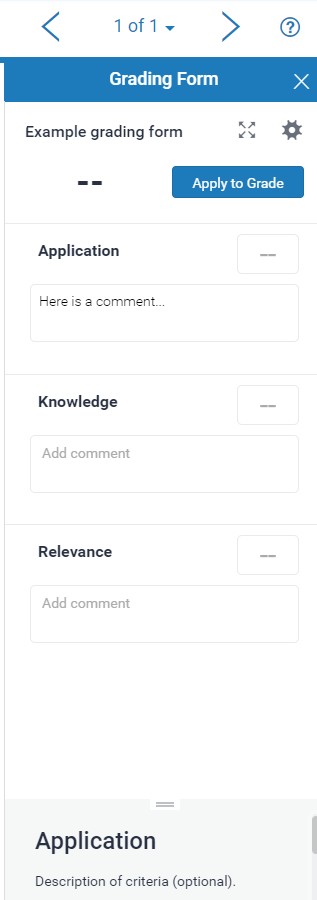
If you create and attach a grading form to a Turnitin assignment, it will appear in the feedback panel on the right of a student's paper when marking online.
In the example below, this grading form contains 3 criteria under which instructors can leave written feedback. As scoring in enabled for this grading form, there are boxes to the right of each criterion where instructors can specify marks for each sections.
Sharing grading forms
You can share grading forms with other instructors. For more information about this, see our guide to importing and exporting Rubrics / Grading Forms.
Student perspective
If you attach a grading form to a Turnitin assignment, your students will also be able to access this when they open their submission from the icon on the right side of their paper.

You can access the Rubric and Form Manager in 2 ways:
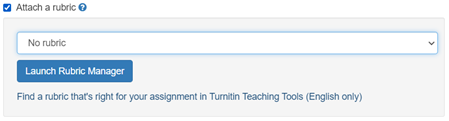
Option 1: When creating a new Turnitin assignment within the Optional Settings section, tick attach a rubric. Then select Launch Rubric Manager.
Option 2: Within Feedback Studio when viewing a student's paper... click the blue rubric icon in the panel on the right, then click the cog icon.

a. Access the Rubric and Form Manager via one of the methods described in step 2 of this guide.
b. In the Rubric Manger window select the burger menu icon (top left, three lines) and choose 'Create new grading form' from the list.

c. Type a name for your grading form then click anywhere outside of the text field to save the title.

d. Enter your criterion titles and descriptions in each text field. These are saved as you click outside of each field. You can use either plus icon to add further criteria.

e. If you plan to use your grading form to add comments, you can disable scoring by deselecting the check box at the bottom left of the form.
Example of the check box to deselect scoring via the submissions inbox:

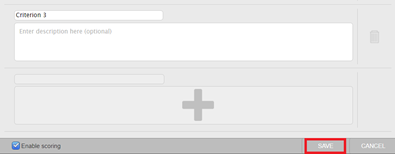
f. When you have finished setting up your grading form, click Save.
Important: You cannot edit a grading form that you have already started using with an assignment or one that has been shared with you.
a. Access the Rubric and Form Manager via one of the methods described in step 2 of this guide.
b. Click the menu icon at the top left of the Turnitin Rubric and Form Manager.
c. Use the drop-down list to select the grading form that you want to edit.
(NB: You cannot edit grading forms that someone else has shared with you).

d. Make your changes to the grading form.
e. When you have finished editing your form, click Save.
As you cannot edit a grading form once it is attached to an assignment, you may instead want to duplicate the form to edit and reuse elsewhere.
a. Access the Rubric and Form Manager via the Rubrics Manager (as described in your preferred method in step 2 of this guide).
b. Click the menu icon, select the grading form that you want to duplicate from the menu list.
c. Click the menu icon again to reopen, ensure that the form you want to duplicate has a tick next to it and then click Duplicate.

d. Rename the form as needed to avoid confusion with the original. Click Save.
a. Open the submissions inbox for your Turnitin assignment, then click the cog icon at the top right.

b. Click on Optional Settings.

c. Tick Attach a rubric
d. Select your grading form from the Turnitin Rubric drop-down list.

e. Click Submit at the bottom of the settings page.
Important: Detaching a grading form will remove existing scores and comments from the assignment.
If there are multiple tutors marking, ensure that none have started before removing.





