

Leeds Beckett University - City Campus,
Woodhouse Lane,
LS1 3HE
View Turnitin submissions and similarity reports
Page last updated:
This staff guide describes the academic honesty tools that are available in Turnitin Feedback Studio.
- The Flags function advises of incidences such as hidden text within an assignment for you to review
- The Similarity Index shows the percentage of text found similar to other submitted work and sources in Turnitin's database
- The AI writing report shows an overall percentage of the document that may have been AI-generated.
- The Document Details function provides insights into metadata stored within the file
What are flags?
When viewing a submission in Turnitin Feedback Studio, the Flags tool appears above the similarity score in the red panel on the right-hand side of the document.
One of the most common ways students attempt to evade similarity checking is through discrete text modifications, such as:
- Using white-on-white text.
- Replacing characters.
- Symbols from another alphabet.
The panel allows instructors to easily identify and review places within a document that students have manipulated text. Click on the Flags tool to view a summary of any 'flags to review' this will include any inconsistencies picked up by Turnitin's algorithms.
Please note, like Turnitin's other academic honesty tools, a flag is not necessarily an indicator of a problem. A flag simply indicates that an area may benefit from closer inspection by the instructor.
How do I use the flags tool?
a. Click on a student's submission to open it in Turnitin Feedback Studio.
b. The similarity tools are located in a red bar on the right of the student's work. On smaller screens, this may be condensed. You can click the Similarity Tools icon to expand the menu.
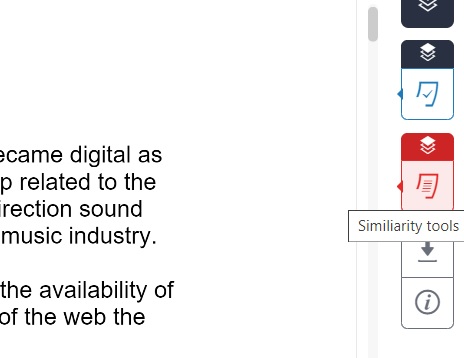
c. The menu may expand horizontally or vertically, depending on the size of your screen. In the example below, the expanded menu below shows one flag issue found to review. We can click on the flag icon for more information about the flag.
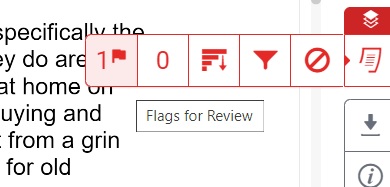
d. The flag will appear to the left of the relevant part of the student's work, marking the point in the document that the flag references.
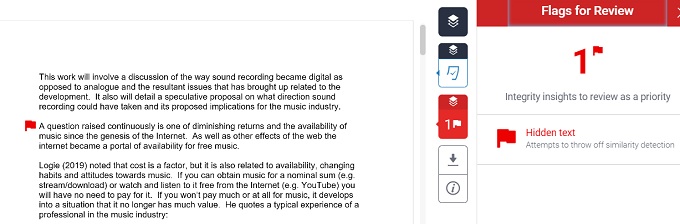
e. The right-hand panel details what the issue is about. In this case, it has detected hidden text in the essay. If we click the expression Hidden text in the right-hand panel, this expands to show the amount of ‘hidden’ characters evident on a number of pages within the essay.
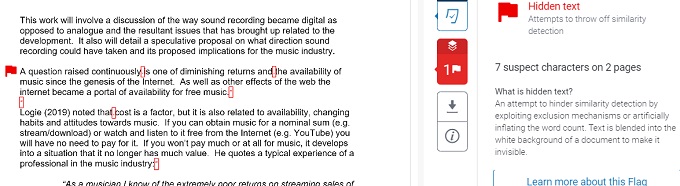
f. The document annotations will highlight each of the hidden characters.
g. If we zoom in just above the second paragraph in our example, we see that one of these characters is an opening quotation mark.
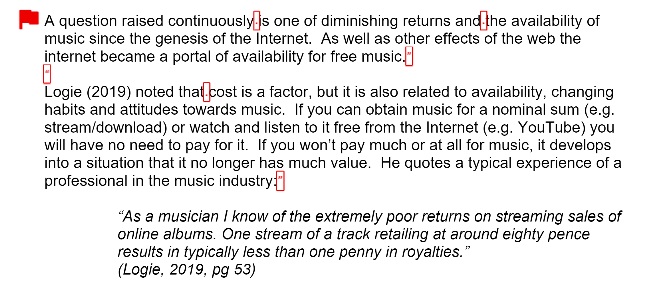
One method that is known to have been used to try to evade text matching tools, is to enclose the text in quotation marks. This is because some instructors use the ‘exclude quoted material’ setting when creating the assignment. The flags tool will alert instructors that hidden characters exist.
What is the Similarity index?
The Similarity Index is a percentage of the submission that Turnitin matched to text on other submissions, regardless of whether or not the text was referenced and cited correctly.
Don't be too quick to make decisions based on the headline number. It's entirely possible that a student's paper may come back with a 100% match, but if they've referenced and cited it correctly, it's not plagiarism. It may not be a very good essay, containing little original thought, but it's not plagiarism.
Conversely, a 1% match that isn't referenced and cited correctly may very well be plagiarism. It's important to check each submission and use your academic judgement. For more information, you may want to consult your subject area for support with Academic Integrity.
To understand the similarity reports read this Turnitin UK help guide.
How do I access the similarity report?
a. Click on a student's submission to open it in Turnitin Feedback Studio.
b. The similarity tools are located in a red bar on the right of the student's work. On smaller screens, this may be condensed. You can click the Similarity Tools icon to expand the menu.
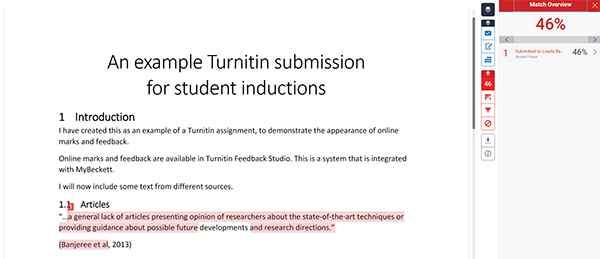
b. The Turnitin document viewer opens. The similarity index is displayed by the icons on the right.
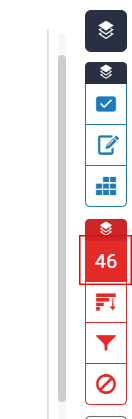
In our example, it's 46%. The student’s submission is displayed on the left. You can click the similarity index to view text matches in the document.
- Highlighted text means that the text matches another source
- Text that hasn’t been matched is not highlighted
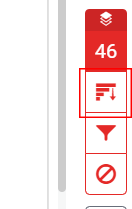
c. You can click the All Sources icon (that looks like bar chart with an arrow) to view a list of sources that match text within the submission. Matches are listed from highest to lowest. You can click on a source and use the Exclude Sources button at the bottom of the column if appropriate.
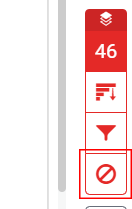
This will update the similarity score for the paper, for everyone that views it. Excluded matches can be viewed by instructors by clicking the no entry icon (students cannot see this icon).
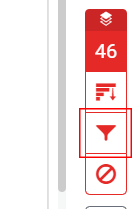
d. The Filters and Settings icon allows you to exclude quotes, bibliography, and sources by size. Click Apply Changes to update the similarity index based on the exclusions you have selected.
e. The Excluded Sources icon shows a list of any sources that you have manually excluded. You can use the Restore buttons at the bottom of the column if appropriate. NB: By default if an assignment is previously uploaded into the wrong submission inbox, within the same module, the similarity report will automatically exclude it.
Accessibility options
You can also open a text-only version of Turnitin similarity reports.
a. Open a paper in Turnitin Feedback Studio by selecting the paper title from the Assignment Inbox.
b. After first loading Turnitin Feedback Studio press the tab key. A box will appear on the screen with the focus already on that element. A screen reader will read this element as a link saying 'Navigate to text-only Similarity Report'. You can select on this link or press enter on your keyboard to open the text-only Similarity Report.
c. The text-only similarity report will now load in a new window. Turnitin Feedback Studio will remain open in your previous window. You can also select on the Document Viewer to load it again.
What is the AI writing report?
In this context, AI refers to Generative Artificial Intelligence (also known as Gen AI).
Turnitin's AI writing report tool is intended to provide information that assists instructors in identifying when Gen AI writing tools may have been used in submitted work.
The AI writing report should be used with caution and not as a final judgement on a piece of work. Instructors are encouraged to understand the tool's investigation capabilities before making a decision about student's work.
If after reading the information below you still have concerns about how a report should be interpreted, please discuss the submission with your Academic Honesty Lead.
Why do instructors need to proceed with caution?
Generative AI technologies are developing at pace, meaning that they are likely to be a step ahead of the tools that are built to detect them.
Turnitin's AI writing report was trained on an older version of the language model that is used in many Gen AI tools. It also requires long-form prose text, rather than lists or bullet points.
Turnitin took steps to minimise bias in the dataset used to train their language model. However, when assessing the work of non-native speakers of English or less common subject areas, please take extra steps to build a picture of the work you are investigating.
These words of caution may prompt the question, why use the AI writing report tool? Having this option available to instructors has the benefit of providing a tool that:
- Keeps student data safe, as opposed to unsupported Gen AI investigation tools.
- Provides information that may be the starting point of further investigation, or a conversation with a student.
- Has known capabilities, documented by Turnitin.
Who can access the AI writing report?
Only staff see the results of AI writing investigation results. The indicator should be used for guidance only, not as a final judgement.
How do I access the AI writing report?
When you open a student's submission in Turnitin Feedback Studio, the AI writing report indicator is available in the side panel on the right of the document.
What does the AI writing report indicator show?
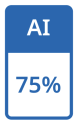
The AI box will display one of three potential results shown below.
Blue with a percentage between 0 and 100. This shows the submission has processed successfully.
- Select the indicator to open the AI writing report. The AI writing report opens in a new tab of the window used to launch the similarity report.
- Turnitin does not show an AI score for documents that flag less than 20% of potential AI writing.
- It is essential to understand the limitations of Gen AI investigation tools before making decisions about a student's work. Turnitin's own guidance explains the strengths and weaknesses of the AI writing report.
Gray with no percentage displayed. This shows the AI writing investigation indicator is unable to process the submission and the report cannot be opened.

This can be due to one or more of the following reasons.
- The submission was made before the release of Turnitin's AI writing investigation capabilities. To see the AI writing report you will need to resubmit historical submissions.
- The submission does not meet the following file requirements needed to successfully process it for AI writing investigation:
- File size must be less than 100MB
- File must have at least 300 words of prose text in a long-form writing format
- File must not exceed 30,000 words
- File must be written in English
- Accepted file types: .docx, .pdf, .txt, .rtf
Red error indicator. This shows that Turnitin failed to process the submission and the AI writing report cannot be opened.

What does the AI writing report contain?
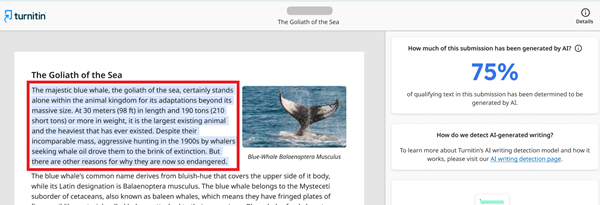
The AI writing report contains the overall percentage of prose sentences contained in a long-form writing format within the submitted document, that Turnitin's AI writing investigation model indicates may have been generated by AI. These sentences are highlighted in blue on the submission text. You can download the AI writing report individually.
How does the AI writing report relate to the similarity score?
The percentage generated by the AI writing report is different and independent from the similarity score and the AI writing highlights are not visible in the similarity report.
How should instructors interpret the AI writing report results?
Instructors should view the AI writing report as part of a bigger picture and avoid using it to make a quick judgement on a piece of work. Instead, further steps should be taken to gather information, such as:
- Compare the submission to the student's body of work. Does it have a different written style, level of spelling, complexity, tone? Another Turnitin tool called Authorship Investigate could be used to check some of these elements.
- Have a conversation with the student about their work. Please be aware that students do not have access to the AI writing report.
- Talk to one of the Academic Honesty Leads in your School. They may have advice based on similar cases.
Please note: As with other Turnitin text-matching tools, the AI writing report indicates that parts of a student's submission may not have been written by the student and therefore may merit conversation and further investigation. The key factor is not the score, but whether the student has submitted their own work, and quotes / use of AI have been referenced and cited correctly.
See further information on Turnitin's AI writing investigation capabilities.
The Document Details icon (which looks like a piece of paper with a magnifying glass) is at the bottom of the similarity tools menu. If anonymous marking is enabled, this icon will be hidden until the Feedback Release Date of the assignment has passed, as it may contain information that will identify the student.

Instructors can click the Document Details icon to view insights about the file's metadata, as well as images and spelling usage. This is based on descriptive data saved within the file that a student has submitted. The amount of metadata that is available will differ dependent on the file type:
- Author name: This is the name associated with the file's creator in the software that they used. In .docx files, this is the name of the license holder and may be a parent, peer or institution.
- Last modified by: The last user to open and make a change. If the student used one device to create and edit the document, the name would usually match the Author Name field.
- Submission timestamp: The date and time the file was submitted to Turnitin
- Page sizes: This may include information such as A4, US letter, Other
- Assignment: The name of the Turnitin assignment the file was submitted to
- Class: The name of the module the assignment was created in
- Software: The name and version of the software used to edit the file last
- Fonts: This may include the font family e.g. Arial, the font size(s) used in the file, the font colour hex code e.g. #000000 (black)
- Spelling: This section may show information about British and American spelling used in the file





