

Leeds Beckett University - City Campus,
Woodhouse Lane,
LS1 3HE
How To export files from Google Drive and Google PHotos
Page last updated:
This guide explains the steps to export files from Google Drive and Google Photos.
Follow this guide to select and download files and photos saved in your University Google account.
To select and download files from Google Drive:
a. Open Google Drive.
b. Select your files. To download multiple files, hold the Ctrl key (Windows) or Command key (Mac) whilst you click on the files.

c. Click Download.

d. You will see a message that says Preparing download. This will change to Download ready when the process is complete.


e. If the message changes to Download failed, please try the steps again as this usually resolves the issue.

f. Find the downloaded .zip on your device. This will usually be in your default downloads area.
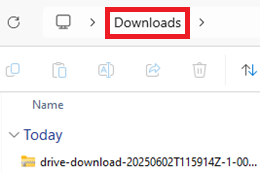
g. Extract the files. Any Google file types such as Docs, Sheet and Slides should have converted to the Microsoft equivalent.
h. You are now ready to import these files into Microsoft OneDrive, SharePoint or Teams.
To select and download files from Google Photos:
a. Open Google Photos.
b. Select the photos you want to download.

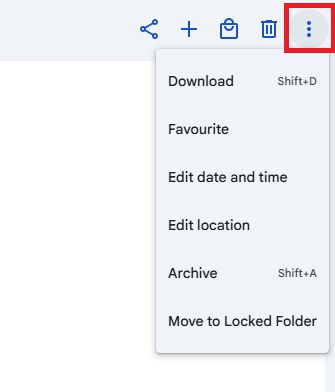
c. Click the three dots at the top right of the page.
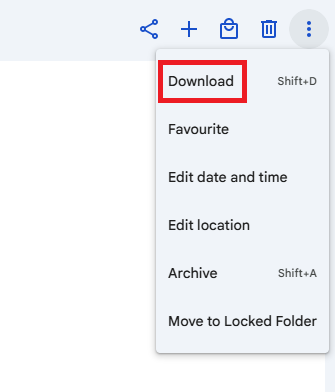
d. Click Download.
e. You will see a message that says Preparing download. This will change to Download ready when the process is complete.
f. If the message changes to Download failed, please try the steps again as this usually resolves the issue.
g. Find the downloaded .zip on your device. This will usually be in your default downloads area.

h. Extract the files.
i. You are now ready to import these files into Microsoft OneDrive, SharePoint or Teams.





