Leeds Beckett University - City Campus,
Woodhouse Lane,
LS1 3HE
Accessibility | Ultra
Page last updated:
This is a staff guide about the accessibility tools in MyBeckett Ultra.
Join us for Fix Your Content Day 2026!
On Tuesday 10 November 2026, colleagues from Leeds Beckett University are invited to participate in a global competition, aiming to make as many improvements to digital accessibility as possible in one day. Every fix, big or small, helps make digital learning more inclusive for all students.
How can I get involved?
Here’s how you can get involved:
- Review your MyBeckett Modules and Communities for red and orange accessibility indicators.
- Drop-in to our MS Teams fix-a-thon, anytime from 10am until 4pm on Tuesday 10 November 2026. Members of the Digital Learning team will be on hand to answer questions as you "fix your content" using Blackboard Ally. You'll find the link at the top of your homepage in MyBeckett.
- Start with quick wins, such as adding image descriptions or improving Microsoft Word documents.
- Make your fixes through the Ally user interface in MyBeckett.
- Encourage your colleagues to take part.
About accessibility in MyBeckett Ultra
MyBeckett Ultra is built to be accessible by design. Information about accessibility compliance is available on the Blackboard website.
The following written and video guides aim to give instructors an overview of how to use Ally and Accessibility Reports to ensure your content in module and communities are accessible for all.
- The Ally tool helps to identifying improvements required with step-by-step walkthroughs.
- We recommended that you run the report regularly & especially after creating, uploading and copying over content over.
Please watch the following Ally for Instructor Microlearning Videos (created by Blackboard)
What are the benefits of using the Accessibility Report Tool?
It is extremely easy to run a report. You can then make the improvements suggested to all your content to ensure it is accessible to all.
- Reports find any issues with content, including Alt Text for images and identifies broken links (URLs).
- It will give indicators using the traffic light system and scales with easy to follow walk-throughs.
Where is the Accessibility Report in my Ultra module and/or community?
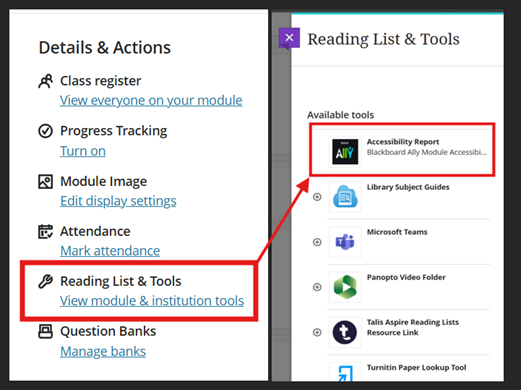
In your Ultra module and community, there is a Details & Actions section on the right of the Module Content page.
Click on the link to view tools in the Reading Lists & Tools section, then click Accessibility Report.
When is it recommended to run the Accessibility Reports?
You can run reports as often as you need if you get into the habit of running them at specific times throughout the year especially as it check for broken links (URLs).
Checklist to run reports:
- After copying content from previous years
- Before the delivery of each term to check readiness
- After adding any content throughout the year
Accessibility Checker - Text and Images
The accessibility Score Gauge indicator is a small icon which displays at the top right corner of Ultra content items. You can use this tool to help you to improve the accessibility of content items that you upload into MyBeckett. When you are editing an Ultra document, the indicator will also appear at the top right of images that you upload.

To view the accessibility score of an item:
a. Select the Score Gauge icon to view the Instructor Feedback panel. This will be green, amber or red depending on the accessibility score of the item.
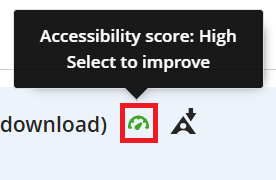
b. A panel will open. This displays the accessibility score as a percentage along with some suggestions about how to improve the accessibility of the item.
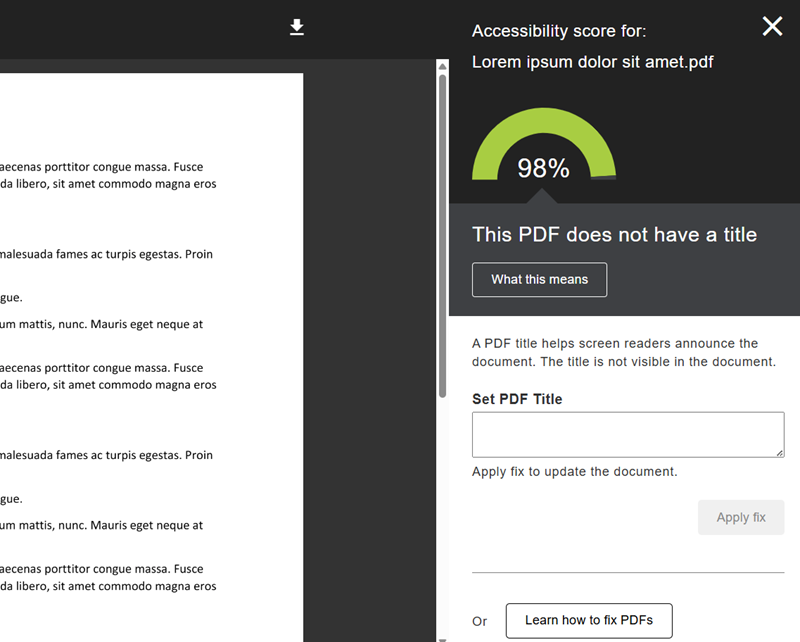
c. Here are some tips that you might find useful:
- Name all content items with a meaningful name
- Alt Text for images or declare 'decorative'
- When creating assignments write the due date in the assessment name - this helps both instructors and students
- Uploaded files need to be named in plain English with the file type
Quickly improve the accessibility of PDF files using the new Auto-Tag feature in MyBeckett Ally.
The tool automatically adds PDF tags to help screen readers interpret the document structure, although you should review the results and make any necessary corrections before making it visible to learners.
Auto-tagging improves accessibility, but PDFs may still need reviewing and remediation.
Example of content area accessibility score indicator
A low scoring red indicator for a PDF that needs improvement using Ally - note it takes a few minutes to generate the score after uploading.
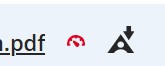
Example of a PDF document that has low score and the reason using the Accessibility Report Tool:

a. Either run the Accessibility Report or select the Accessibility Score Indicator (red, amber, green indicator) on a new or previously uploaded content that is a PDF file.
b. In the Ally report, select the Generate tags button to automatically tag the PDF.
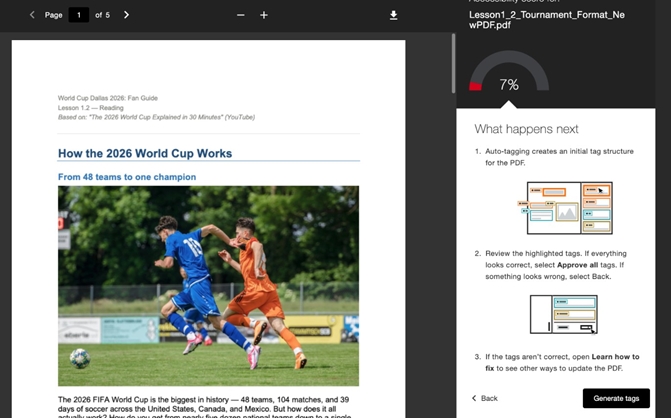
c. When the auto-tag is complete, review the generated tags and make any necessary edit. Then select the Approve all button when you are satisfied with the changes.
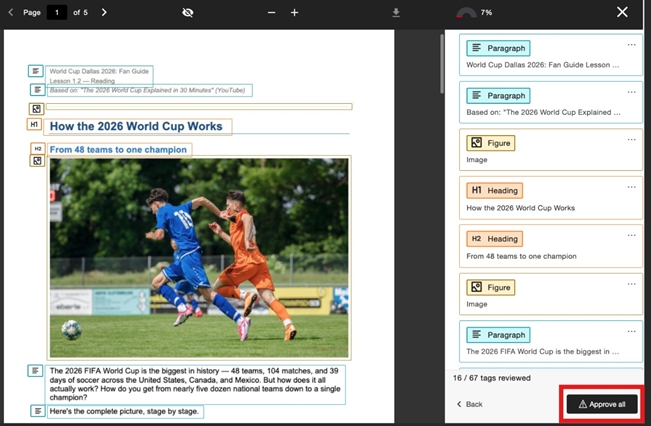
d. Once approved, the Accessibility Score Indicator should display green, indicating that the PDF has a high accessibility sore.
One of the main content types in MyBeckett Ultra is the Ultra document.
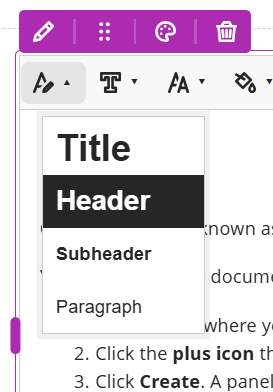
When creating an Ultra document, please make use of the Text Styles tool to apply a Title, Header or Subheader style to the heading levels within your document.
This will support anyone using a screenreader to navigate your document more effectively, using the heading structure that you have applied.
When considering your module or community design, aim for a simple, consistent layout.
Apply a Template
Use an editable template to give your Ultra Module a structure. Contact Digital Learning Service to request.
Prioritise important information so that it is easier for students to find.
Introduce yourself
Create a 'Welcome' content area at the top, introducing the module team and explaining how you have structured content for students.
Create easy navigation
Organising your content by week, e.g. Week 1, Week 2 and so on, is particularly helpful for all students and especially students using screen readers to locate content.
Consider using a Learning Module to create a structure to your content.
Folders
Avoid adding multiple folders within content areas: Students have fed back that multiple layers of navigation is confusing. In MyBeckett Ultra, you can change a folder into a Learning Module.
Accessible Content and Resources
Provide meaningful content names and descriptions to all file uploads and folders.
Run the Accessibility Report and action any improvements identified. Describe: be clear and concise
When creating content in MyBeckett, you can add information including the name and description of what it contains. We recommend that you complete both of these fields as the name helps students to locate content more efficiently, plus the description may provide context and further instructions.
Files
Use descriptive file names. Before uploading files to MyBeckett, please ensure that the file names are descriptive of the context e.g. Week 3 lecture - project planning.docx. This is particularly important for students using screen readers, to help identify the correct file to download.
If you are uploading files into MyBeckett, check that these are of a high quality e.g. avoid poor quality copied documents. Word documents are more accessible than PDFs, as your students can download and modify the text to meet their requirements.
Use Reading Lists to add copyright protected files - such as journals and book chapters instead and these will be easily accessible for students.
The built in Ally tool allows students and staff to download all files uploaded in your module into an accessible format. This makes the ability to available for you to create accessible resources from within MyBeckett Ultra, just ensure your files are the best quality.
Images
Best practice use Images with Alt Text. Run the Accessibility Report tool and it will guide you through your content and identify improvements for you.
If you are using images to present information to students, ensure that you have added an alternative text description for screen readers. However, if you are using images for decorative purposes only, you do not need to add an alternative text description.
Links
Tips for using Hyperlinks - If you are including hyperlinks in your content, add some text to describe the target of the link. Avoid typing 'click here' as screen readers can provide students with a list of links on a page, and this does not help to differentiate between links.
Text and formatting
- Avoid using colours
- Avoid relying on colour to convey meaning
- People see colours differently, and some students may be using a coloured screen mask or contrast settings that change the appearance of on-screen colours
- High contrast and backgrounds: Ensure a high contrast between text and background e.g. black and white
- Avoid picture backgrounds for text areas, as this can be difficult to read
- Use a font size of at least 12px and sans-serif fonts e.g. Arial, as these are easier to read
- Use the Text editor toolbar within MyBeckett Ultra only
- Avoid underlining text as this may be confused with a hyperlink
- Use bold for emphasis, rather than varying font sizes / colour
- Use heading styles to structure text content
- In MyBeckett Ultra, the default text style is Paragraph, either before you type or to change highlight the text and apply styles called: Title, Header, Sub Header, Paragraph via the text toolbar.
- As a note for anyone interested in HTML, these styles correspond to structural elements of MyBeckett pages:
Font size and style
Underlining text
Heading styles
Title <h2>
Header <h3>
Sub header <h4>
Paragraph <p>
Tables and column headings
If you are using tables to display data, make sure that you include column headings with the correct Header style as described above.
Assistive software can help students to perform tasks using systems such as MyBeckett.
For example, screen masking tools enable students to change the colour of the screen to make it easier to read. Some students may also use screen readers to both navigate and read on-screen content. (More information about assistive software for students is available on the Library website).
Students also have the option to change text size or change contrast via buttons on the MyBeckett login page (top right).
Within MyBeckett modules, there is a Quick Links icon (small black & white link symbol) at the top left of every page to help with navigation, it shows the links to contents within each tab.
It also has the keyboard shortcuts available throughout the system.
- SHIFT+ALT+M = Global Navigation Menu
- SHIFT+ALT+L = Opens Quick Links