

Leeds Beckett University - City Campus,
Woodhouse Lane,
LS1 3HE
CALENDAR | ULTRA

Page last updated:
The Calendar in Ultra
The Calendar function in Ultra (within the module) will enable you to:
- Schedule a reoccurring event (e.g. weekly seminar after a lecture)
- Add an meeting (e.g. revision session, tutorial)
- Add a MS Teams meeting link (please see forthcoming guide on Reading List and Tools in Ultra)
- Display a reminder of the date an assignment etc. is due
The Calendar function accessed in the Institution landing page
This is outside your individual modules' calendars but includes all your enrolled modules events (including MyBeckett Original modules). Please see below for details
Please Note
This is not a substitute for the University calendar or to be confused with the timetable function found on the institution page.
Contents
- Access the Calendar
- Adding an event
- Editing/Deleting an event
- Due Date Display (assignments)
- Editing the module schedule
- Office hours
- The Calendar from the Institution landing page
- Sharing a Calendar
Access the Calendar
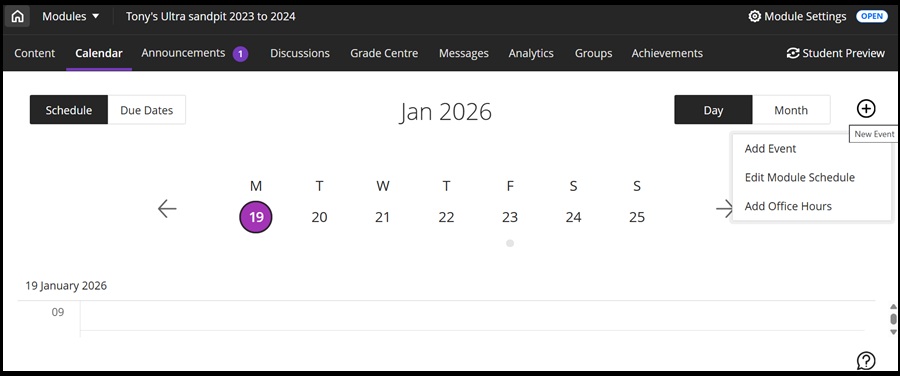
Click the Calendar tab. This shows the main page where the view can be arranged by Day or Month. The current day is selected by default (purple circle highlighting the date):
Adding an event
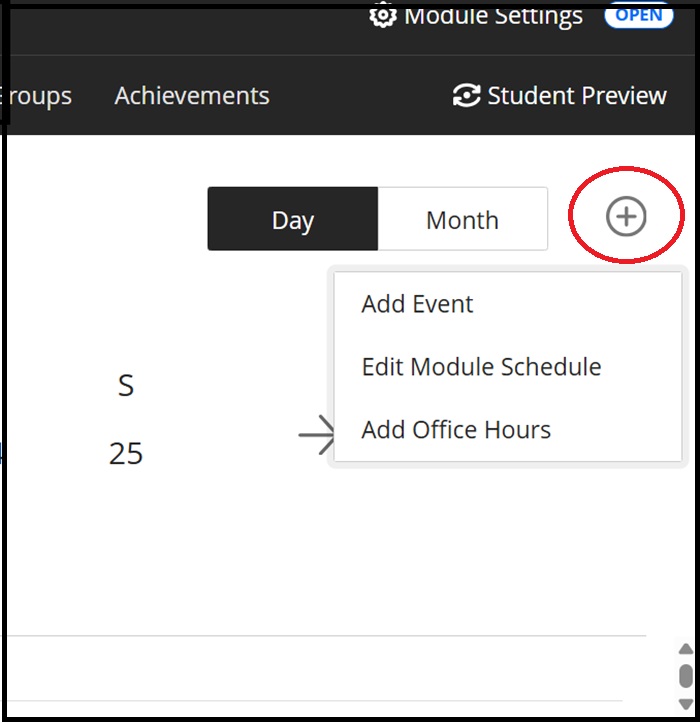
Clicking the large plus icon on the right (as highlighted by the message under the icon above) will open the menu to Add Event etc.:
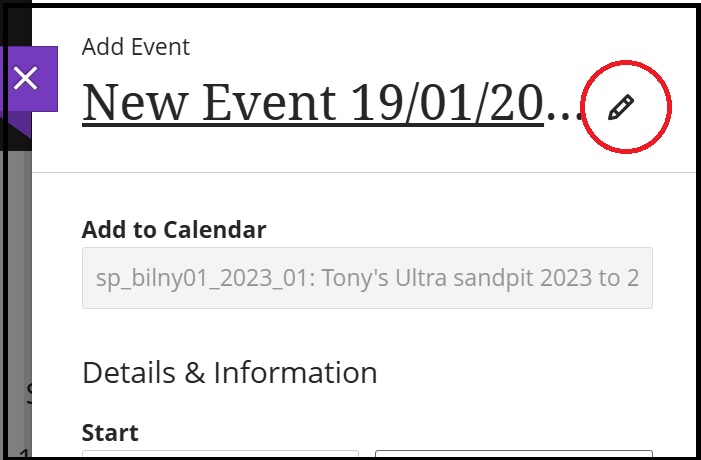
Choosing Add Event will open the following New Event Settings dialogue box. Click the pencil icon that appears after the title and rename the event as required:
The retitled event as shown in the example below 'Revision session':
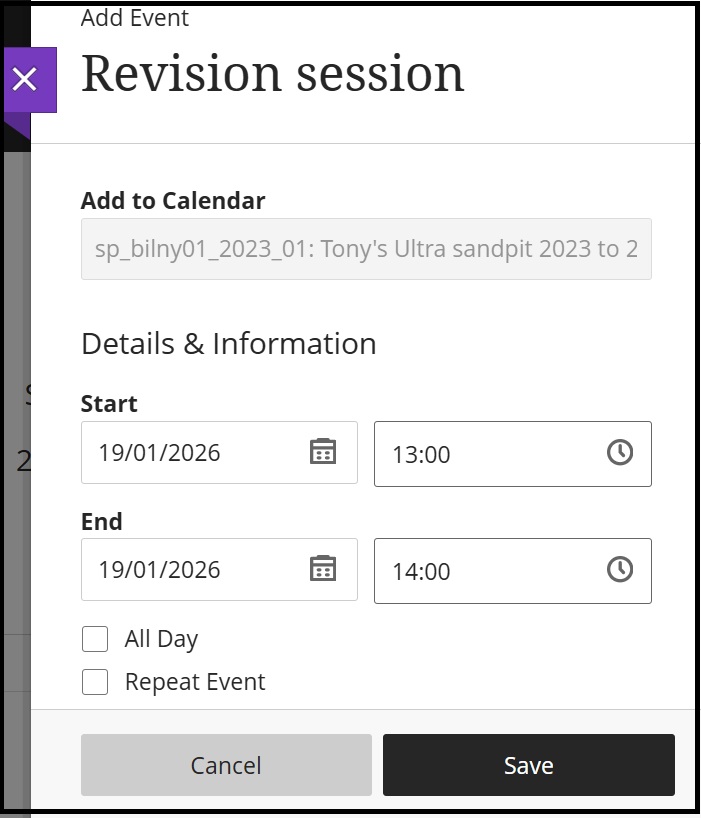
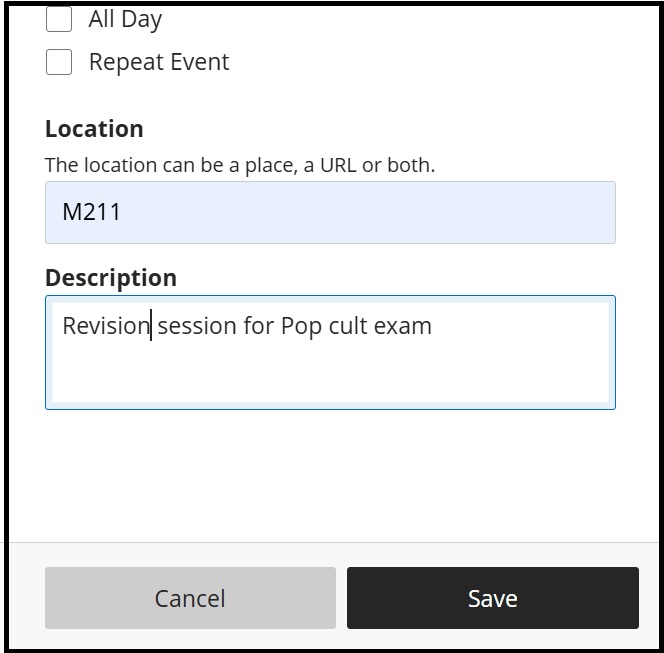
As above, you can set the days and times or alternatively click the All Day box. In the next screen shot, which is the second half of the Settings menu, you can add a location. In the example below, under Location we added a room number (as stated it can also be a link) and a brief Description:
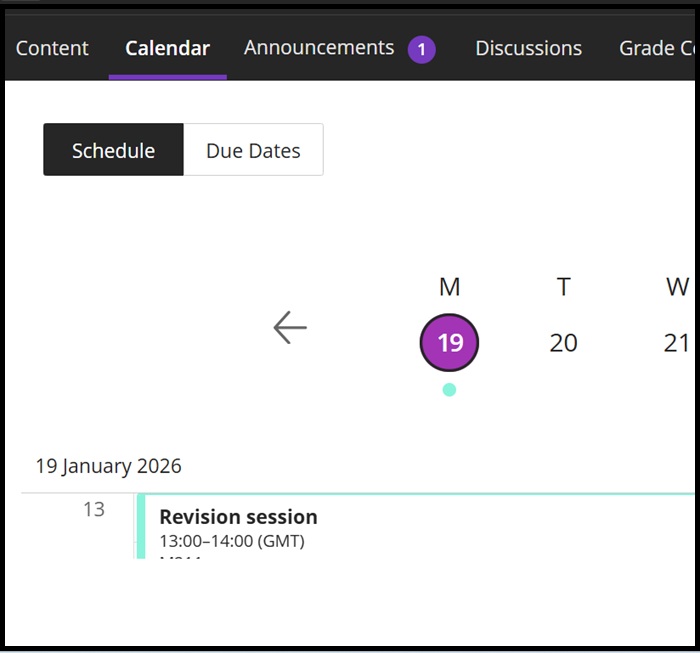
The next screen shot shows the event added to the timeline with a single pale green circle marker under the date:
Editing/Deleting an event
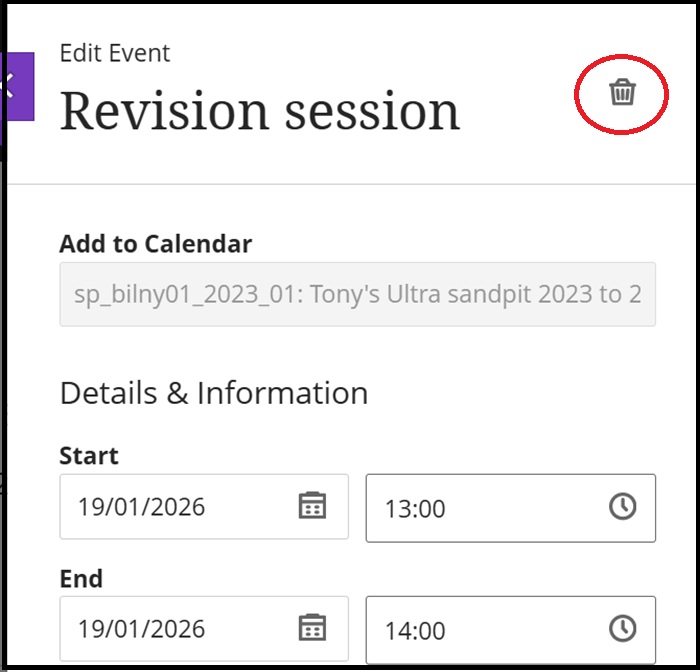
Clicking on the event in the timeline will open it, where you can edit it as required. To delete the event, click the bin icon:
Due Date Display
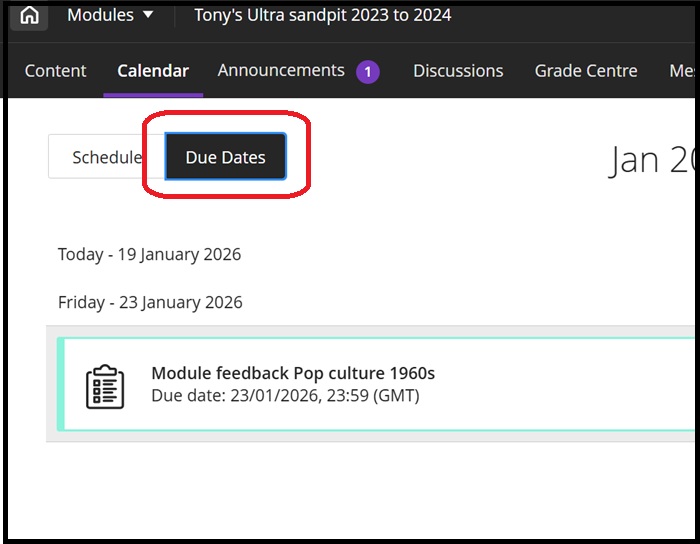
The Due Dates button will display the due date of any of the assignments etc. created in the module:
For more on Ultra and assignments click here
Editing the module schedule
This is where you can set up a repeating event that will be entered into the Calendar.
As before, clicking the large plus icon on the right will open the menu to select Edit Module Schedule:

In the section marked Nickname you can overtype the link that appears by default in the box to something more meaningful (as shown in the second screen shot):
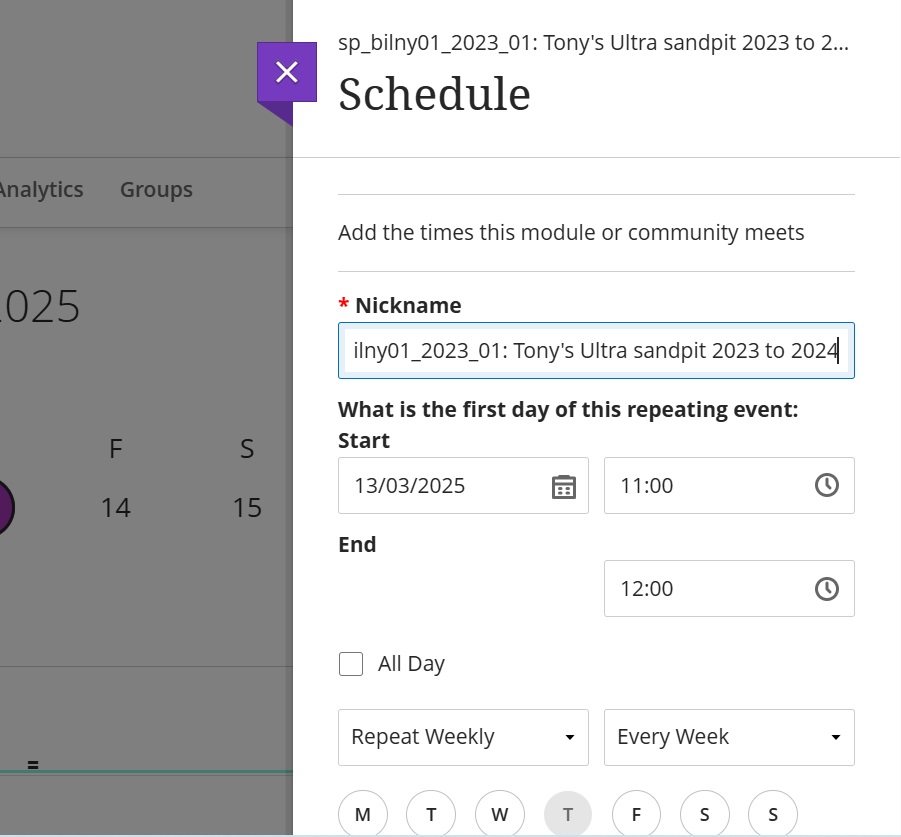

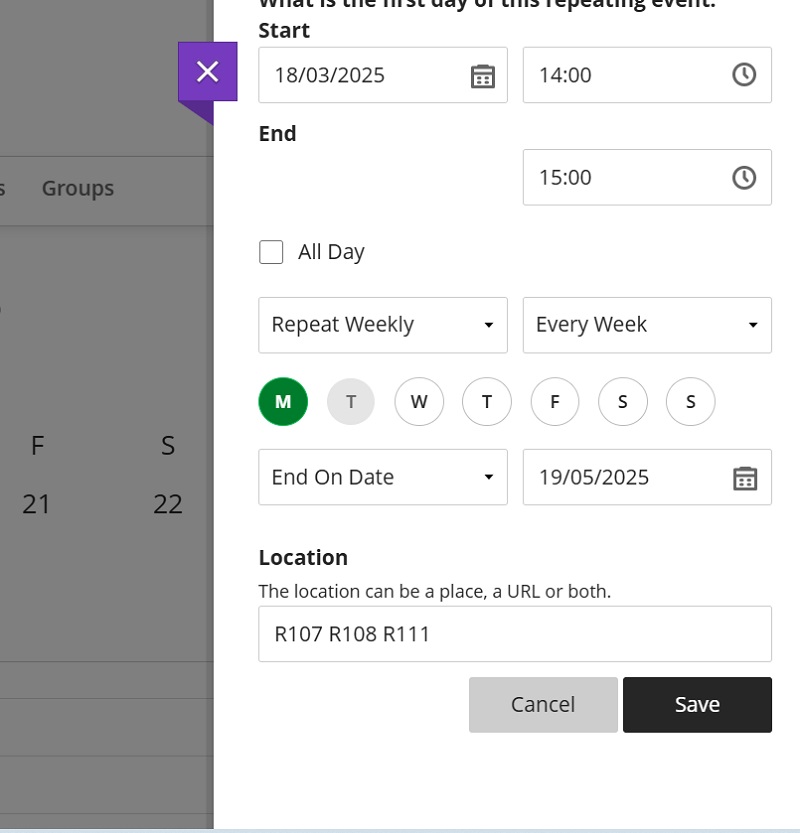
The above example has been set as a weekly seminar after the lecture every Monday between 2pm and 3pm. The below screen shot shows that this weekly event is set to end on the 19th May. The room numbers for the event are shown in Location:
Office hours
The last option on the top right-hand Calendar menu is where you can post your office hours. It works similarly as setting an event in the Module Schedule covered above:
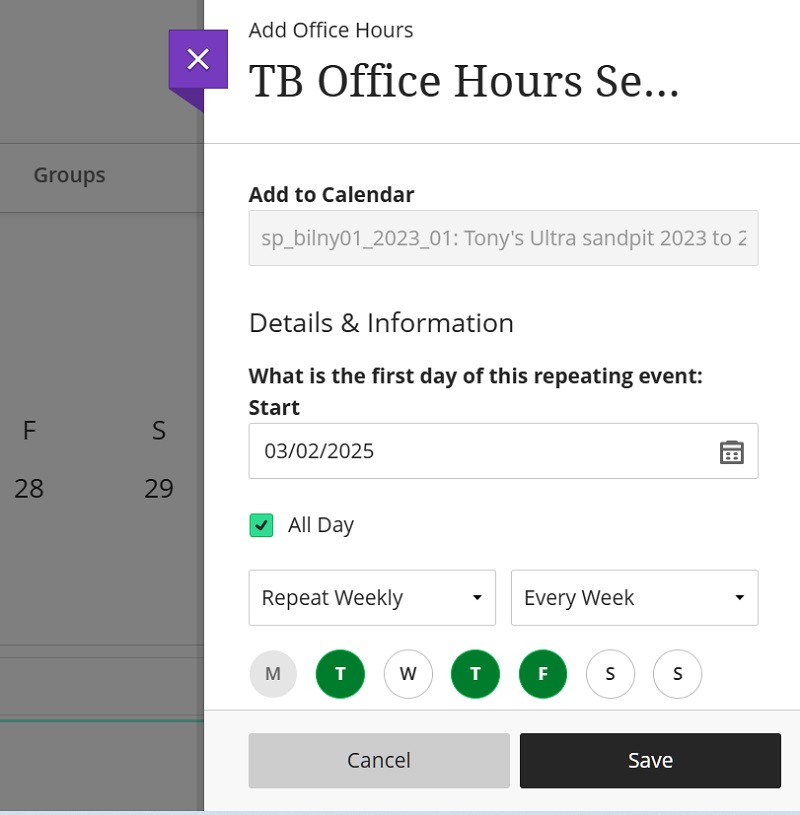
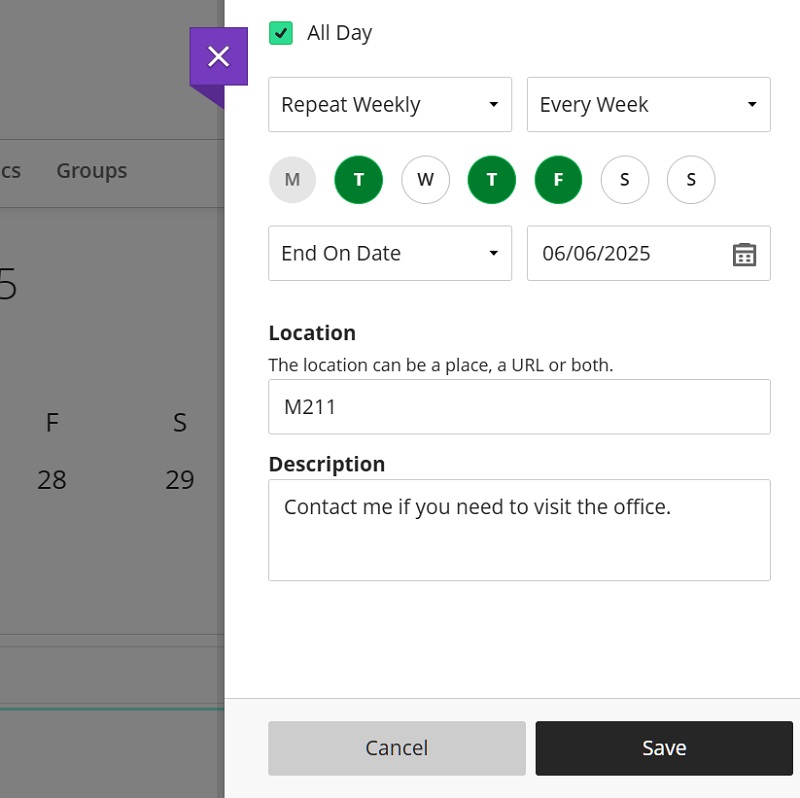
The main difference are there is a Description section to add a note to your office hours availability (e.g. contact before making a visit).
The Calendar from the Institution landing page
Before you access any of your modules there is a Calendar function on the Institution landing page:
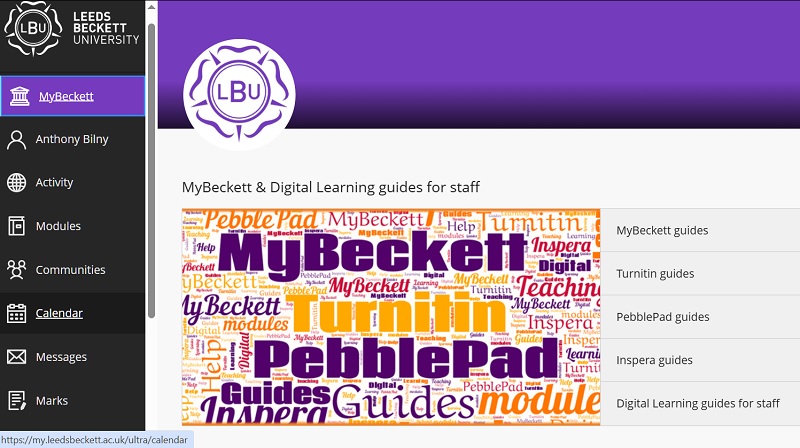
This will let you view events for all your modules, including MyBeckett Original modules:
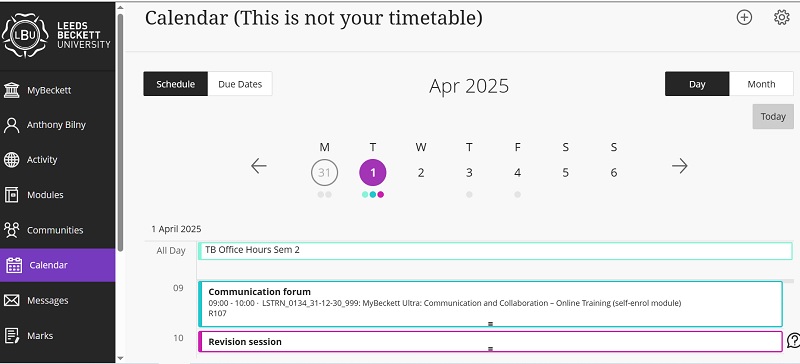
As you can see in the above, the first pale green blob denotes the Office hours the second darker green blob denotes the communication forum event and the red blob denotes the Revision session in a MyBeckett Original module.
Sharing a Calendar
You can share your calendar externally (e.g. Google calendar or the Apple iCal)
In the top right-hand corner next to the plus icon there is the Calendar Settings gear icon that brings up the Settings menu in the second screen shot:
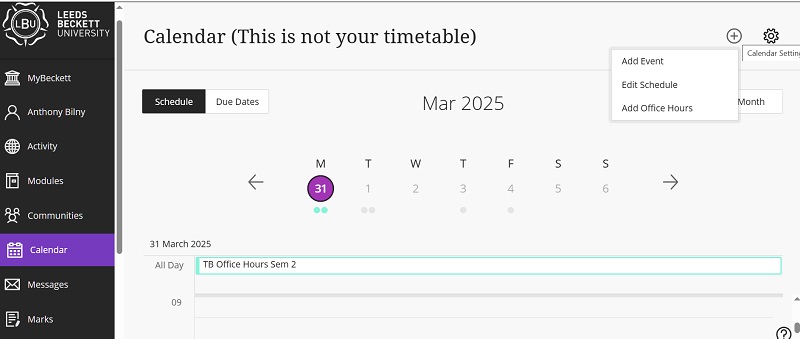
NB There is also a cautionary message to remind you that this isn't your timetable which is separately available on the Institution main page.
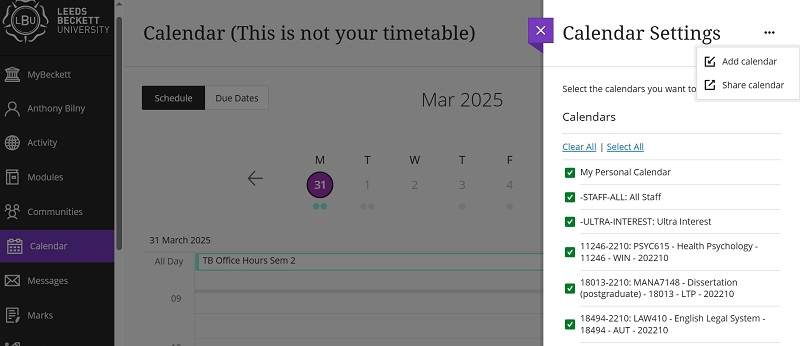
In the the Settings menu click the three dots menu to bring up Share Calendar and then click the Copy button:
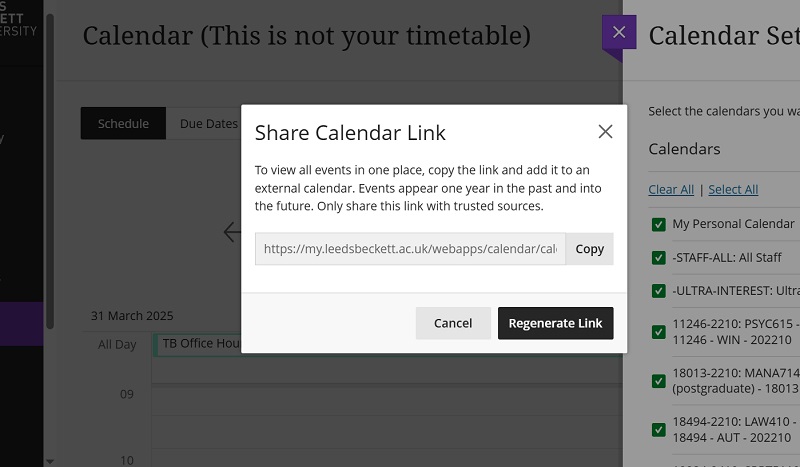
Then you can paste the copied URL into your external calendar (e.g. in Google Calendar it is in Settings, Add calendar, From URL).





