Leeds Beckett University - City Campus,
Woodhouse Lane,
LS1 3HE
CREATING GROUPS | ULTRA
Creating groups in Ultra
This staff guide will show you how to set up groups within an Ultra module.
Please note: The first step in the creation of groups in Ultra is to create a Group set which is the container for a set of groups within it.
You can create groups of students in Ultra modules (or Ultra communities) such as seminar groups or where students can work together on projects and group assignments. Below briefly summarises the types of group sets that can be created to suit the need.
Manually assigned groups
An example of a Manually assigned group could be a seminar group set based on pre-existing seminar groups. You can choose to add students manually.
Automatically assigned groups
This will randomly place students into a number of groups, you allocate how many groups will be created and the number of students in each.
Self enrol groups
This option will allow students to decide themselves which group they will sign up for; an email invitation is sent to students for them to sign up to a group (similar to sign up sheets) and once created an alert will appear when the student accesses the module.
Import from CSV
This option allows you to import groups and their members which have been saved as CSV files (e.g. in Excel). Relevant to the above manually assigned groups above.
Other resources
Student FAQ: How do I use MyBeckett Groups in an Ultra module?
Creating a group set
a. Click on the Groups tab and then New Group Set: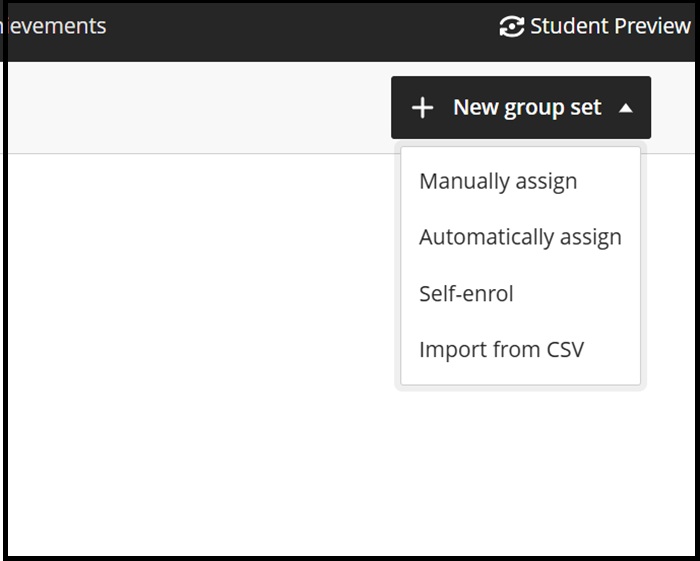
b. On the left hand side of the screen you will see the new group set which you can rename and a list of the unassigned students greyed out (see below when this changes). The Add group pull down menu allows you to create a single or multiple groups:
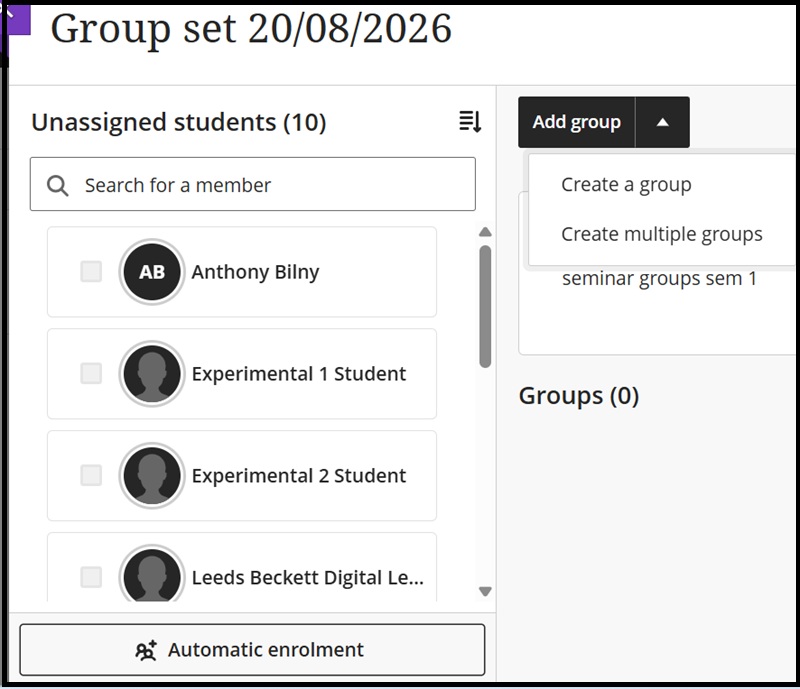
You will also note that within this option is for the random assignment of students in Automatic enrolment detailed in the next section.
c. Then on the right-hand side of the screen click the pencil icon to reveal the Group Settings menu (next screen shot also):
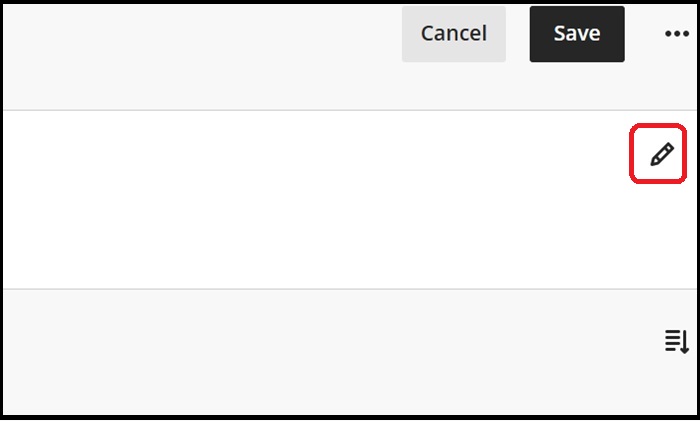
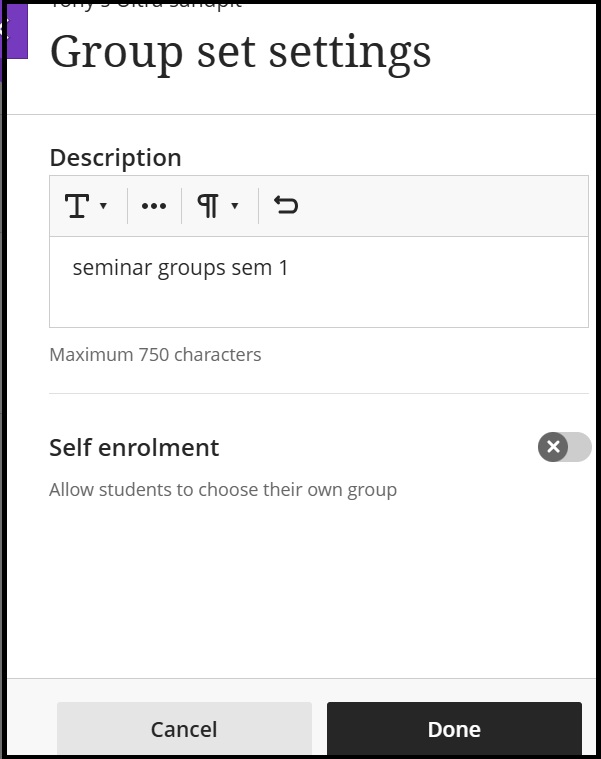
In the description box we have entered the term for what this group set will collect - e.g. a set for seminar groups in Semester 1.
And on clicking Done it is entered as below. This will not rename the group set as you will need to do this as per usual for Ultra content items by clicking the small pencil icon next to the content item title (this example keeps the default Group set title 'Group set 20/08/2026').
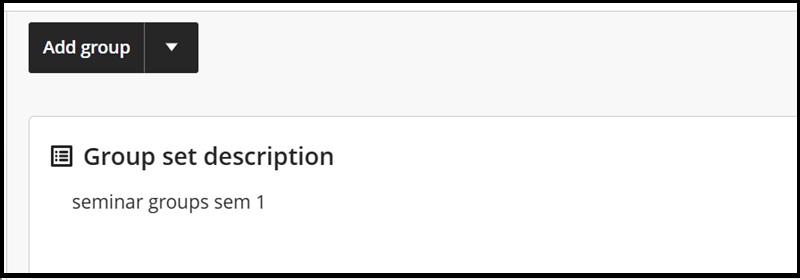
Add groups to a group set
d. As in the second screen shot above to add groups to your new group set click Add groups and add one or as below multiple groups to it:
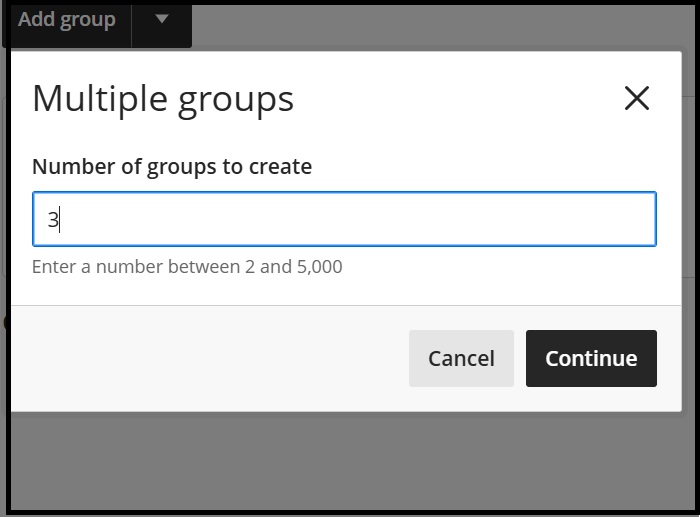
We have chosen to add 3 groups here and then clicked Continue which brings us to the next screenshot where the three groups are now listed. As mentioned above, the unassigned student list is now available to select from:
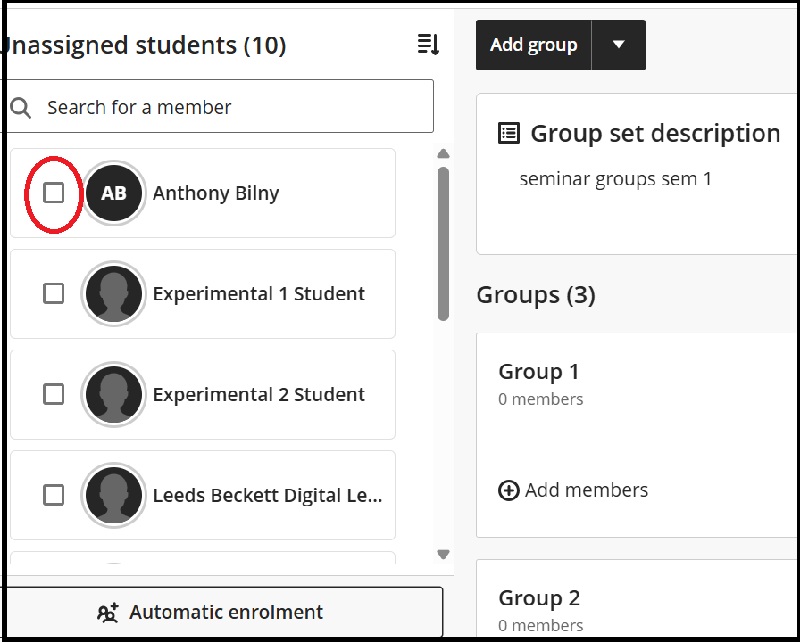
e. To add students tick the box next to the student name and click Assign here in the group you want to add them to:
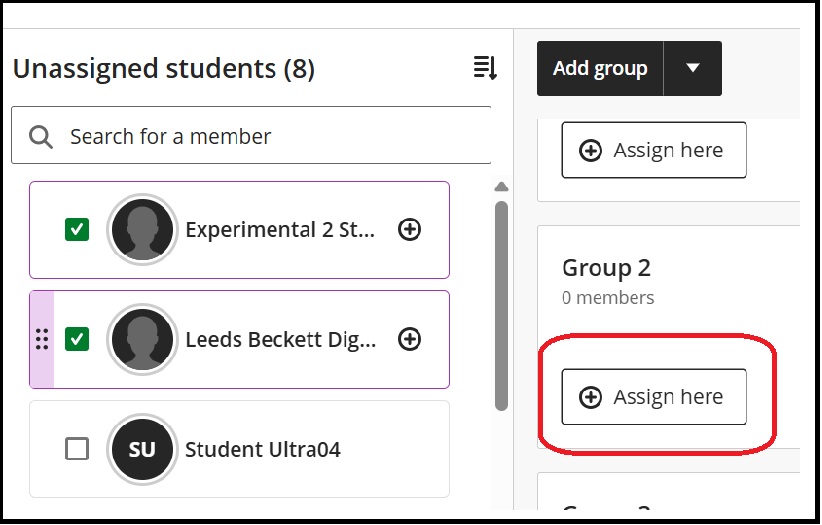
f;. Then the group will display with the students added:
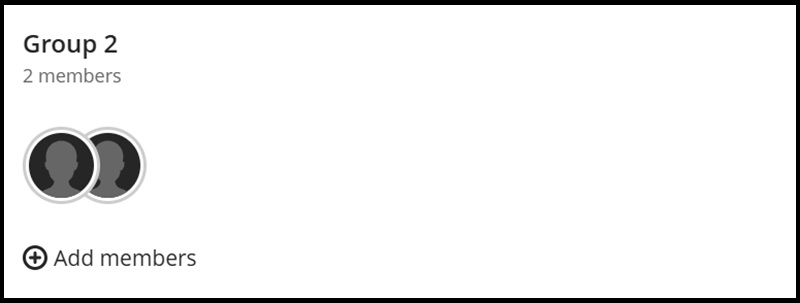
Please note you can also add members to the group by clicking the Add members link (see above).
Manage groups
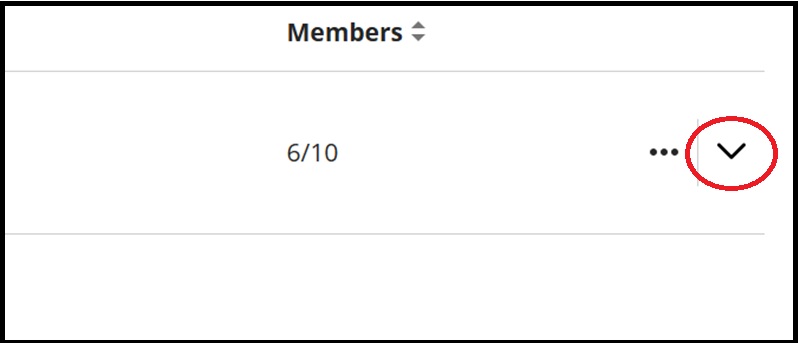
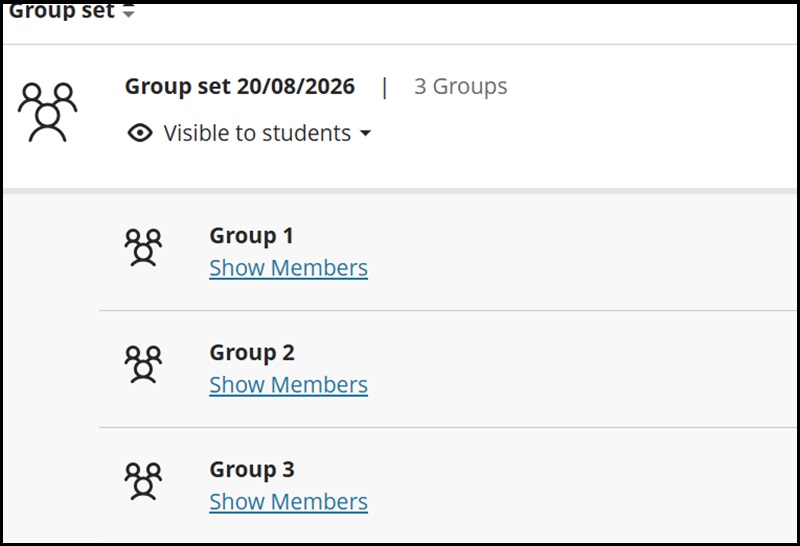
The left-hand side of the Manage groups screen shows you the completed group set and clicking the downward pointing arrow on the right-hand side of the screen (second screen shot) allows you to see all the groups listed under the particular group set:
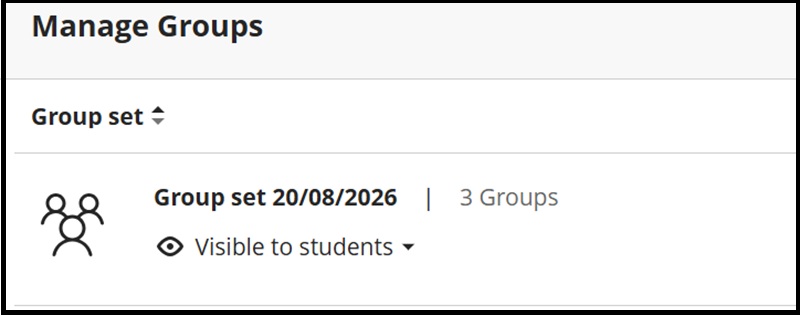
The left-hand side of the expanded Manage groups also can display all the members in the individual group if you click Show members:
The right-hand side shows the number of students in each group (plus its maximum amount per group). The small envelope icon allows you to message that group:
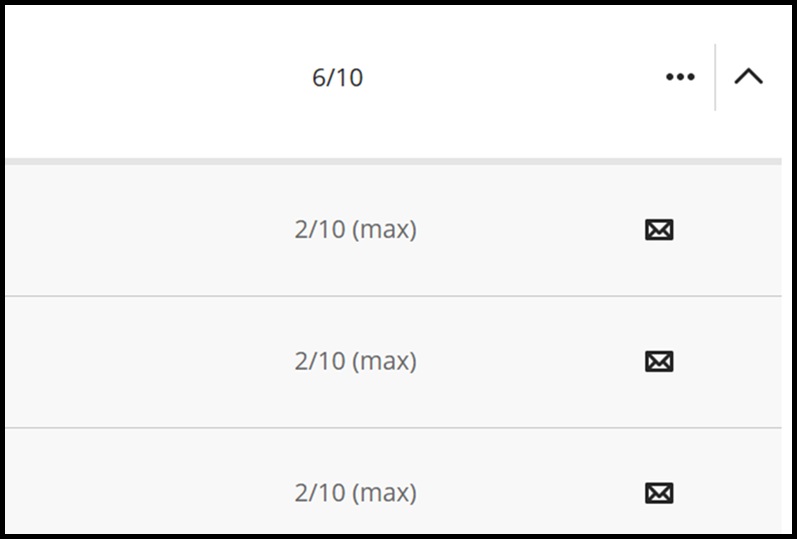
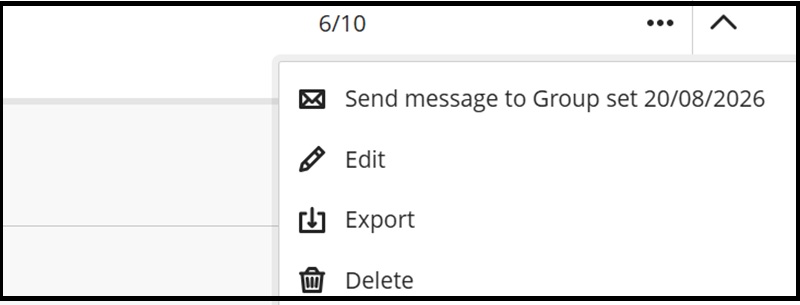
There is also the facility to message the Group set (i.e. all the groups within that set) by clicking the three dots menu as in the above screen shot and selecting the first menu option 'Send message to name of the group set' in our case the name is 'Group set 20/08/2026':
Automatically assign group set
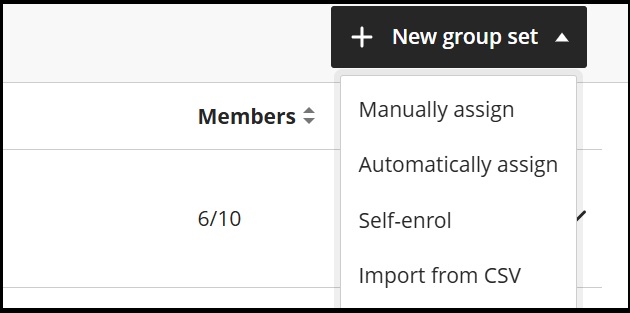
a. Click the New group Set menu as before and Automatically assign:
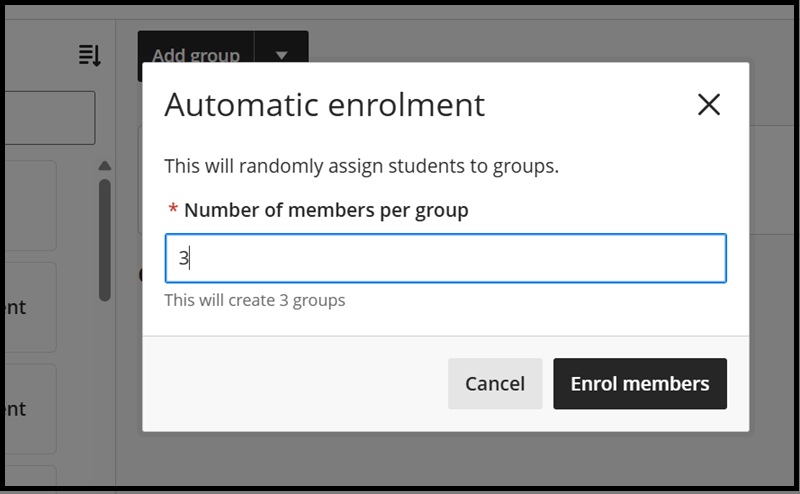
b. Enter number of members per group required and then Enrol members. This revised method (from the previous random assigned group members in Ultra groups) does not let you specify how many groups to create and as below it notes that it will create 3 groups.
c. The resultant screen below shows that foyr groups have been created however: