

Leeds Beckett University - City Campus,
Woodhouse Lane,
LS1 3HE
Creating Journals | ULTRA

Page last updated:
Creating Journals
The Journals function can be used as a private communication tool between the tutor and the individual student. The related function of Discussions in Ultra is used for to host a discussion between the tutor and students on the module.
Two examples are given below of how a journal could be used in your Ultra module.
Dissertation Diary
For example, it can be used as a private communications diary between a tutor and student as a place to discuss how the student's dissertation progress where the tutor can comment on a submitted draft and offer comments and guidance.
Project portfolio
It could also be used as a mini project portfolio to collect items for a project and to record its development.
If you are not teaching on an Ultra module please see our alternative guide to journals.
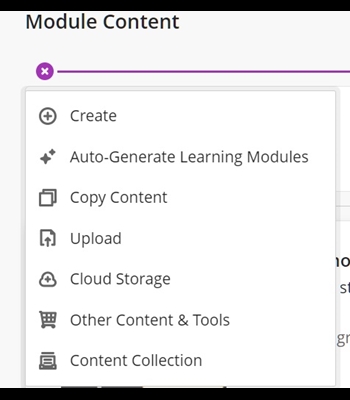
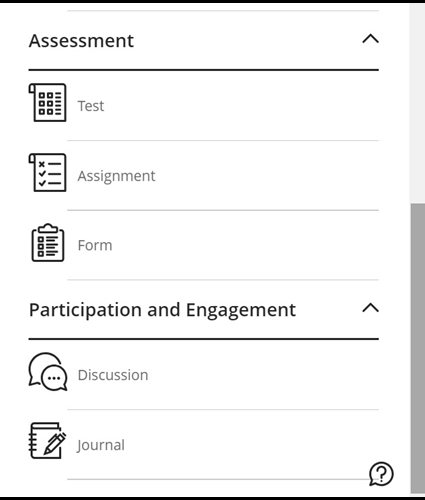
Click on the Create Item plus icon and scroll down to the Journal section and click on that - see the second screen shot:
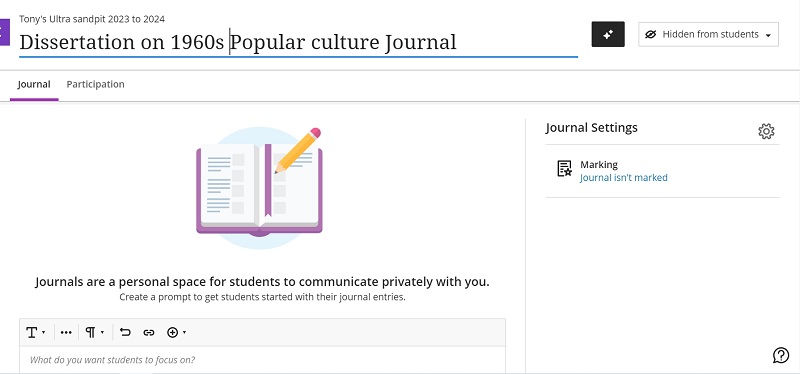
The next screen will appear where you can add a title, add a 'prompt' for students (i.e. fill in the instructions in the text box) and select if you want the journal to be marked. You will notice that the Auto Generate Journal icon has been highlighted - please see below for an example of this:
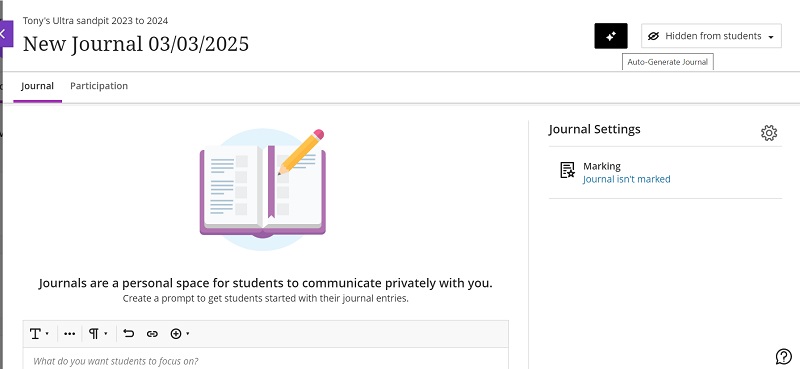
To enable marking click on the gear icon to open Journal Settings and select the tick box to Grade Journal. The default selection is to enable the users deleting and creating journal entries and comments. This means the student and tutor can delete entries which will include any associated comments:

As above the due date and time has been set for a close to the end of semester date. The Mark category has been set from the pull down menu to Journal so as to identify it as such in the Grade Centre.
This example has used points in the Mark using section. (For context The related assignment has been designed to be marked out of 80 points and its corresponding Journal is marked out of 20 points.) A marking rubric can also be attached here.
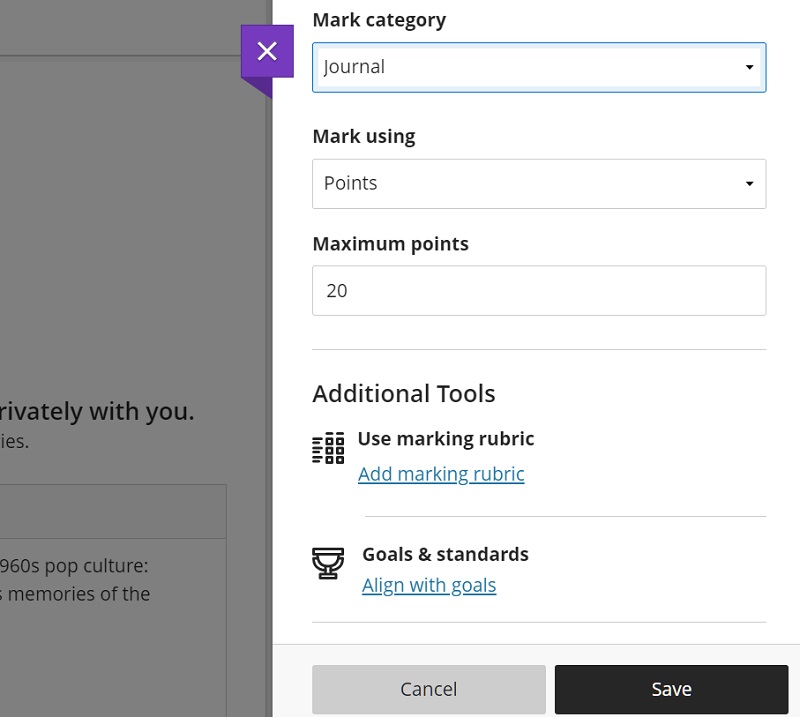
Examples of Journal options
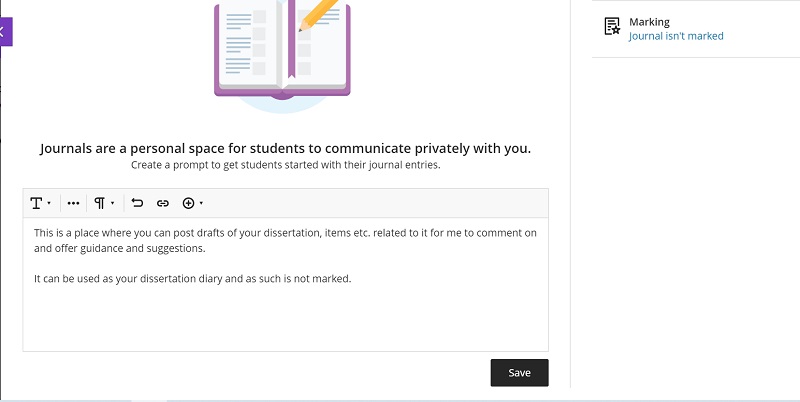
The below example has been created as a dissertation diary that is not marked and the instructions (prompt) to the student have been entered:
Auto generated Journals
If, as in the above, you click the Auto Generate Journal icon it will generate suggestions as listed below and from the previously entered title although if this had not been entered it a term could be entered into the Description box in order to generate a relevant journal subject:

The Auto generate function has also been covered in the Creating module content page.
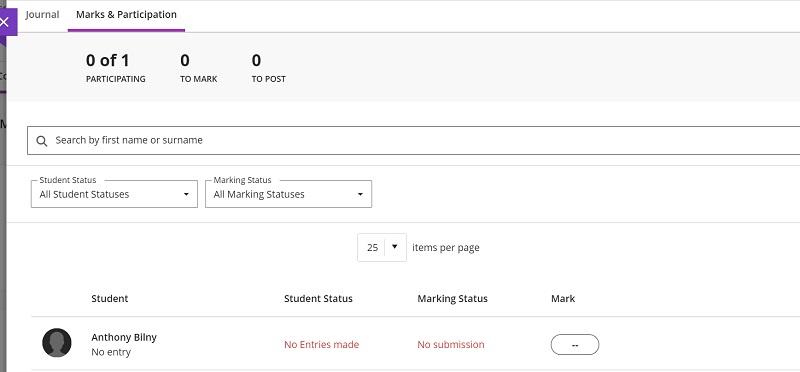
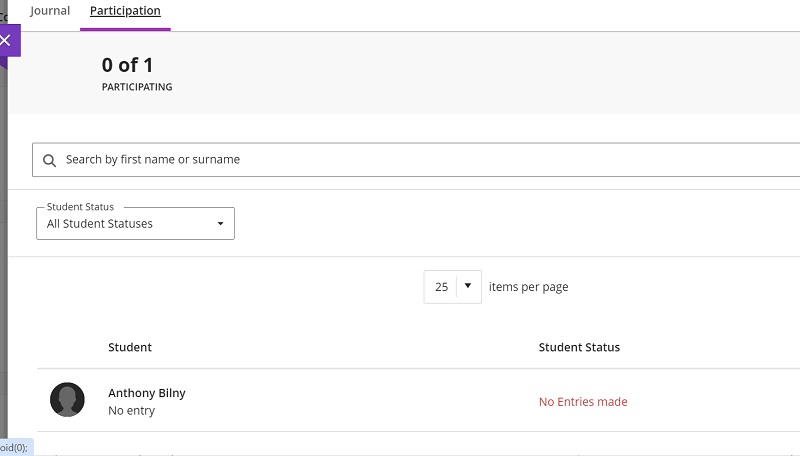
Marks & participation or Participation tab
This is the tab next to the main journal which indicates if the student has made a journal entry. Dependent on whether the journal is marked or not is reflected in the tab heading as well:
Viewing student entries
The instructor has to go into the Participation tab etc. in order to see the entries that have been made. They click on the student name in the list:

This will bring up the posted entries by the individual student:

The tutor can add a comment on the posted entry (as above).





