

Leeds Beckett University - City Campus,
Woodhouse Lane,
LS1 3HE
Export / Import content | ultra

Page last updated:
This staff guide explains how to export/import content into MyBeckett Ultra modules and communities.
You can also copy content in MyBeckett Ultra from other modules and communities, please follow the instructions in our copy content guide.
To export content from another Ultra module or community such as a sandpit/sandbox or a template.
a. From within your module or community, click the three dots found on the same level as the words Module Content.
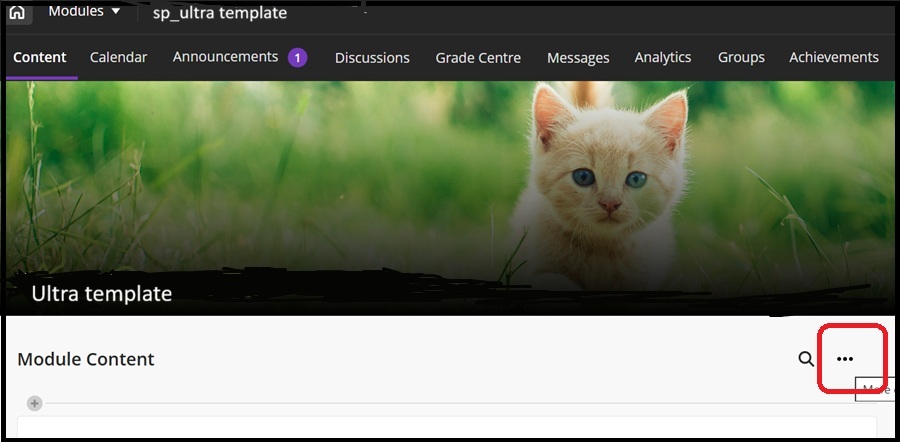
b. Click on the option to Export Module Package. Select No on the pop up message regarding including student activity data in your export.
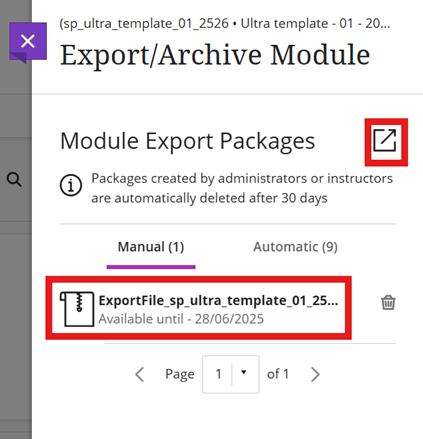
c. Select to create the export package download via the icon with a square and diagonal arrow (in the side panel). Once processed an email will be sent to confirm the export for your reference.
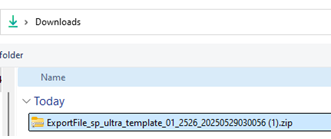
d. Select the zip file icon to download the ExportFile (ensure you save it somewhere you can find it on your computer).
This is an example of the zip file once downloaded to your computer
a. Open your module or community in MyBeckett.
b. Click the three dots at the top right of the content area.
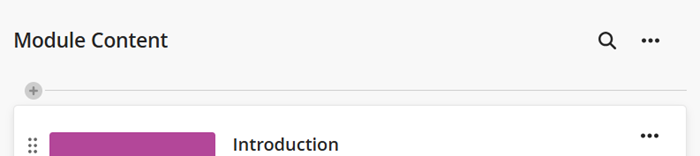
c. Click Import Content.

d. Select Import Module Content you will select the ExportFile saved on your computer (this is described in this guide on exporting content, the export file you are importing is a zip file).
Other types of imports are possible but this guide focuses on importing and exporting package from another Ultra module/community.- Cloud Storage: This is the option to use if you have a file to import from your cloud storage. It is unlikely you would use this option.
- Other Content & Tools: You are unlikely to need this option for importing content.
- Content Collection. This is the option to use if you have been instructed to import a file from the MyBeckett Content Collection.
f. Once the import starts, you will be presented with a message that says Importing module content. This may take a bit of time, especially if your content is quite large.
Examples of content that you can import include:
- Compressed files (.zip and .imscc files).
- Module or Community content that you or another instructor have downloaded as an Export Package.
- From other Ultra modules such as content created in sandpit/sandboxes and Templates.
- Blackboard Tests





