

Leeds Beckett University - City Campus,
Woodhouse Lane,
LS1 3HE
Copy content | Ultra

Page last updated:
This staff guide shows you how to copy content in MyBeckett Ultra from other modules and communities.
You can copy content from other modules and communities that you are enrolled on as an instructor. You will need to start in the new module or community that you would like to add the content to.
- You can copy individual content items (recommended when first upgrading to MyBeckett Ultra)
- You can copy an entire Ultra module or Ultra community (this is not recommended for copying Original content to Ultra)
We recommend closing your module or community to prevent students receiving updates via the Activity Stream while updating your content. When you have finished updating, we recommend running the Accessibility report to check content and remove broken links.
The following items can be copied over from any module or community including Original versions of MyBeckett.
- Blackboard Rubrics
- Blackboard Tests
- Any other type of content expect for any Panopto videos & embeds - see our Panopto Copy guide.
Start in the new module or community you would like to add the content. You can copy content via two ways.
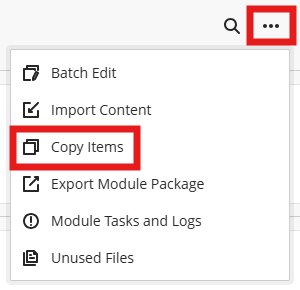
1. To place the copied content at the bottom of the main content page. Click the 3 dots and select Copy Items. The Copy Items page will open.
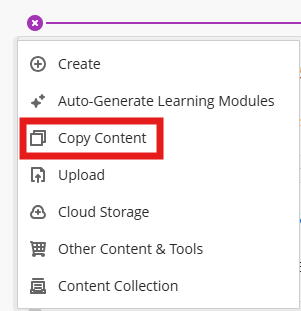
2. On the content page, navigate to where you would like to add the copied content. Hover until you see the purple line. Click the plus icon and select Copy Content. The Copy Items page will open.
a. On the Copy Items page, select either the Modules or the Communities tab. You can use the search box to type the module name or CRN.

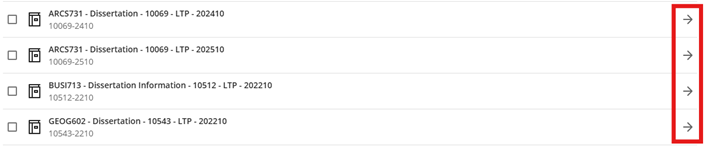
b. Locate the relevant module/ community and use the arrows on the right to navigate inside.
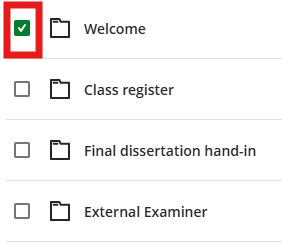
c. When you have located the content item to copy, tick the box to the left and the content will display in the side panel. You can choose several items to copy.
d. When you have finishing selecting and reviewing the content, click Start Copy. This may take a few minutes to process.
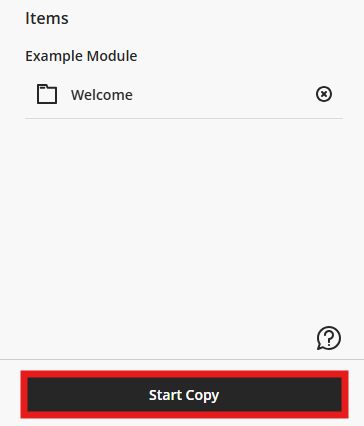
Tidy up content
After copying content it's a good idea to rearrange your copied content into a consistent layout that makes sense to students and remove duplicate links and past information.
- Important: Please delete copied Turnitin assignments and create a new Turnitin assignment in the new module
- You can use the Batch Edit tool to hide or delete content
- Delete Announcements, each announcement will require deleting individually (there is no bulk delete option)
- If previous Panopto videos are copied over, these will not be visible to your students due to the permissions. Please see our guide on Panopto Video Rollover
- The module copy process does not include reading list content, as this is housed in a separate, integrated system. Please see our reading list guide
- When you have finished updating the content run the Accessibility report to check content and remove broken links.
Copy content
Start in the new module or community you would like to add the content. You can copy content via two ways.
1. To place the copied content at the bottom of the main content page. Click the 3 dots and select Copy Items. The Copy Items page will open.
2. On the content page, navigate to where you would like to add the copied content. Hover until you see the purple line. Click the plus icon and select Copy Content. The Copy Items page will open.
a. On the Copy Items page, select either the Modules or the Communities tab. You can use the search box to type the module name or CRN.
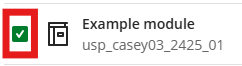
b. Locate the relevant module/ community and and tick the box on the left. The content will display in the side panel.
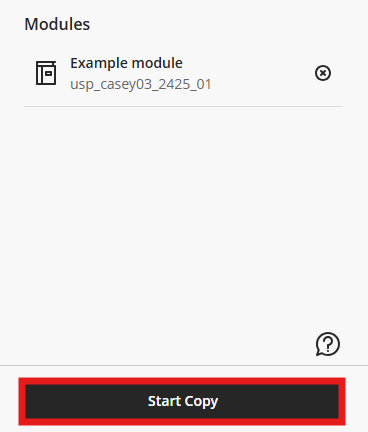
c. When you have finishing reviewing the content, click Start Copy. This may take a few minutes to process.
Tidy up content
After copying content it's a good idea to rearrange your copied content into a consistent layout that makes sense to students and remove duplicate links and past information.
- Important: Please delete copied Turnitin assignments and create a new Turnitin assignment in the new module
- You can use the Batch Edit tool to hide or delete content
- Delete Announcements, each announcement will require deleting individually (there is no bulk delete option)
- If previous Panopto videos are copied over, these will not be visible to your students due to the permissions. Please see our guide on Panopto Video Rollover
- The module copy process does not include reading list content, as this is housed in a separate, integrated system. Please see our reading list guide
- When you have finished updating the content run the Accessibility report to check content and remove broken links.
You can copy Blackboard tests by following the instructions above for copying individual content items. You can also copy tests in Ultra using the export/ import tool.
Once the test has been copied you will need to check the test settings and questions. To amend the date and time you may need to remove any release conditions attached to the test.
Delete Release Conditions
a. Locate the test on the content page and click Edit Release conditions.
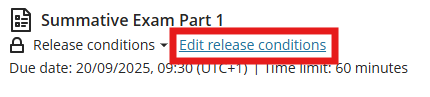
b. On the Release conditions page, click the 3 dots to the right and select Delete.
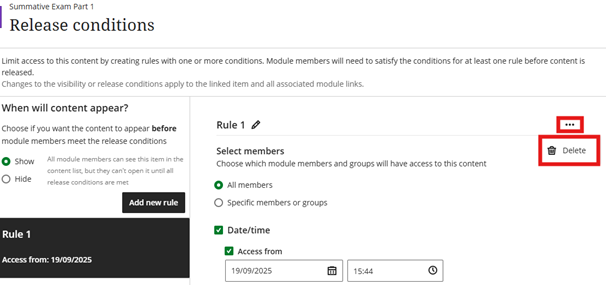
c. After reviewing the test settings and questions you can apply new release conditions. More information is available in our create a Blackboard test guide.





