Leeds Beckett University - City Campus,
Woodhouse Lane,
LS1 3HE
Release conditions | Ultra

Page last updated:
Release conditions allows you to create rules to determine when module content is released to students
If you are not teaching on a Ultra module please refer to our adaptive release guide.
Release conditions is the new version of adaptive release, which was a tool in Blackboard Original.
When release conditions are applied to module items, only users who meet your chosen rules will be able to view these items.
E.g. You only want an assignment link to become visible to students after a certain date and time.
It's best not to apply multiple rules, because if students can't see something, it can be difficult to work out why.
The following conditions can be used to create a rule to determine when content is released:
- Membership – Content is released to all module members, groups or specific individuals
- Date/Time – Content is released after/before a certain date or between particular dates
- Activity - Content is released when students interact with specified module content:
- Summit or achieve a certain grade on a assignment, test or quiz
- Opened/viewed specific module content
Examples:
- Use membership (all module members) and date/time to release a module feedback survey halfway through the module to all students
- When creating Turnitin assignments with different due dates for students with extra time allowances, use the membership (groups) criteria so that students only see the Turnitin assignment relevant to their specific adjustment plan
- In Blackboard, create a short answer essay question where the correct answer feedback content becomes visible after the student submits their answer. Use Activity (select module test and attempt submitted)
To apply release conditions, first locate the module item within the module and click on the drop-down arrow next to the current visibility setting.
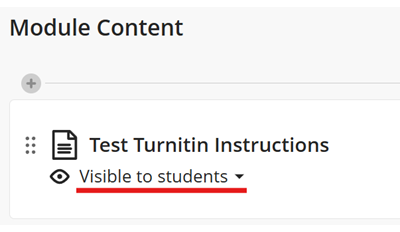
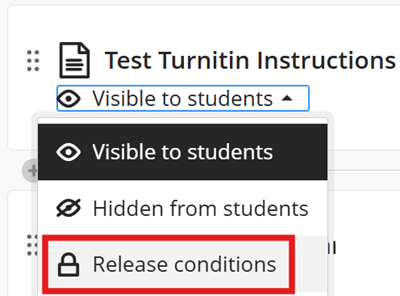
Select "Release conditions" from the drop-down menu.
On the release conditions screen you can edit the conditions to determine when the module item is made visible.
It's best not to create multiple rules, because if students can't see something, it can be difficult to work out why.
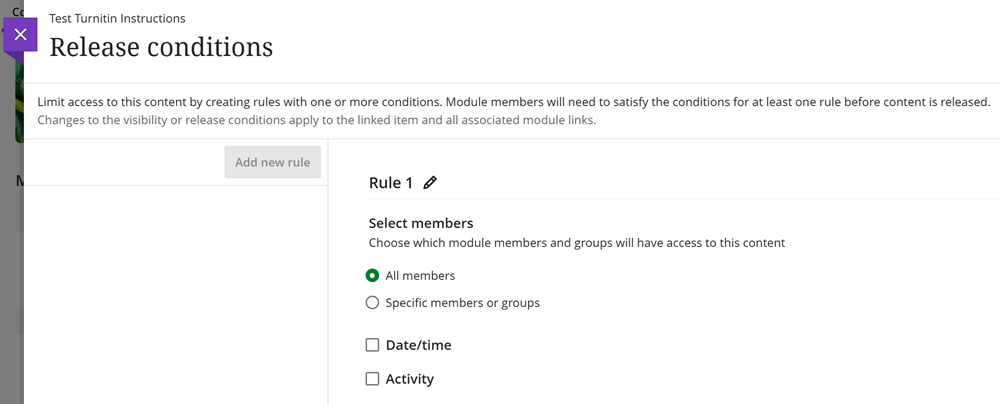
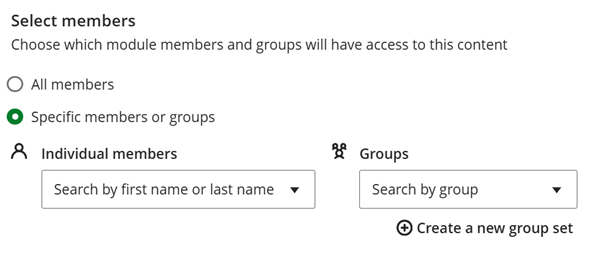
All members
Content will be released to all module members when the other conditions of the rule are met.
Specific members or groups
Individual members - Select specific students, multiple students can be added.
Groups - Select specific module groups, multiple groups can be added.
Both individual students and groups can be selected within the same rule.
Access from - Set the date and time when content will be made visible.
Access until - Set the date and time when content will be hidden.
Both access from and access until can be selected within the same rule if required.

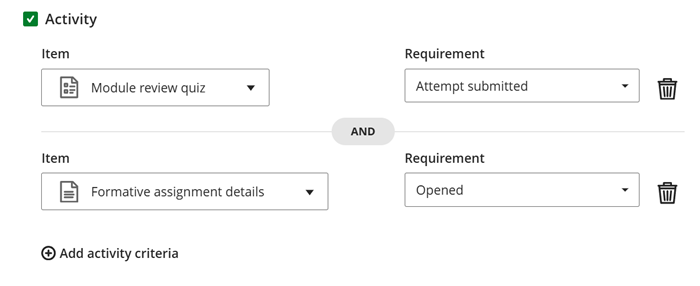
Activity release conditions can be used to make a content item visible only once a student has interacted with another module content item, such as a document or test.
For non-markable content items there is one requirement option available, that students have opened/viewed the item.
For markable Blackboard tests, you can specify if a student has opened the assignment, made a submission, achieved above a certain score or achieved a score within a custom range.
For Turnitin assignments, you can specify if a student has opened the assignment, achieved above a certain score or achieved a score within a custom range.
You can add additional activity criteria.
E.g. if you want to prevent students from seeing the formative assignment submission link until they have attempted a quiz and read the assignment instructions.