

Leeds Beckett University - City Campus,
Woodhouse Lane,
LS1 3HE
Anonymous marking (Blackboard assignments)
Page last updated:
This guide is for staff members who want to set up and use anonymous Blackboard assignments.
You can choose to hide student names when viewing and marking submissions. Students are alerted to this on the Upload Assignment page.
In your assignment instructions, you should ask students not to identify themselves by name in their assignment files. It's better to ask them to add their student username to a cover sheet.
a. When creating an assignment, click Grading Options. Then tick the Enable Anonymous Marking box and choose when you want to Disable Anonymous Marking (automatically removes students’ anonymity).
b. Either choose to display student names On a Specific date, you will then set a date on which anonymous marking is disabled or After all submissions are graded. You must still set a due date but the names will only be revealed after all submissions are marked.

Important: You can manually disable anonymous marking at any time by unticking the Enable Anonymous Grading box.
You can turn anonymous marking on and off until a student submits an attempt.
After the first submission, you can only turn it off.
If you mark half the attempts anonymously, then turn off the anonymous setting, submissions marked non-anonymously are not tracked as Graded Anonymously.
You're notified that anonymous submissions need marking in the following ways:
- Needs Grading - user anonymity is preserved in the list
- Needs Attention and Alerts modules
- Daily-digest email notifications
- Retention Centre
You can access anonymous assignment submissions in Grade Centre or via Needs Marking.
a. Grade Centre: After the assignment due date has passed or all attempts have been submitted, click the column's action link (down arrow) and click Mark Attempts. If you enabled anonymous marking for an assignment, all cells are greyed out.
b. Needs Marking: In the User Attempt column, identifying information is replaced with Anonymous Student and an attempt ID. Click Mark All Users.
Both access methods open the Mark Assignment page. As you navigate from student to student, usernames are replaced with Anonymous Student in the action bar. You can see how many papers are in the queue.
After anonymous marking is disabled, marks appear in the assignment's Grade Centre column.

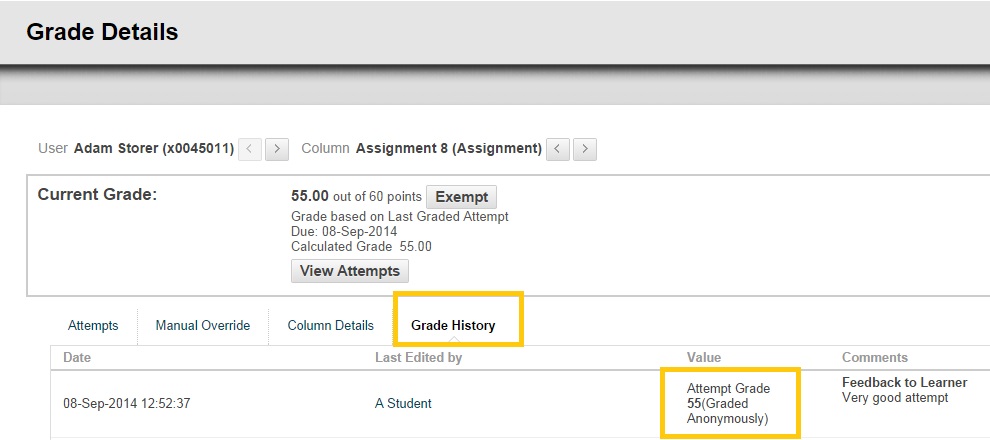
You can verify anonymous marking was enabled when you marked an assignment by viewing the attempt in the Grade Centre history, even after anonymity is disabled.
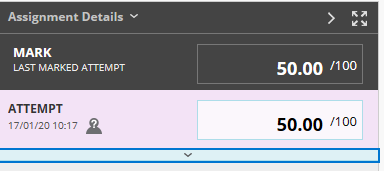
Students are informed if their assignments are to be marked anonymously on the assignment upload page. They're asked not to include their name in their submissions. On the Review Submission History page or in My Grades, students also see a marked anonymously icon.
Anonymously marked columns are not included in calculations or actions until anonymous marking is disabled. This prevents markers from deducing the identity of a student.
- Anonymously marked assignment scores are not used in calculated columns until anonymity is disabled
- Anonymously marked assignments don't display in Grade Centre reports until anonymity is disabled
- When downloading Grade Centre data, anonymously marked assignment columns are not available for selection





