

Leeds Beckett University - City Campus,
Woodhouse Lane,
LS1 3HE
Panopto for lecture recordings and videos
This guide is for staff who want to add Panopto to a MyBeckett module to create and share lecture recordings and other video content with students.
IT Services provide support for Panopto and have more information on recording live lectures within Teaching Spaces on their webpage.
Panopto is the University’s video tool that has multiple functionality such as lecture capture, video content and video assessments to support Teaching and Learning.
Panopto software allows you to capture your voice, the PC screen and any PowerPoint slides that you choose to present either live in a lecture room or pre-recorded to embed into your module.
The recordings (video) can be edited and shared.
You can also upload other video files to Panopto in order to share these with your students and directly embed them to present engaging content.
It also allows a video assignment submission folder to be created for students to use to screen capture presentations and upload.
The follow instructions show you two methods to add Panopto Video Folder link into your module. This allows students to see all your videos.
Method 1 = Module Menu
Method 2 = Content Area
Method 1 - add Panopto Video Folder in your module menu.
This will create a menu link to all your module's Panopto Video content.
a. Click the plus icon at the top left of the module menu, then select Tool Link from the options.

b. Type a name e.g. Panopto Video Folder.
c. Select Panopto Video Folder from the drop-down menu.
d. Tick Available to Users if you want students to be able to access the folder via the module menu
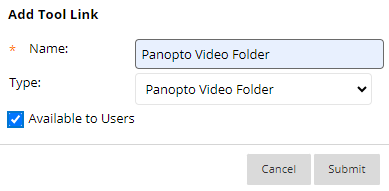
e. Click Submit.
f. The link will appear at the bottom of the module menu, you can click and drag to move it to a different location in the menu.
g. Click the Panopto Video Folder link in the menu to open Panopto.
Method 2 - add a Panopto Video Folder into a content area
a. Within a content area click on the Tools tab and More Tools, select Panopto Video Folder
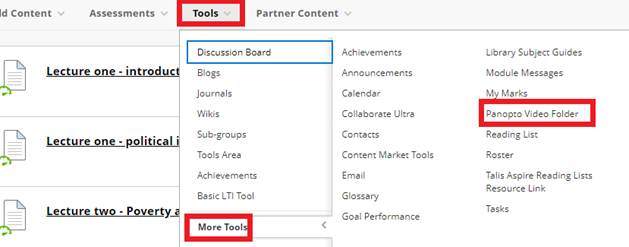
b. The link will be placed at the bottom of your content, drag it to reposition it.
You can set up scheduled recordings to happen automatically.
Alternatively, you can manually record a lecture using the classroom-based Panopto Recorder. This allows you to start, pause and stop as per your preference. There is more information about this on the Leeds Beckett Teaching Spaces page.
If you need any help using Panopto Replay, please contact IT Services.
a. Click the Panopto Video Folder link in your module menu.
b. Click Create.

c. Click Upload Media.

d. Drag the video file you want to upload onto the dashed area (or click to browse your computer).
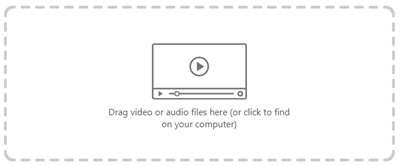
e. A progress bar will indicate when the upload is complete.

Adding captions to your Panopto recordings and other video content enhances the viewing experience for your students and ensures that your content is inclusive and accessible. Captions make content accessible to people who are deaf or hard of hearing, ensuring they can fully engage with the video.
Please note that when using Automatic Speech Recognition captions you will need to check and edit the captions as the tools have variable success rates. Providing captions as accurately as possible remains the legal obligation. More information is available in Jisc's guide to video captioning and accessibility regulations.
The following guides will provide step by step instructions for adding captions to your videos. You may need to log in to the IT self-service portal to access some guides. Please contact IT Services for any support with Panopto captions.
- How to add ASR (Automatic Speech Recognition) captions to your Panopto videos (Panopto guide)
- How do I generate captions/ transcripts for video or audio files? (IT Services guide, may require log in)
Your students will be able to watch the videos / recordings by clicking the Panopto Video Folder link.
However, if you wish, you can also link to Panopto Video content within a content area in your module to link to a specific video. If you want to embed it to play without students clicking on a link then see our separate embed guide.
a. Click the name of the content area where you want to add a lecture recording, e.g. Week 1 Topic 1.
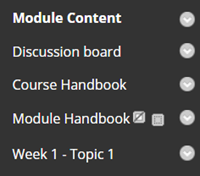
b. Click Build Content in the content area, then click Panopto Video Embed (NB: LINK ONLY).
c. Select your lecture recording.
d. Click Insert.
e. The lecture recording will now be linked from your module content area. Your students will be able to click on the link to watch the video in a new browser tab.

Embedding Panopto Videos into a content allows students to view it within another content area in your module. You can do this via MyBeckett creating a content item or the share option from the Panopto video player.
Embed a Panopto Video via MyBeckett Module / Course Community - using 'Add Content Item'
a. Create a Content Item and choose the Plus Icon
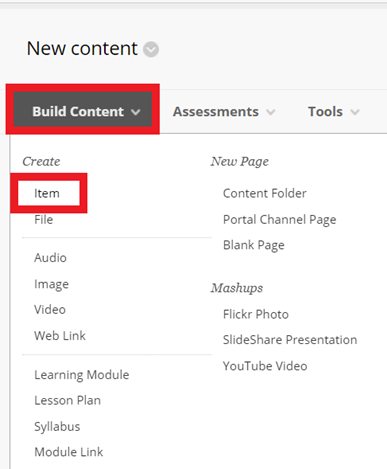
b. Navigate to the toolbar Plus Icon

c. Select Panopto Video Embed from the list and choose your video and submit.

You can add a Panopto video quiz to a module by following this staff guide. You will need to have already added a quiz to a Panopto video. Please contact IT Services for support with Panopto quizzes.
Here are a selection of tutorial video guides created by Panopto Support:
- My Folder - Panopto sandbox
- Getting started record a video
- Basic editing
- Adding captions
- Add/Edit Chapters
- Trim your video
- Upload PowerPoint slides to a video
Please contact Digital (IT) Services for any assistance and support with Panopto.





