

Leeds Beckett University - City Campus,
Woodhouse Lane,
LS1 3HE
Get started with Turnitin Feedback Studio
Page last updated:
This staff guide provides an overview of Feedback Studio, the Turnitin document viewer / marking and feedback interface.
When you click on a student's Turnitin submission, it will open in an online document viewer called Feedback Studio.
You can explore the different features of Feedback Studio via an interactive tutorial, allowing you to experience marking and grading an example paper online.
Navigation tips
- In Feedback Studio, it is easy to move between student submissions using the arrows at the top right of the document viewer
- There is also a drop-down list that you can use to select, click on the page number and pick from the list of all the submissions for the assignment
- On the left, you can open a thumbnail pane to preview and jump to different pages within a student's submission
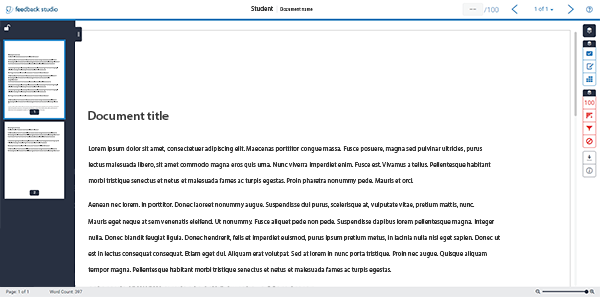
Feedback Studio offers a range of tools that you can use to support and engage your students.
You can click anywhere on the document to leave feedback using shortcuts tools: QuickMark, Comment or Inline Text. You can also apply formatting and add hyperlinks to your comments.
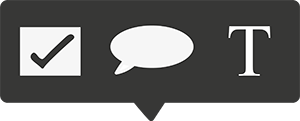
QuickMarks (guide to QuickMarks)
- Drag and drop QuickMarks onto text
- Build a set of frequently used comments
- Save time, especially for large groups
Inline text and bubble comments
- Link feedback directly to text
- Provide specific feedback in context
- Include hyperlinks in bubble comments
Voice comments
- Record up to 3 minutes of audio
- Provide personal, engaging feedback
Rubrics (guide to Rubrics)
- Structure feedback against meaningful criteria and learning objectives
- Use sliders to provide consistent feedback across groups/markers
You can find out more about leaving feedback in our leaving feedback guide.
When viewing a submission, the Flags tool appears above the similarity score in the red panel on the right-hand side of the document.
One of the most common ways students attempt to evade similarity checking is through discrete text modifications, such as:
- using white-on-white text
- replacing characters
- symbols from another alphabet.
The panel allows instructors to easily identify when students have manipulated text in order to bypass integrity checks. Click on the Flags tool to view a summary of any 'flags to review' this will include any inconsistencies picked up by Turnitin's algorithms.
Please note, like the existing Text matching tool (known as the Similarity and Originality Report), a Flag is not necessarily an indicator of a problem. But it indicates that an area may benefit from closer inspection.
You can open a text-only version of Turnitin similarity reports.
a. Open a paper in Turnitin Feedback Studio by selecting the paper title from the Assignment Inbox.
b. After first loading Turnitin Feedback Studio press the tab key. A box will appear on the screen with the focus already on that element. A screen reader will read this element as a link saying 'Navigate to text-only Similarity Report'. You can select on this link or press enter on your keyboard to open the text-only Similarity Report.
c. The text-only similarity report will now load in a new window. Turnitin Feedback Studio will remain open in your previous window. You can also select on the Document Viewer to load it again.





