

Leeds Beckett University - City Campus,
Woodhouse Lane,
LS1 3HE
Groups | ULTRA

Page last updated:
This staff guide will show you how to set up groups within an Ultra module.
Please note: The first step in the creation of groups in Ultra is to create a Group set which is the container for a set of groups within it.
You can create groups of students in Ultra modules (or Ultra communities) such as seminar groups or where students can work together on projects and group assignments. Below briefly summarises the types of group sets that can be created to suit the need.
Custom groups
An example of a custom group would be a seminar group set based on pre-existing seminar groups. To do this you will be able to import groups and their members which have been saved as CSV files (e.g. in Excel). You can also choose to add students manually.
Randomly assigned groups
Ultra randomly places students into a number of groups, you allocate how many groups will be created and the number of students in each.
Self enrol groups
This option will allow students to decide themselves which group they will sign up for; an email invitation is sent to students for them to sign up to a group (similar to sign up sheets) and once created an alert will appear when the student accesses the module.
Other resources
Student FAQ: How do I use MyBeckett Groups in an Ultra module?
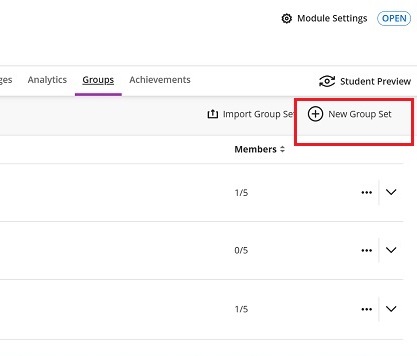
a. Click on the Groups tab and then New Group Set.
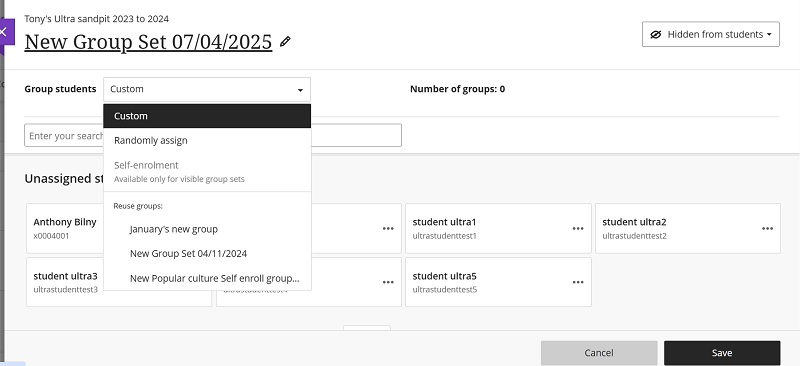
b. Click the pencil icon to edit the name of the New Group Set. We recommend a descriptive name for the Group Set for example: Seminar Groups, Project Groups.
c. Now select the type of Group from the drop down list - choose Custom.
d. Add a new group within the set by clicking the purple Plus Icon (located under the list of Unassigned Students).

e. Each time you click on the Plus Icon a new Group will be created, by default these are named: New Group 1, New Group 2 etc. It is recommended that these are renamed and also add a description for clarity for students (and staff).
f. Add the Students to each custom group by clicking on the three dots more on a student name from Page 1 of the Unassigned Students; do this individually or multiple students at once - if more than one is selected it will add all of the participants to the group.

g. Click Save.
Essential Tips:
- Ensure to add the students to a group by selecting 3 dots more on any student highlighted before clicking the Save button.
- Select multiple students - use keyboard shortcut - Ctrl + F (find function) to locate a student from page 1 - It is not possible to view all students at once.
- Any student added to a group will not show in the Unassigned list once allocated.
- View more Unassigned students by changing the Items per page from 48 to 96.
- More Groups can be created by clicking the three dots on a student then selecting Create a new group.
- You can select students from the list of Unassigned Students on subsequent pages but it will cancel any highlighted students if you change page.
- If you move students into another group these will also move their group discussions and assessments.
- Please Note: It is not currently possible to reorder the groups order.
a. Choose to Randomly assign the students using the drop down menu when creating a new group set.
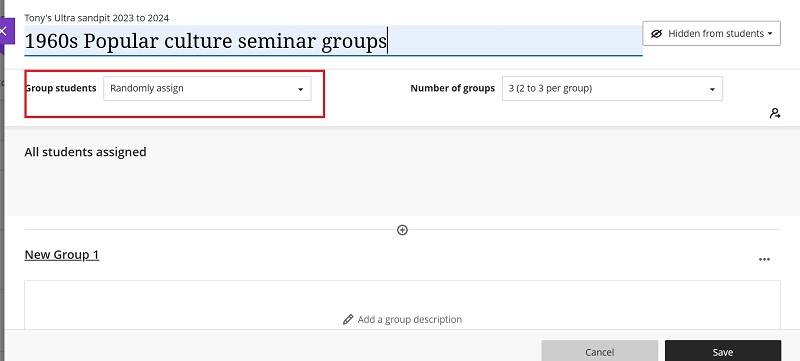
b. Students will be allocated to the number of groups created.
Please note:
- If you move students into another group these will also move their group discussions and group assessments.
This is the workflow to set up a Group with Self-Enrolment
a. Self-enrolment allows students to sign up to a group. Start by clicking on Group tab in the menu across the top your module or community.
b. Select the button to add a New Group Set:

And edit the following areas:
- Rename group set
- Make visible to students (to activate the option for Self-enrolment)
- Choose Self-Enrolment from the drop-down
- Add a description to let students know the purpose of the group

c. Select the Advanced Options and apply the self-enrolment start and end date.
d. Enter the maximum number of students per group.
e. (Recommended) Select the option to Auto-enrol members at the end of the enrolment period to ensure all students are allocated a group, in case a student forgets to self-enrol.
f. There is an option to Hide enrolled members, this allows you to hide students names from other students.g. Select Save and an automatic Announcement (plus email) will be sent all the students on the module/community, inviting them to sign up to the groups.
h. You can view or edit this announcement if required via the Announcements menu.
Please note:
- If you delete a self-enrol group, the announcement will remain (editable) and the email (not editable). You can delete the announcement but not the email. When students click through to the Groups it will be blank.
- If you move students into another group this will also move their group discussions and group assessments.
Important notes about sending messages to groups:
- Messages are Read Only meaning that students are unable to reply
- There is an option to send the message to Email
- Only the instructor who sent the message will see it in the Messages tab
Enable Messages for Groups
a. Go to Groups and your Group Set.
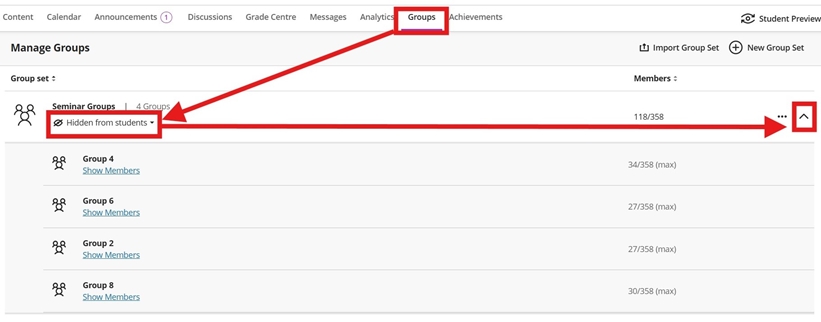
b. Change the setting that controls the visibility 'Hidden from students' to 'Visible to students'
Send a message to an individual group
a. Use the drop arrow to expand the view all groups within the set.
b. The email icon will be visible for each group. Please note: only members of the Group will see the message.
To send the same message to all Group Set or several Groups
a. On the group set, go to the three dots more.
b. Select the Send Message
c. In the Message Recipients section, there is the option to remove specific Groups by selecting the cross.

How do students in a group see the message?
Notification of new messages are visible to students in couple of places within MyBeckett.
a. Main Menu on the MyBeckett homepage under Messages a notification bubble indicates and shows messages

b. Within the module menu under Messages, a notification bubble is displayed.

We recommend creating your module groups following the steps above before creating a group assignment. After the groups are created you can create a Blackboard assignment.
To assign groups to the assignment:
a. Click the cog icon in the top-right corner of the assignment window to open Assignment Settings.

b. Scroll down to Additional Tools and click Assign to groups.
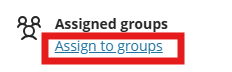
c. Click the Group students drop down menu. You have four options to choose from:
- Custom: Manually create groups and assign students (follow steps mentioned above in this guide)
- Randomly assign: Blackboard automatically distributes students evenly across groups (follow steps mentioned above in this guide)
- Self-enrolment: Students choose their own groups during a set enrolment period (follow steps mentioned above in this guide)
- Reuse Groups: Use existing group sets from other assignments or discussions. Recommended option
Please note:
- You can only re-use visible group sets
- You must have at least two groups for the assignment to be valid
d. When you have finished selecting the groups click Save.
e. The Assignment Settings panel with show the number of groups assigned to the assignment. Click Save.
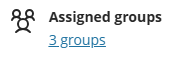
f. The assignment link will also show the groups are assigned on the content page.
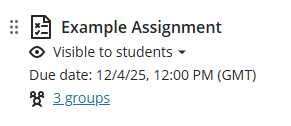
Student Experience
- Students see the group assignment on their module content page
- They can view group members, collaborate, and save drafts
- Only one member needs to submit the final work
- All group members receive the same grade (unless manually adjusted)
We recommend creating your module groups following the steps above before creating a group discussion. After the groups are created you can create a Discussion.

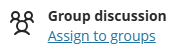
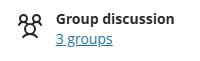
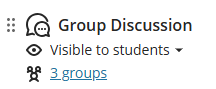
To assign groups to the Discussion:
a. Click the settings cog icon in the top-right corner of the assignment window to open Discussion Settings.
b. Scroll down to Additional Tools and click Assign to groups.
c. Click the Group students drop down menu. You have four options to choose from:
- Custom: Manually create groups and assign students (follow steps mentioned above in this guide)
- Randomly assign: Blackboard automatically distributes students evenly across groups (follow steps mentioned above in this guide)
- Self-enrolment: Students choose their own groups during a set enrolment period (follow steps mentioned above in this guide)
- Reuse Groups: Use existing group sets from other assignments or discussions. Recommended option
Please note:
- You can only re-use visible group sets
- You must have at least two groups for the assignment to be valid
d. When you have finished selecting the groups click Save.
e. The Discussion Settings panel with show the number of groups assigned to the discussion. Click Save.
f. The discussion link will also show the groups are assigned on the content page.
Student Experience
- Students see only their group’s discussion
- They can reply, interact, and build on each other’s ideas
- If marked, each student receives an individual mark and feedback
You can bulk create groups or add group members in Ultra courses by importing a CSV (comma-separated values) file.
- This method also allows you to export groups and/or members to a CSV file.
- Using templates to create and add members is a two step process:
Step 1. Group Set creation via a template
- Export (download) the template
- Edit the spreadsheet, rename and save
- Import (upload) your template
Step 2. Import students to Groups via the template
- Export (download) the Group Set template
- Add your students to the specific groups in the spreadsheet, rename and save
- Import (upload) your template
Step 1 - Download the Group Set Template
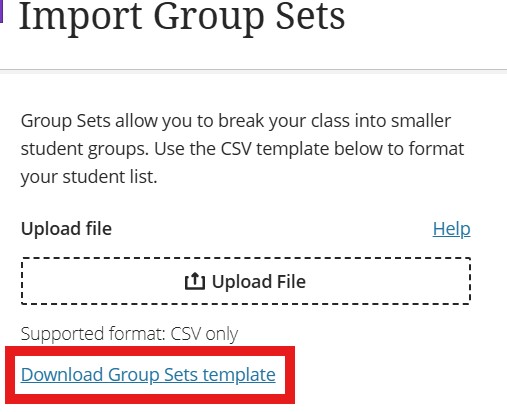
a. Select the Groups tab and select Import Group Set.

b. Download the template by clicking on the blue hyperlink underneath the upload file area. The file type will be in the correct format (CSV file) and is editable in Excel, find this in your downloads the file is called 'Sample_groups.csv'.
c. Now open the template, it will open in Excel. Below is an example of the downloaded CSV template in the unedited form - you will need to expand each column to see the example text.
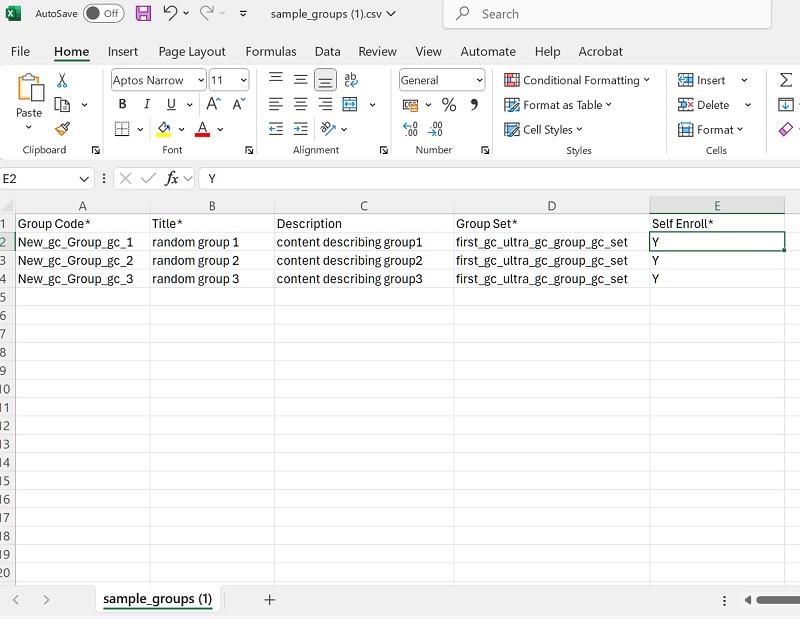
d. Before editing the template, here is an explanation to understand the Columns an asterisk* in the column name which indicates essential data..
Column A: Group Codes* are unique alphanumeric identifiers used only for import purposes.
- Group codes provide a unique way to identify each group in case they have the same name.
- You can assign any group code you want.
- In Excel it is easy to create more codes by dragging the corner of the cell.
Column B: Title* add the name of the group within the group set.
- The Group name should be easy for both students and instructors to understand at a glance.
Column C: Description, additional information such as the purpose of the group (for example the Seminar day and time).
Column D: Group Sets* are smaller student groups within the group set.
Column E: Self enrol* change the default as needed to Y/N.
- Y = Yes if you want students to be able to self enrol into groups;
- N = No if you want to assign students to groups yourself.
The example below is an edited version of the template to mirror seminar groups:
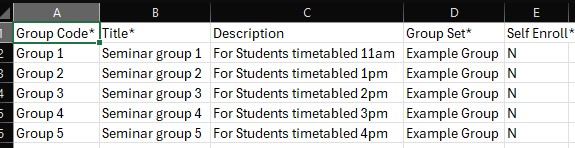
e. Save and rename your Group Set template in excel (keep the same file format CSV). Now you can add your template via Upload File and select Import.
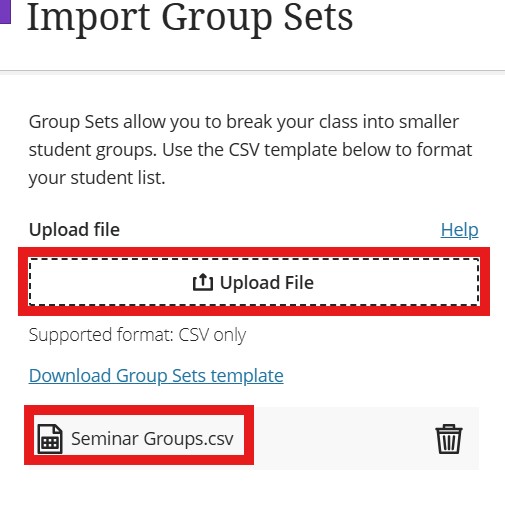
f. You will receive an email when this has been processed or you can refresh your screen to see if it has completed the upload.
Step 2 - Import members using a template
a. In Groups, navigate to the Group Set you have created and then select the Import icon.

c. Now select the tab called Assign Members and then Download members template (blue hyperlink under Upload file area).
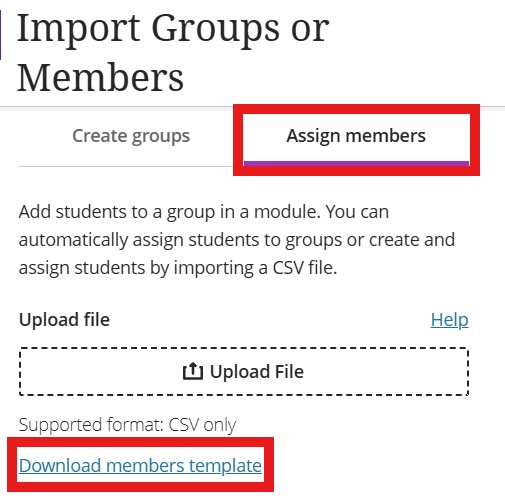
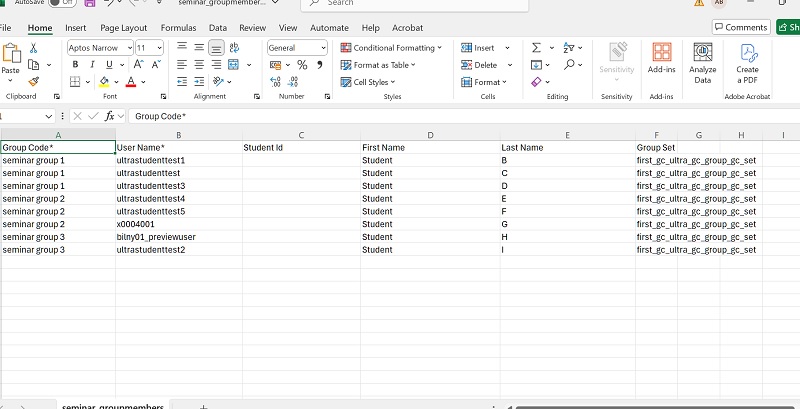
b. Open the downloaded template called 'sample_groupmembers.csv' (this is an editable excel template with example students), you will need to expand the columns so you can see the text.
- Edit the information. You can find the information from the timetable system.
- Students usernames start with a letter followed by 7 numbers (for example - c1234567)
This time the important column headings are Group Code*, User Name* and Group Set*
Then we upload the file as before:
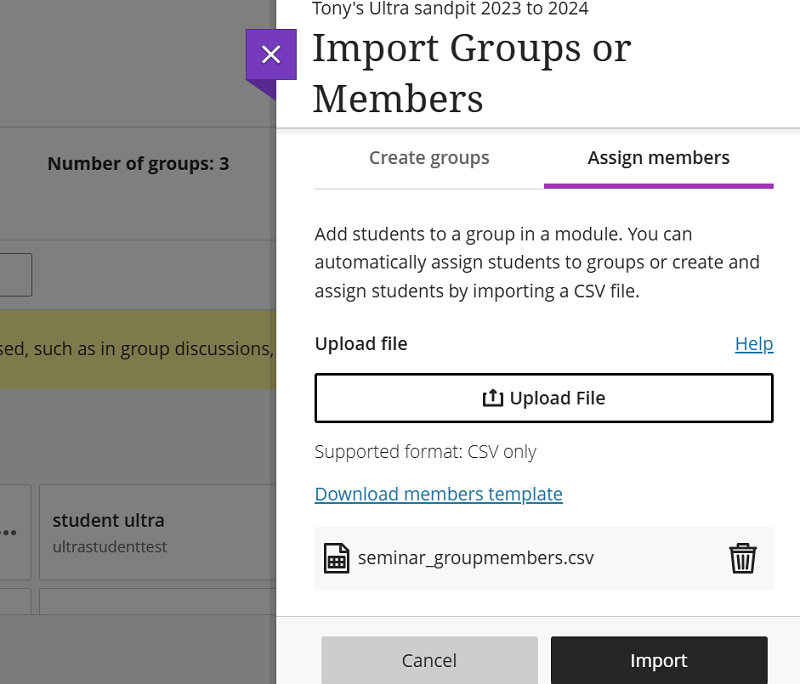
And as above click Import.
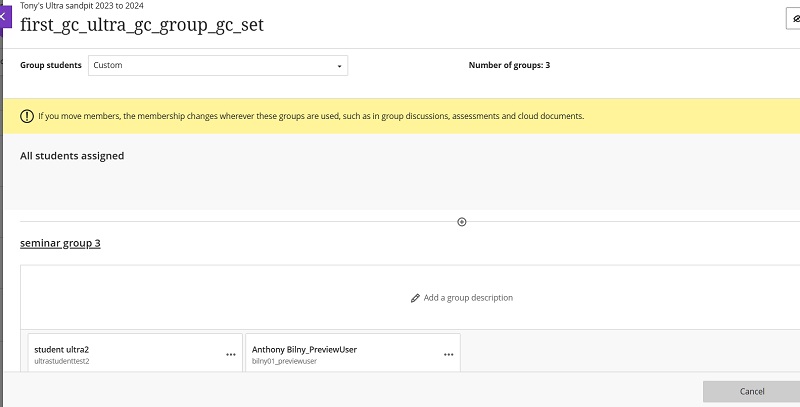
The below screen shot shows that the members have been assigned. You will receive a confirmation email of the import as before, which in the case of an unsuccessful import, will list errors that were found in the CSV file (e.g. the required columns were not found):
Export Groups
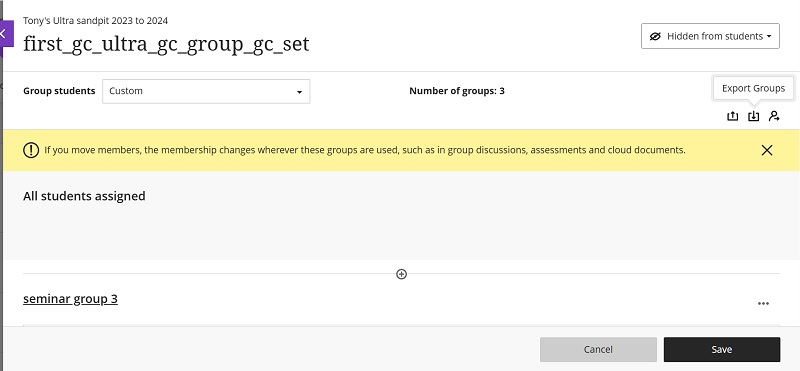
Once a group has been created then you can export a group, both set and group members or either. Click Export Groups, the middle icon as shown below:
Moving members
A small note here about moving members in groups. As the above yellow highlighted text notes moving group members will result in a change that will affect anything associated with that group - i.e. assessments etc.
Select whether you'd like to export group set or members (or both) Then we create our CSV file which unlike importing a group set/members the CSV file will be created for you to export (i.e. download a copy):

Once this is done click Export File. The below screen shot shows that after this has been created (a blue confirmation message should appear that it may be queuing as before) we click the Export tab. Please note we will need to go from the above clicking Export groups when we are in a Group set:





