Leeds Beckett University - City Campus,
Woodhouse Lane,
LS1 3HE
Creating DISCUSSIONS | ULTRA

Creating Discussions in Ultra
This staff guide provides instructions on how to use the discussion boards function in your MyBeckett Ultra module/community.
Discussions are a useful function in student group work, for creating a collaborative space of sharing, as a marked assessment or assignment.
You can create discussion in two ways:
- From the Discussion tab
- From anywhere in the course content area by using Create Content
In this guide
- Create discussions
- Organise discussions with folders
- Use auto-generative discussions (Optional)
- Review discussion settings
- Mark discussions and track participation
- Monitor student activity and message non-participants
Create a discussion from the discussions tab
a. Open the Discussions tab (at the top of the module/community page)
b. Select New discussion or Add Folder (folders are used for different forums or topics)
c. Select Save
d. Make the discussion Visible to Students.
Use folders to organise discussions
a. Select Add Folder
b. Enter a name and description
c. Select Save
d. Create new discussion within the folder or drag existing discussions into it.
Create a discussions in the content area
a. Select the + icon
b. Choose Create
c. Under Participation and Engagement, select Discussion
d. Enter a meaningful title
e. Add an opening post if required
f. Select Save
g. Make the discussion and any folders Visible to students.
Edit a discussion
a. Select the pencil icon to rename a discussion
b. Update the title or opening post as needed
c. Ensure the discussion is visible, as new discussions are hidden by default.
Reply to a discussion
a. Open the discussion
b. Type your response in Post a response to the discussion
c. Select Post. A notification icon will appear when new replies are added.
Follow a discussion
- To receive notifications emails choose Follow on each Discussion Topic
- You can stop the notifications emails by choose Unfollow.
Allow students to create discussions
a. Open the Discussions Settings cog
b. Change the permission check the box to allow students to create discussion topics andclick Save.
Auto-generate a discussion (optional)
a. Select Auto-generate discussion
b. Optionally choose specific module content with Select module items
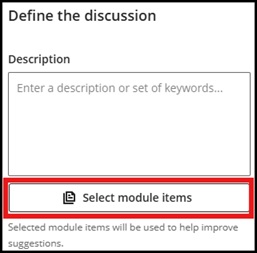
c. Add a description (limit is 2000 characters)
d. Select the desired cognitive and complexity level. (The cognitive levels are based on Bloom’s Taxonomy)
e. click Generate.
f. Choose a generated discussion and select Add
g. Review and edit the title / opening post (to be reader friendly)
h. SelectSave
i. Make the discussion visible to students.
Review Discussion settings
After creating a discussion:
a. Open the discussion (tab). Select the Discussion Settings cog
b. Review available options, including:
- Anonymous posts and replies(not recommended)
- Group discussions (see Creating Groups)
- Marked discussions (assessments)
Marks and Participation
When a discussion is marked got to the Grade Centre list view and open the discussion.
a. A Marks & Participation tab is added
b. You can set a Due Date and Marking scheme
Monitor Student Activity
The Student Activity tab which shows who has and hasn't contributed.
You can send reminders to non-participants by selecting the envelope icon and sending a message directly from the activity screen.