

Leeds Beckett University - City Campus,
Woodhouse Lane,
LS1 3HE
Add a resource
Page last updated:
This guide provides information for staff adding content to PebblePad's Resources Store.
You need to be a Tutor on the workspace to be able to add resources.
a. Login to PebblePad (see our guide for help).
b. At the top of the screen, click the blue globe icon to open ATLAS.

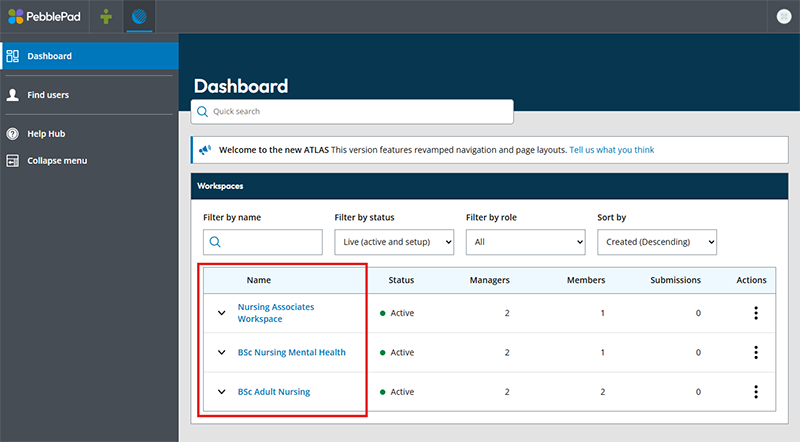
a. In ATLAS, click the name of the Workspace where you want to add a resource.
If you don't see any workspaces listed, contact the Digital Learning Service (details at the bottom of this page).
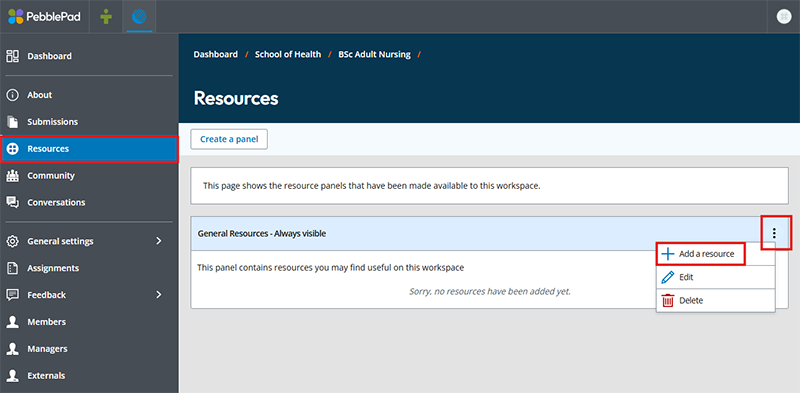
b. Click Resources (from the left hand menu), then click on the triple dot menu to the right of the General Resources section. Click Add a resource.
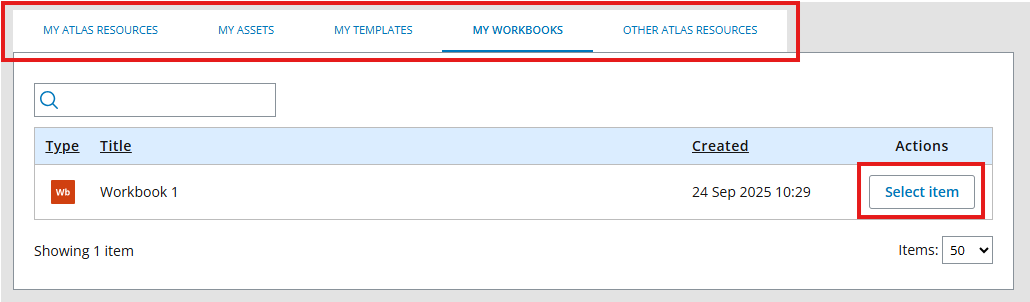
c. Choose a relevant tab where you can find your resource, then once you have located your resource click Select item.
d. Next you will see the resource settings page. If you would like your resource to automatically share to your ATLAS assignment when saved by a student (recommended), select Yes for the setting: 'Would you like to prompt the user to auto-submit the workbook when saved?'. Tick the box next to the statement 'I have read this information and wish to continue', then click Continue.
When you have added a resource to your workspace, it will be available to your workspace members via their Resource Store.
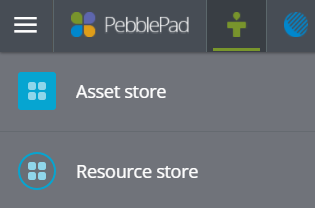
Once a student has saved the template, their work will be saved in their Asset Store. Student help is available on the Library website.





