

Leeds Beckett University - City Campus,
Woodhouse Lane,
LS1 3HE
Create a PeerMark assignment
Page last updated:
Turnitin's PeerMark tools can facilitate students reviewing the work of their peers. Follow the steps below to set up a PeerMark review assignment.
PeerMark can be enabled when creating a Turnitin assignment or from within the assignment inbox.
Enable PeerMark when creating a Turnitin assignment.
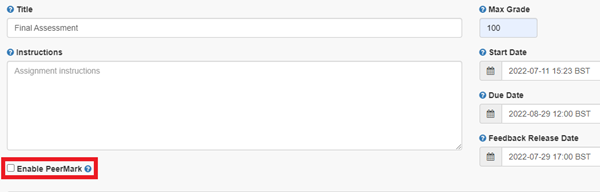
a. In the assignment settings, select the Enable PeerMark check box.
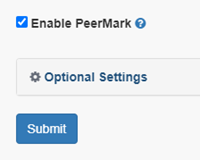
b. Click Submit.
Enable PeerMark from within the assignment inbox.
a. Navigate to the assignment inbox where you want to set up PeerMark.
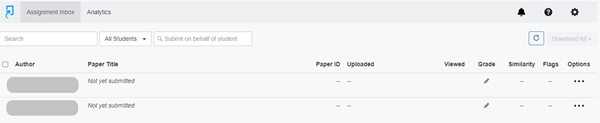
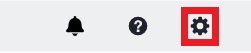
b. Click the cog icon (settings option) in the top right menu of the assignment inbox.
c. Select the Enable PeerMark check box.
d. Click Submit.
Use the guidance below to access PeerMark Setup and choose your PeerMark assignment settings.
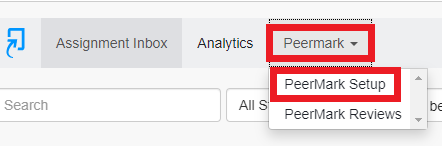
a. Select the PeerMark drop-down that appears in the assignment inbox menu and click PeerMark Setup to adjust the PeerMark assignment settings.

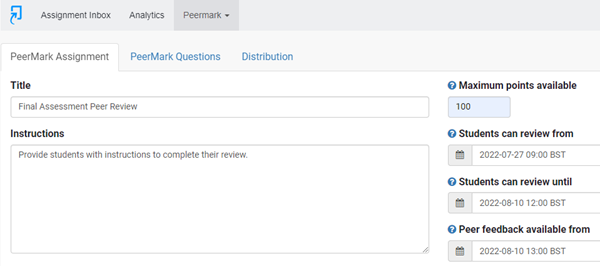
b. In the Title box, type what you want the PeerMark assignment to be called.
c. Type Instructions for your students. These are displayed within the Turnitin assignment inbox.
- Recommendation: Give students as much guidance as possible.
d. Type how many marks students can be awarded for the peer review section of an assignment in the Maximum points available box.
- Recommendation: Set this to 100 and work out any weightings in Grade Centre.
e. Fill in the following dates.
- Students can review from. This is the date and time students can start reading papers and writing reviews.
- Students can review until. This is the date and time students need to hand in their reviews by and can no longer write reviews.
- Peer feedback available from. This is the date and time students can begin viewing feedback left by their peers.
Important: The Due Date of the base Turnitin assignment needs to come before the Students can review from date and time of the PeerMark assignment.
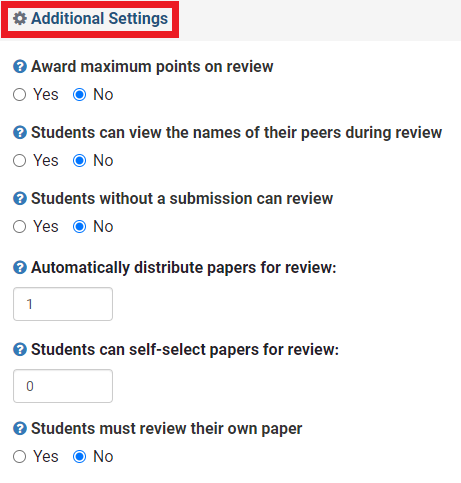
a. There are a number of Additional Settings available, here is an explanation for each:
- Award maximum points on review. If you select Yes, students get full marks for completing a peer review no matter what the content is.
- Students can view the names of their peers during review. If you select Yes, students can see whose work they're reviewing and who reviewed their work.
Recommendation: Select No, as it introduces the possibility of bias. - Students without a submission can review. If you select Yes, students who haven’t submitted anything are able to review a peer’s work.
- Automatically distribute papers for review. Automatically distributes submissions randomly among students. You can choose how many you want them to review, enter 1 as a minimum. You can also pair your students' submissions via the Distribution tab.
- Students can self-select papers for review. Determines how many submissions students are able to choose to review. If you prefer that students don't have this option, enter 0. You can also allow them to choose one of their own to review and use the previous setting to automatically distribute one.
- Students must review their own paper. If you select Yes, students are required to review their own submission after they complete all other assigned reviews.
b. Click Save & Continue.
a. Now you'll create the questions students have to answer as part of the review. Click the PeerMark Questions tab.
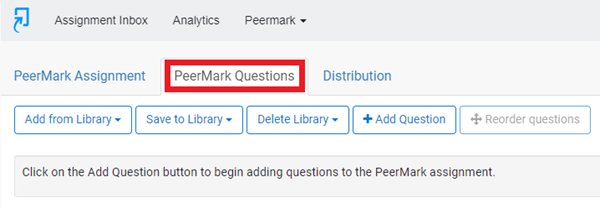
b. Click +Add Question.

You can now choose from two question types:
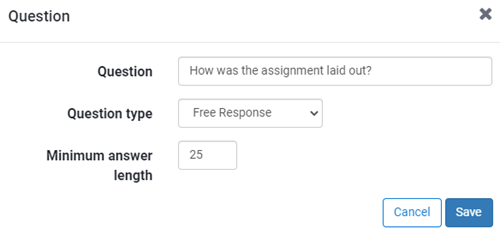
- Free Response. Provides students with a text box in which they review the assignment based on a question you specify. You can set a Minimum answer length (number of words) that students must type in order to be able to submit a review. Click Save to add the question.
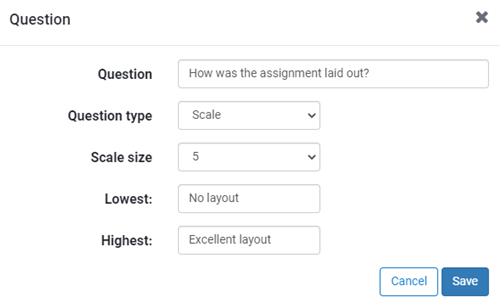
- Scale Question. Create a likert scale so students can rate how well the assignment matched the criteria. Enter details and click Save to add the question.
c. You can also use pre-generated questions and save your own questions for later use.
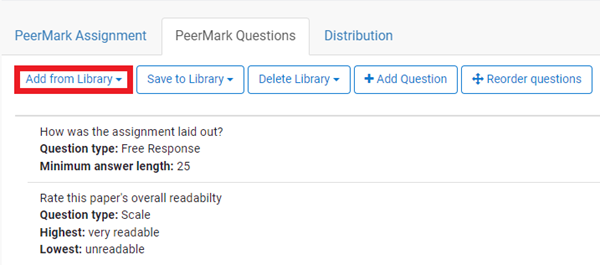
- Add from Library allows you to add questions that you've previously saved. There's also a Sample Library pre-loaded with common questions. Tick the question you want to add, or click Toggle All at the bottom left to select all questions. Once you've selected a question, click Add Selected Questions.
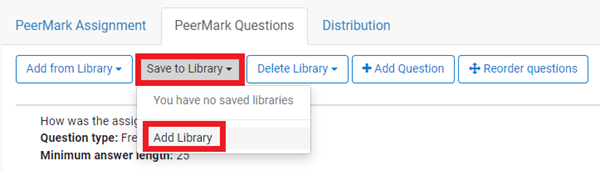
- Save to Library: You can either save to a library you've created or add a new library. To completely overwrite an existing library, click the library name. A message informs you this will overwrite all questions previously saved to this library. If okay, click Confirm.
If you don't want to overwrite an existing library, you can click Add Library, type a name for it and click Save to Library. A new library is created with the questions inside.
- Delete Library allows you to delete libraries you don't want. Click the library you want to delete. Click Confirm.

d. The questions you've selected appear in the PeerMark Questions tab:
- To delete a question, click the Bin button to the right of the question, then click Confirm.

- To edit a question, click the Pencil button to the right of the question. Make your changes then click Save.

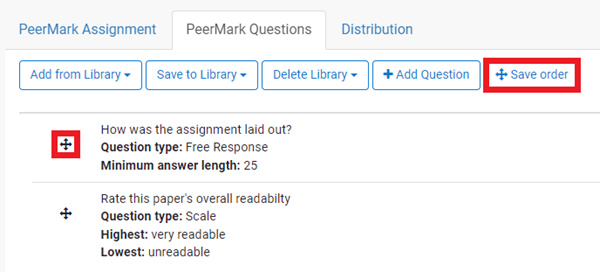
- To change the order of your questions, click Reorder Questions, then drag and drop the questions into place. When you're happy with the order, click Save Order.
a. Finally, in the Distribution tab, you can manually distribute submissions among students.

b. You can see how many submissions are assigned to a student.
- Forced: Number of submissions you have manually assigned to a student.
- System assigned: Number of assignments automatically assigned by Turnitin (controlled by the Automatically distribute papers for review setting).

c. To manually pair students, search for student names in the search bar at the top of the window. Or, you could use Filters & Settings to show a specific group of users.

d. You can exclude students from PeerMark reviews by clicking the red minus button next to the student’s name.

e. You can include them again by clicking the green plus button. This only appears if they're currently excluded from the review.

f. Finally, you can click the blue plus button next to a student's name to select a student to pair them with.

g. To unpair students, click the blue minus button next to the student name, then click the name of the student you want to remove.

h. When finished, click Confirm.
Please note *If a PeerMark assignment has been enabled in error and students have already submitted to the assignment, we recommend bulk downloading the submissions before deleting the PeerMark assignment in case any submissions are removed. *
If you have only one PeerMark assignment set up that needs deleting.
a. Navigate to the Turnitin assignment inbox.
b. Click PeerMark and then PeerMark Setup.
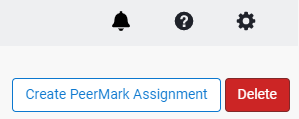
c. Click the red Delete button at the top-right of the PeerMark setup page.
d. You will see a confirmation box appear on the screen. Click Confirm.
If you have more than one PeerMark assignment set up.
a. Navigate to the Turnitin assignment inbox
b. Click PeerMark and then PeerMark Setup.
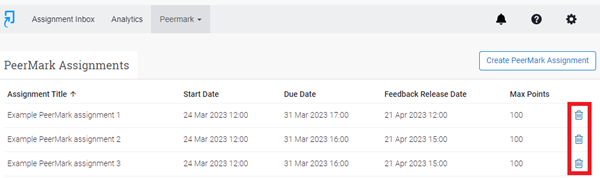
c. Click the blue bin icon to the right of the assignment you'd like to delete.
d. You will see a confirmation box appear on the screen. Click Confirm.
e. A green status bar will appear to say the PeerMark assignment was successfully deleted.





