

Leeds Beckett University - City Campus,
Woodhouse Lane,
LS1 3HE
Create a Blackboard assignment | Ultra

Page last updated:
This staff guide will show you how to create a Blackboard assignment in your Ultra module.
The Blackboard assignments tool allows you to create assignments, view student submissions and mark and provide feedback online. If you are not teaching on an Ultra module please see our alternative Blackboard assignment guide.
When should I use a Blackboard assignment?
Blackboard assignments are different to Turnitin assignments, in that they don't provide Similarity Reports. You should use a Blackboard assignment when you need students to submit files larger than 40Mb, URLs and file formats that are not supported by Turnitin.
a. In the module navigate to content area you would like to add a Blackboard assignment and click the plus icon.

b. Click Create.
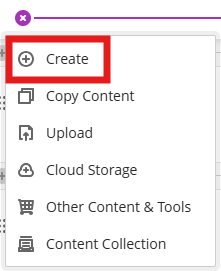
c. In the Create Item panel click Assignment and the new assignment page will open.

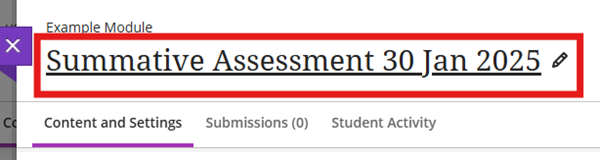
d. Enter a Title, make it descriptive so students can easily find it within the module content.
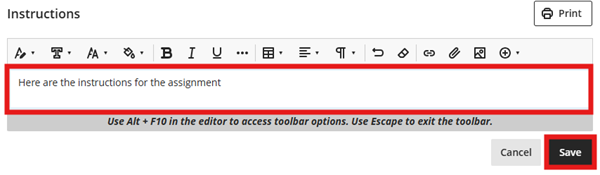
e. Add any instructions to the Instructions box and click Save.
f. Some default settings will have been applied to the assignment, you can view these in the Assignment Settings panel. You can amend any of these settings by clicking on the relevant link. See the next section of this guide for all assignment settings.
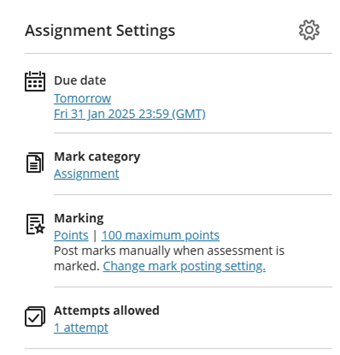
When creating or editing a Blackboard assignment you can access all the assignment settings by clicking the cog icon in the panel on the right of the page.
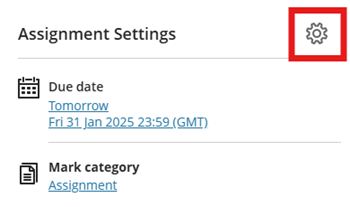
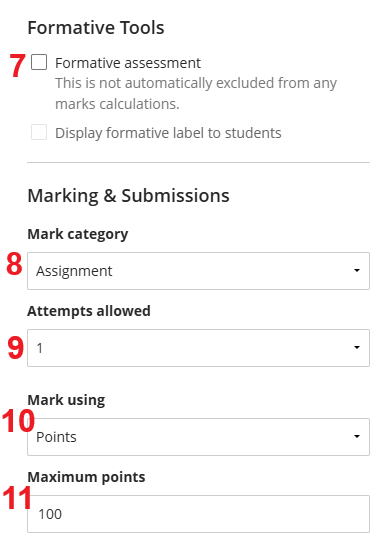
The following assignment settings are available

- Due Date - Set the due date and time using the clock tools or type into the boxes
- No due date - Use for open ended assignments
- Prohibit late submissions - If selected, in progress attempts will be submitted automatically at the due date
- Prohibit new attempts after due date - We recommend to prevent students from beginning a new attempt after the due date, specified accommodations are still honoured
- Allow class conversations - allows students to raise questions about the assignment, more information is available in our Class Conservations guide.
- Collect submissions offline - used to mark work that does not require a submission, e.g. oral presentation delivered in person. More information in Blackboard's offline submissions guide.
- Formative Tools - choose whether to label the assignment as Formative and whether to display this to students. You can also use the Formative Filter in Grade Centre.
- Mark category - assignment is selected by default
- Attempts allowed - select the number of attempts that students are allowed. If multiple attempts is selected you can select how the final mark is calculated
- Mark using - select appropriate schema
- Maximum points - default is 100
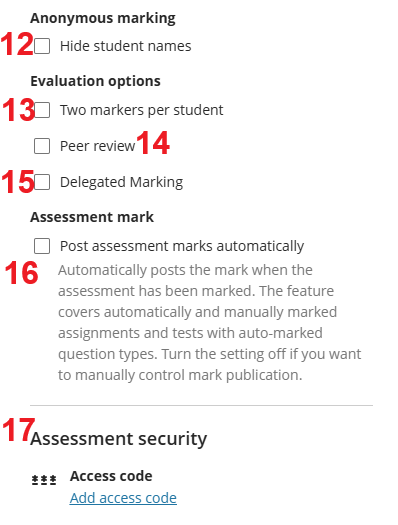
- Hide students names - tick this option to apply anonymous marking, this is not available for groups assignments
- Two markers per student - tick to enable parallel marking and assign markers
- Peer review - tick to enable Peer review which allows students to review their peers' work
- Delegated marking - tick to enable delegated marking and assign markers
- Post assessment marks automatically - untick in order to release marks manually when ready
- Access code - allows you to generate a code for students to enter before taking the assessment. This code is generated automatically by the system
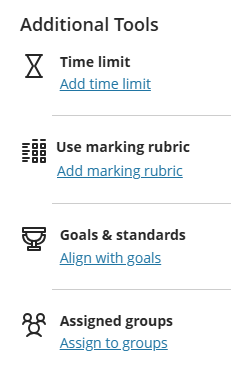
There are Additional Tools available to customise your Blackboard assignment via the assignment Settings cog.
- Add Time limit - it is possible to add a time limit to an assignment, a time limit can keep students on track and focused on the assignment. Each student has a limited amount of time to submit.
- The assignment attempts are saved and submitted automatically when time is up
- You can also allow students to work past the time limit for all students to work after the time limit expires. When the initial time expires, tell students that work submitted after the initial time limit may receive partial credit (the options are: +50% /+100% / unlimited extra time)
- Time limits can only be added to individuals, not a group assignment
- On marking there is a blue indicator that shows 'PAST TIME' (top right)
- Add marking rubric - create and attach a rubric or select a previously created rubric. More information in the Blackboard rubrics section in this guide or Blackboard's rubrics guide.
- Align with goals - this tool is currently not in use at the university
- Assign to groups - create an assignment for one or more module groups. More information is in the Creating Groups section of Teachlearn.
What are Blackboard accommodations, exceptions and exemptions?
- Accommodations allow students to have individual assessment due dates or time limits for all their assessments within the module. Accommodations can be applied via the Class Register (see below) or Grade Centre.
- Exceptions allow instructors to grant students alternative due dates, extended access or additional attempts for a specific Blackboard assignment or test. Exceptions can be applied via Grade Centre, please see the relevant section in the Grade Centre Guide.
- Exemptions allow instructors to exempt a student from completing an assessment. Exemptions can be applied via Grade Centre, please see the relevant section in the Grade Centre guide.
The following shows you how to add Accommodations via the Class Register:
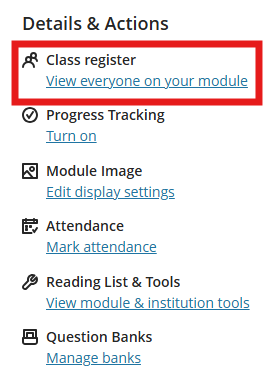
a. Locate the Class Register in the module menu and click the View everyone in your module link.
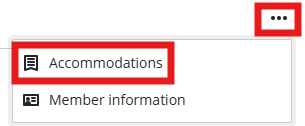
b. Locate the student you wish to add accommodations for, click the 3 dots and select Accommodations.
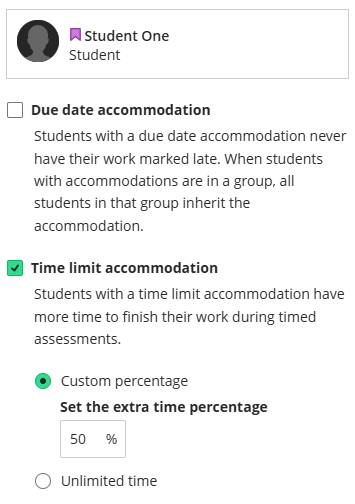
c. In the Accommodations panel you can add the following accommodations:
- Due Date - students will never have their work marked as late
- Time limit - you can select unlimited or specify the percentage of extra time needed
d. When finished click Save and the Accommodations panel will close. If you add a time limit accommodation after students have started submissions, you will see a pop up warning that time limits for previously submitted work will update, click Add to continue.
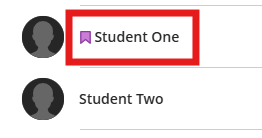
e. In Grade Centre and the Class Register the student's name will now show a purple ribbon icon to indicate an accommodation has been set. This is only visible to instructors.
See Blackboard's guide to accommodations for more information.
Students cannot see an assignment until you choose to show it.
a. Locate the assignment within the module content page.
b. Click the Hidden from students link.
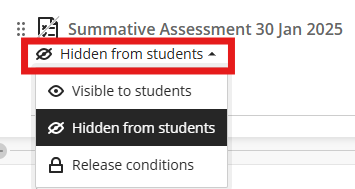
c. Select Visible to students.
d. You can also control the visibility of content items using the following Release conditions:
- Release content by module groups
- Release content by date
- Release content based on performance
More information is available in our Release Conditions guide.
This staff guide will show the steps of creating a rubric for Blackboard Assignments in an Ultra module. This is different to Turnitin assignment rubric, please refer to the following guide on how to create a rubric for a Turnitin assignment.
Rubrics consist of rows and columns in a grid that are indicators for personalised level of achievement for a piece of work.
- Rubrics allow students to view detailed feedback, helping them understand how their assessment is evaluated against specific criteria.
- Rubrics speeds up marking and providing feedback.
- Share rubrics with your colleagues via copy rubrics into other modules.
There are several types of rubrics.
- Qualitative: No-points rubrics based on those in module handbooks
- Quantitative: Percentage/Points based rubrics or a range rubrics [Blackboard Help Guide]
How to create a Qualitative rubric
A qualitative no-points rubric, to use in marking to provide feedback only with a separate mark for the submission. This can be added before marking commences or at the point of creating your Blackboard assignment submission link.
This rubric is the same layout as in the module handbook, it contains the rubric for each level of a course and is relatively easy to copy the same format into this electronic version.
a. Start in your module and go to Grade Centre.
b. Select the Settings cog.
c. Scroll down to the section Module Rubrics.
d. Select Create.
e. Rename your rubric, the default is New Rubric / Date; it is recommended to include the information such as level and year (this is so you can distinguish each rubric to reuse, duplicate a copy and edit each year thereafter).
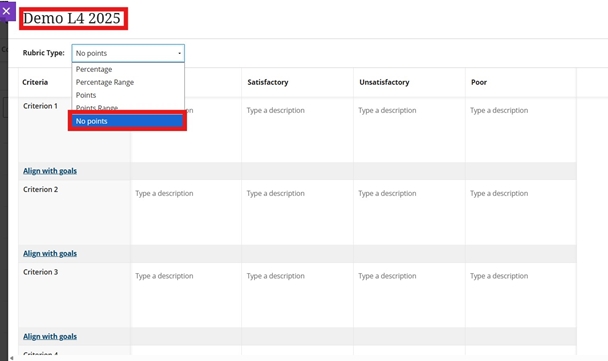
f. Change the Rubric Type to Select No Points from the drop down menu (the default is set to Percentage).
g. Edit Column headers to match the handbook: 80+, 70-79, 60-69 etc. Add extra columns via the Plus icon between each cell.

h. Edit each Criterion – hover over the cell to activate the hidden edit tool and rename to match your handbook for each. Try copy and paste over from the handbook. Note: Pressing Enter on your keyboard will save the edit and you will then go to the next Criterion or Cell.
i. Then do the same for each cell in the row, copy and paste the information into the description box, ensuring the correct cell is selected under each Row/Column header.
Attach a rubric
a. Open the Blackboard Assignment.
b. Open the settings cog.
c. Scroll down to the Additional tools section Use marking rubric.
d. Select Add marking rubric.
e. Any rubrics you have created will be listed, either select View and/or Add





