Leeds Beckett University - City Campus,
Woodhouse Lane,
LS1 3HE
Release conditions | Ultra
Page last updated:
Release conditions allows you to create rules to determine when module content is released to students
Release conditions is the new version of adaptive release (which was a tool in Blackboard Original).
When release conditions are applied to module a content item, only users who meet your chosen rules will be able to view these items. For example:
- If you only want an assignment link to become visible to students after a certain date and time due to resits (this will prevent all students seeing notifications and reminders of due dates in MyBeckett activity stream, calendar, marks etc.)
- It's best not to apply multiple rules to content, because if students can't see something, it can be difficult to work out why. Use a Folder with a release condition (rather than the folder and each individual item within it all having release conditions applied).
The following conditions can be used to create a rule to determine when content is released:
- MembershipContent is released to all module members, groups or specific individuals
- Date/Time– Content is released after/before a certain date or between particular dates
- Activity - Content is released when students interact with specified module content:
- Submit or achieve a certain grade on a assignment, test or quiz
- Opened/viewed specific module content
Good examples of use:
- Apply membership: all module members and date/time to release a module feedback survey halfway through the module to all students
- When creating Turnitin assignments with different due dates for students with extra time allowances, use the membership (groups) criteria so that students only see the Turnitin assignment relevant to their specific adjustment plan
- In a Blackboard Test, create a short answer essay question where the correct answer feedback content becomes visible after the student submits their answer. Use Activity (select module test and attempt submitted.)
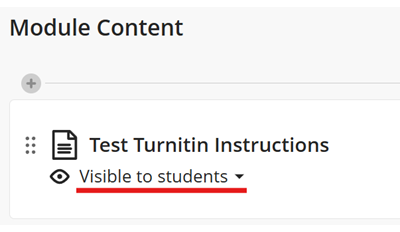
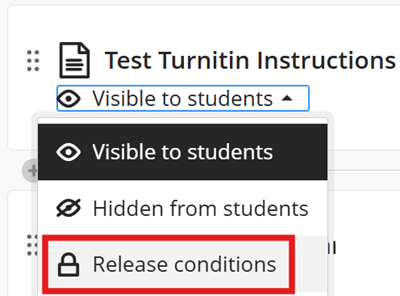
a. To apply release conditions, first locate the module item within the module and click on the drop-down arrow next to the current visibility setting.
This image shows a document (content item) with the drop-down menu - Visible to students - select this to open the menu.
b. Select Release conditions.
c. On the Release conditions page, you can edit the conditions to determine when the item will be made visible and two specific students.
- It's best not to create multiple rules, because if students can't see something, it can be difficult to work out why.
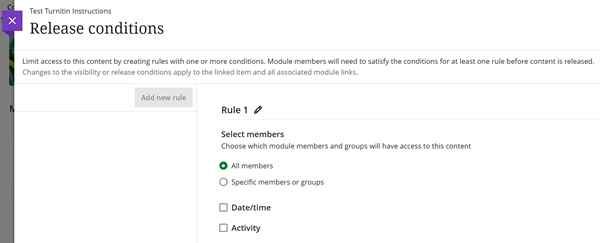
All members
Content will be released to all module members when the other conditions of the rule are met.
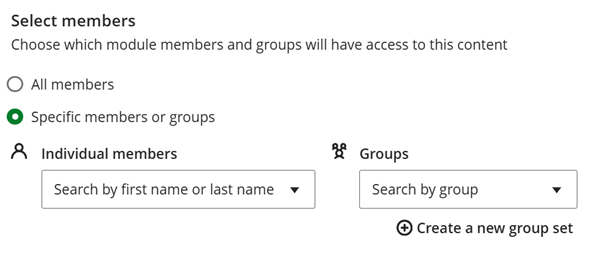
Specific members or groups
Individual members - Select specific students, multiple students can be added.
Groups - Select specific module groups, multiple groups can be added.
Both individual students and groups can be selected within the same rule.
Access from - Set the date and time when content will be made visible.
Access until - Set the date and time when content will be hidden.
Both access from and access until can be selected within the same rule if required.

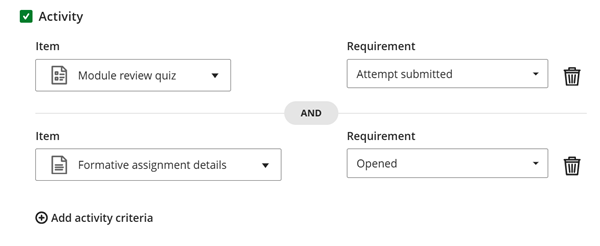
Activity release conditions can be used to make a content item visible when a student has interacted with another module content item (such as a document or test.)
- For non-markable content items there is one requirement option available, students must open/view the item.
- For markable items such as a Blackboard tests, you can specify if a student has opened the assignment, made a submission, achieved above a certain score or achieved a score within a custom range.
- For Turnitin assignments, you can specify if a student has opened the assignment, achieved above a certain score or achieved a score within a custom range.
You can add additional activity criteria, for example:
- if you want to prevent students from seeing the formative assignment submission link until they have attempted a quiz and read the assignment instructions.